Azure Files: Standard vs Premium – Which Fits Your Needs?
When you’re planning a migration to Azure or extending an on‑premises file share, the first decision you’ll face is whether to use Azure Files Standard or Premium. Both tiers deliver fully managed SMB and NFS shares, but they differ in performance, pricing, and the scenarios they’re best suited for. Understanding those nuances helps you avoid over‑paying for unused capacity or, worse, throttling a critical workload.
Key Differences Between Standard and Premium Tiers
At a high level, Azure Files Standard runs on HDD‑backed storage, while Premium uses locally attached SSDs. This hardware distinction translates into several practical contrasts:
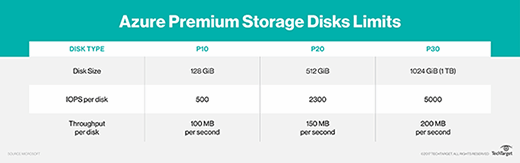
- Throughput and IOPS – Premium offers up to 80 MiB/s per TiB and 5,000 IOPS per provisioned TiB, whereas Standard caps around 60 MiB/s and 300 IOPS per share.
- Latency – SSD‑based Premium typically delivers sub‑millisecond latency, making it a better fit for latency‑sensitive applications.
- Availability Zones – Both tiers support zone‑redundant storage, but Premium adds zone‑redundant file shares (ZRS) as a native option in many regions.
- Pricing model – Standard charges per GiB of stored data and per transaction, while Premium adds a provisioned capacity component (you pay for the size you allocate, even if it’s not fully used).
These differences aren’t merely technical trivia; they shape cost‑effectiveness and reliability for real‑world workloads.
Performance and Pricing Considerations
If your application reads and writes large files frequently—think media processing pipelines or high‑frequency trading logs—Premium’s SSD backbone can shave seconds off each operation. Those saved seconds add up, especially when you’re scaling out hundreds of instances.
Conversely, workloads that involve occasional file access, archival storage, or backup snapshots usually don’t need that level of raw speed. For such scenarios, Standard’s lower per‑GiB price and pay‑as‑you‑go transaction model make it the economical choice.
One often‑overlooked cost factor is the “provisioned capacity” requirement for Premium. If you allocate a 4 TiB share but only store 2 TiB, you still pay for the full 4 TiB. Careful capacity planning—or using Azure’s auto‑scale scripts—can mitigate wasted spend.
Choosing the Right Tier for Your Workloads
Start by profiling the I/O characteristics of your apps:
- High‑throughput, low‑latency needs – Choose Premium. Examples include SQL Server transaction logs, SAP HANA, and real‑time analytics.
- Moderate I/O with burst capability – Standard can handle occasional spikes, especially when paired with Azure File Sync for caching.
- Infrequent access or archival – Standard is usually sufficient; you can also enable Azure Blob storage tiers for deeper cost savings.
Don’t forget about compliance and data residency. Both tiers inherit Azure’s built‑in encryption at rest, but Premium’s zone‑redundant options provide an extra layer of resilience for mission‑critical data.
Common Use Cases for Each Tier
Premium Azure Files shines in environments where latency directly impacts user experience or revenue:
- Hosting home directories for virtual desktop infrastructure (VDI) where users expect near‑instant file access.
- Storing container images for Azure Kubernetes Service (AKS) nodes that pull layers on demand.
- Running high‑performance compute workloads that need shared scratch space, such as rendering farms.
Standard Azure Files fits a broader set of everyday scenarios:
- Document repositories for internal teams, where occasional edits and reads dominate.
- Backup targets for on‑premises servers using Azure File Sync.
- Log aggregation for applications that write small entries intermittently.
Practical Tips for Managing Costs and Performance
Regardless of tier, a few best practices help you stay within budget while keeping performance acceptable:
- Enable soft delete and lifecycle policies to automatically tier or purge old files.
- Monitor Azure Monitor metrics for average latency and IOPS; set alerts if you approach the tier’s limits.
- Consider Hybrid setups: keep hot data on Premium shares and archive colder data to Standard or even Azure Blob storage.
- Leverage Azure File Sync to cache frequently accessed files locally, reducing read latency without upgrading the cloud tier.
FAQ
What’s the main factor that should drive my choice—cost or performance?
Both matter, but start with performance requirements. If your workload can’t tolerate higher latency, Premium is often unavoidable, and you can then optimize cost by right‑sizing the provisioned capacity.
Can I switch between Standard and Premium after provisioning a share?
Azure currently requires you to create a new share in the desired tier and migrate data. Tools like AzCopy or Azure File Sync simplify that move, but plan for a brief migration window.
Do both tiers support encryption and access controls?
Yes. Azure Files encrypts data at rest with Microsoft‑managed keys, and you can apply Azure AD Domain Services or RBAC for granular access control on both Standard and Premium shares.
Is there a size limit for Premium shares?
Premium shares can be provisioned up to 100 TiB per share, depending on the region. Standard shares support larger capacities, but the trade‑off is lower performance.