Boost Your Photos with AI Upscalers: A Practical Guide
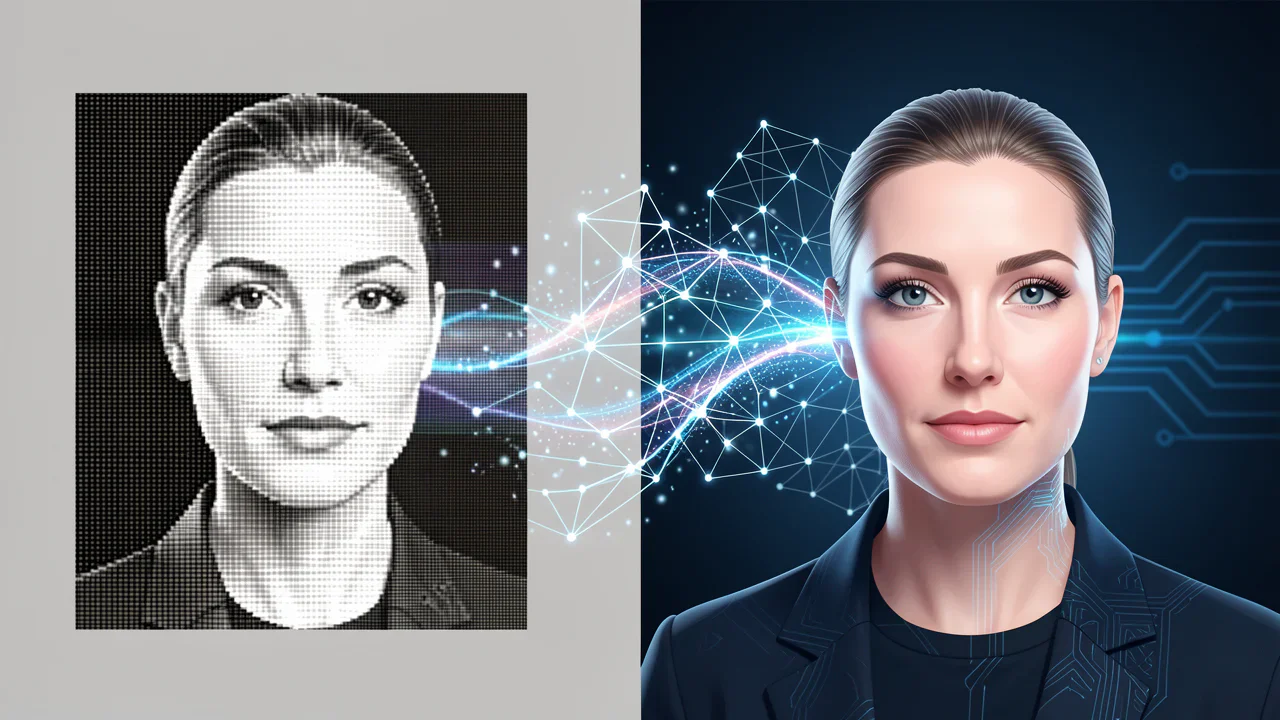
Ever stared at a blurry JPEG and wondered if there’s a way to bring out the hidden detail? AI image upscalers are the answer. They use machine learning to add pixels and sharpen edges without the pixelation that traditional scaling tools leave behind. In this article, we’ll unpack how these tools work, highlight popular options, and share tricks to get the cleanest results for everything from family albums to professional prints.
What Are AI Image Upscalers?
At their core, AI upscalers are software that predicts what missing detail should look like when an image is enlarged. Instead of simply stretching the existing pixels, they train on thousands of high‑resolution images to learn patterns—textures, edges, and color gradients—then generate plausible new pixels. The result is a sharper, more natural‑looking picture that often rivals a genuinely high‑resolution source.
How They Work: Behind the Scenes
The heart of the technology is a neural network, typically a convolutional neural network (CNN). During training, the network is fed a pair of images: a low‑resolution version and its high‑resolution counterpart. By comparing the two, the network learns to map low‑resolution pixels to their high‑resolution equivalents. Once trained, you simply input a new low‑res image and the model reconstructs a larger, more detailed output.
Two key techniques enhance performance:
- Super‑Resolution Generative Adversarial Networks (SRGANs)—use a generator and discriminator that play a game: the generator tries to produce realistic images, while the discriminator judges their authenticity.
- Edge‑aware upscaling—focuses on preserving and sharpening edges, which keeps faces and text sharp.
Choosing the Right Tool for Your Needs
There are many options, from free web services to paid desktop software. Consider these factors:
- Resolution Goals: Some tools only support up to 4× enlargement, while others can push 8× or more.
- Speed vs. Quality: Cloud services may be faster but less customizable; local applications give you finer control.
- Output Formats: JPEG, PNG, TIFF—pick one that matches your downstream use.
- Batch Processing: If you have dozens of images, look for a solution that can handle folders automatically.
Popular choices include Topaz Gigapixel AI for high‑quality commercial work, LetsEnhance.io for quick online fixes, and Upscale Media for batch processing on Windows.
Real‑World Applications: From Hobbyist to Professional
Whether you’re a casual photographer, an Instagram enthusiast, or a print shop owner, AI upscaling can save time and resources.
- Photo Reshoots: Old family photos or lost images can be revived, making them ready for large prints.
- Social Media: Increasing resolution without losing detail keeps thumbnails sharp on every device.
- Graphic Design: Designers can upscale textures and textures for high‑dpi posters or billboards.
- Archival Digitization: Libraries and museums can enhance digitized scans, preserving historical artifacts.
Tips for Getting the Best Results
Even the most advanced model can produce artifacts if the input is problematic. Keep these pointers in mind:
- Start with the highest quality source: A well‑exposed, noise‑free image is easier for the AI to interpret.
- Limit over‑enhancement: Excessive sharpening can introduce halos. Many tools offer a slider—use it sparingly.
- Check the color profile: Convert images to sRGB before upscaling to avoid unexpected color shifts.
- Use a preview: Most programs let you compare the upscaled image with the original; use this to gauge whether the trade‑off is worth it.
Common Mistakes to Avoid
Even seasoned users can fall into these traps:
- Applying the upscale to already compressed JPEGs—this can compound artifacts.
- Scaling beyond the recommended factor—most AI models perform best up to 4×; beyond that, quality drops.
- Forgetting to adjust the output resolution for print—remember that a 300 dpi print needs a higher pixel count than a digital display.
FAQ
Q1: Can AI upscalers replace a high‑resolution camera?
A1: Not entirely. While they can add detail, they can’t invent scene geometry. A good camera still captures more authentic depth and color nuance.
Q2: Do upscaling tools create fake details that might mislead?
A2: The AI predicts plausible pixels, so while the image looks sharper, it may contain hallucinated textures. Always review the output if authenticity matters.
Q3: Are there free tools that perform as well as paid ones?
A3: Some free services—like Waifu2x and Let's Enhance—offer decent results, but paid options usually provide higher fidelity, more customization, and faster processing.