Case Study: Installing ImageMagick and Using Convert
ImageMagick is a powerhouse for image manipulation, and its command‑line tool convert lets developers, designers, and hobbyists transform pictures with just a single line of code. In this case study we’ll walk through a clean installation on three major platforms—Windows, macOS, and Linux—and then dive into the practical uses of the convert command. By the end you’ll know how to install ImageMagick and use the convert command for everyday tasks, from resizing to format conversion.
Why ImageMagick Matters for Image Workflows
When you need to process batches of photos, generate thumbnails, or embed images in web pages, a GUI editor can feel slow and clunky. ImageMagick turns this into a scriptable pipeline that runs on any machine, making it ideal for automated workflows, continuous integration, and quick prototyping.
Choosing the Right Installation Path
- Pre‑built binaries for quick setup on Windows and macOS.
- Package managers (apt, brew, chocolatey) for reproducible builds.
Step‑by‑Step: Installing ImageMagick on Windows, macOS, and Linux
Windows
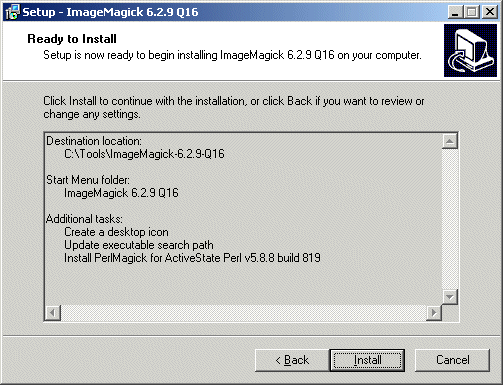
Download the official installer from the ImageMagick website. Run the wizard, ensuring the Install legacy utilities checkbox is checked so that convert is available. After installation, add the program’s directory to your PATH if the installer didn’t do it automatically.
macOS
Open Terminal and type brew install imagemagick. Homebrew will resolve dependencies and install the latest stable release. The convert binary will sit in /usr/local/bin, ready for use.
Linux (Ubuntu/Debian)
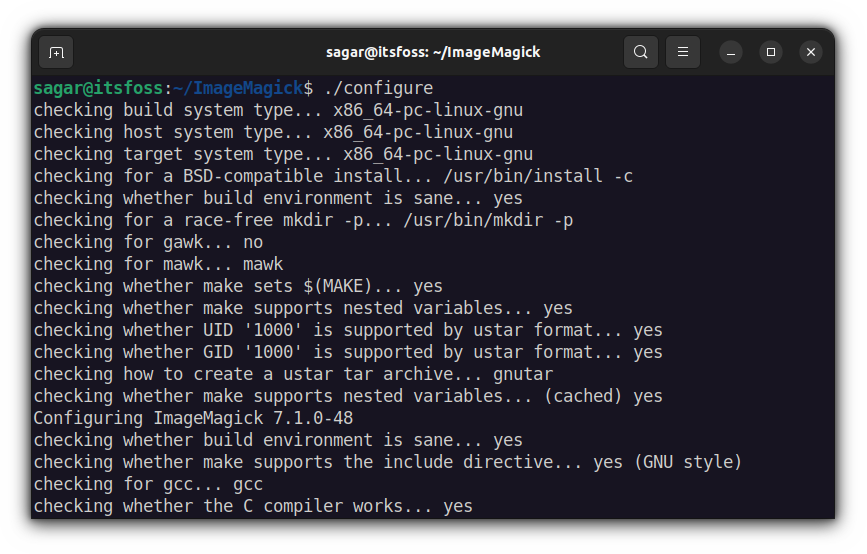
Run sudo apt-get update && sudo apt-get install imagemagick. Debian’s repository ships with a complete set of utilities, including convert. For the very newest features, consider adding the backports repository or building from source.
Verifying the Installation
Open a command prompt or terminal and type convert -version. You should see output that lists the ImageMagick version, supported formats, and the convert command’s license. If you see a “command not found” error, double‑check that the installation directory is in your PATH.
Getting Started with the Convert Command
The convert utility follows a simple syntax:
convert [options] input-file output-file
All flags are optional, but common ones include -resize, -rotate, and -format. Below we’ll cover the most frequently used patterns.
Basic Syntax
convert photo.jpg thumb.png -resize 200x200– turns a JPEG into a 200‑pixel square PNG.convert photo.png -rotate 90 rotated.png– rotates a PNG by 90 degrees.convert photo.tiff -format png -compress jpeg output.png– converts TIFF to PNG with JPEG compression.
Common Use Cases
- Batch resizing –
mogrify -resize 800x600 *.jpgresizes every JPG in the directory. - Creating thumbnails –
convert original.jpg -thumbnail 150x150 thumb.jpgkeeps aspect ratio while fitting within 150×150. - Adding watermarks –
convert background.png watermark.png -gravity southeast -composite final.pngoverlays the watermark in the bottom‑right corner. - Converting color spaces –
convert image.jpg -colorspace Gray gray.jpgcreates a grayscale copy.
Advanced Tips
- Image optimization –
convert input.png -quality 85 output.pngreduces file size without major quality loss. - Layer manipulation – use
-compositewith-gravityto stack multiple images. - Script integration – embed
convertcalls within shell scripts or Makefiles for CI pipelines.
Troubleshooting Common Pitfalls
- No convert command – the legacy utilities were not installed; re‑run the installer with the option checked.
- Permission denied on Linux – ensure the
/usr/local/bindirectory is executable by your user. - Format unsupported – some formats require external delegates; install
libjpeg,libpng, orlibtiffas needed. - Outdated version – check the website for newer releases; older binaries may lack recent flags.
Wrap‑Up: When to Use Convert vs. Other Tools
If you need a single, reliable command that works across platforms, convert is a solid choice. For GUI‑driven workflows or more complex compositing, tools like GIMP or Photoshop are better suited. For large‑scale batch processing, consider using mogrify or integrating ImageMagick into a Python