Effortlessly Mirror Your iOS 17 Screen to Any TV in Just a Few Taps
Getting the big‑screen experience from an iPhone running iOS 17 doesn’t have to feel like a tech‑savvy ritual. Whether you’re streaming a movie, sharing a presentation, or just showing off a funny video, you can mirror your iOS 17 screen effortlessly with a handful of taps or a simple cable. Below we break down the native AirPlay route, the reliable wired alternative, and a few third‑party options for TVs that aren’t Apple‑centric.
Why You’ll Want to Mirror iOS 17
Screen mirroring turns a single device into a portable media hub. It’s handy for family movie nights, spontaneous gaming sessions, or work‑related demos when a laptop isn’t around. iOS 17 adds smoother latency handling and better support for external displays, meaning the picture stays crisp and the audio stays in sync even when you’re juggling multiple apps.
AirPlay: The Built‑In Way to Mirror
Preparing Your Devices
First, make sure both your iPhone and the target TV (or Apple TV) share the same Wi‑Fi network. A recent software update on both ends reduces hiccups—iOS 17 on the phone and the latest tvOS on Apple TV are ideal.
Launching AirPlay from Control Center
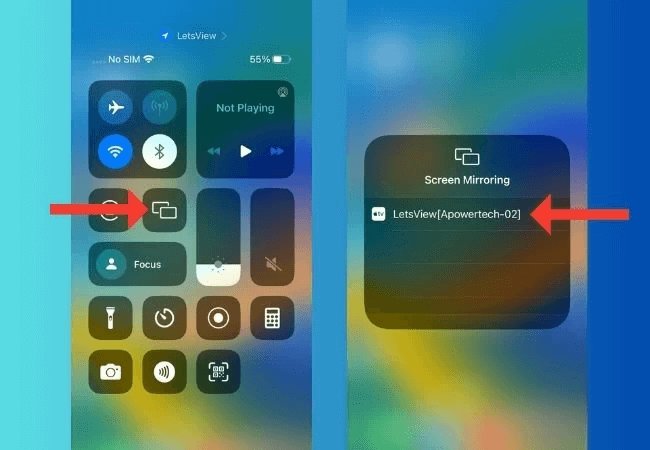
1. Swipe down from the upper‑right corner to open Control Center.
2. Tap the Screen Mirroring button; a list of compatible devices appears.
3. Choose your Apple TV or AirPlay‑2‑enabled smart TV.
4. If prompted, enter the four‑digit code shown on the TV screen.
The moment you confirm, your iPhone’s display expands onto the television. To stop mirroring, open Control Center again and tap Stop Mirroring. The process usually completes in under ten seconds.
Using a Wired Connection When Wi‑Fi Isn’t Reliable
Sometimes a wireless link can be spotty, especially in crowded networks. A direct cable eliminates latency and battery drain. For iPhones with a Lightning port, grab a Lightning‑to‑HDMI adapter; for the newer models with USB‑C, a USB‑C‑to‑HDMI cable does the trick. Plug the adapter into your phone, connect an HDMI cable to the TV, switch the TV input, and you’re live. No additional software, no Wi‑Fi, just a solid, plug‑and‑play experience.
Third‑Party Apps for Non‑Apple TVs
If your television doesn’t support AirPlay natively, several apps can fill the gap. AirScreen and Reflector turn a smart TV, Roku, or Amazon Fire Stick into an AirPlay receiver. Install the app on the device, launch it, and it will appear in the Screen Mirroring list on your iPhone. Be aware that free versions may insert watermarks or limit resolution, so a modest paid upgrade is often worth the clearer picture.
Tips for a Smooth Mirroring Experience
- Keep your iPhone charged. Mirroring can drain the battery quickly, especially over Wi‑Fi.
- Close background apps. Reducing the load helps maintain a steady frame rate.
- Adjust display settings. In Settings → Display & Brightness, you can toggle “True Tone” or “Night Shift” to avoid unwanted color shifts on the TV.
- Use a dedicated Wi‑Fi network. A 5 GHz band offers less interference than a crowded 2.4 GHz channel.
Frequently Asked Questions
Can I mirror iOS 17 to an Android TV?
Yes, but not directly. Install an AirPlay‑compatible receiver app—such as AirScreen—on the Android TV, then follow the standard AirPlay steps from your iPhone.
Do I need a paid app to mirror without Apple TV?
Free receivers exist, yet they often cap resolution or display ads. For occasional use, a free option might suffice; for regular presentations, a modest paid app provides a cleaner, ad‑free experience.
What’s the latency like with AirPlay?
AirPlay on iOS 17 typically delivers latency under 100 ms on a stable Wi‑Fi network, which feels instantaneous for video playback and acceptable for casual gaming. Wired HDMI connections reduce latency further, making them the go‑to for fast‑action games.
![[2025 Guide] 7 Proven Ways to Mirror iPhone to iPad Effortlessly](https://images.imyfone.com/en/assets/article/mirror-tips/airplay-iphone-ipad.jpg)