Flutter Push Notifications with Firebase: Complete Guide
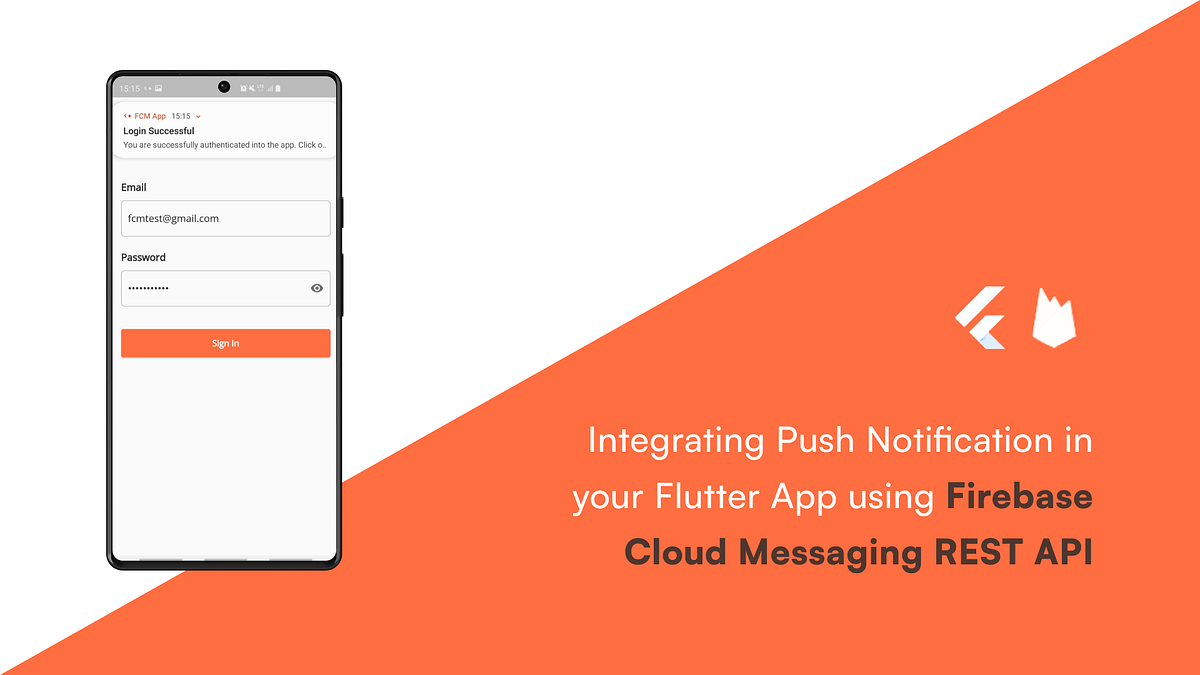
Flutter push notifications with Firebase have become the go-to solution for developers looking to add real‑time engagement to their apps. By combining the declarative UI power of Flutter with Firebase Cloud Messaging (FCM), you can deliver alerts, updates, and personalized content across Android, iOS, and even the web—all from a single code base.
Why Use Firebase for Flutter Push Notifications
Firebase Cloud Messaging offers a low‑latency, server‑side messaging platform that is free for small to medium traffic. It abstracts the complexities of native notification services: APNs on iOS, FCM on Android, and Web Push APIs on the browser. For Flutter, the firebase_messaging plugin provides a unified API, allowing you to register devices, handle incoming messages, and respond to user interactions without writing platform‑specific code.
Setting Up Firebase in Your Flutter Project
Start by adding the Firebase SDK. In pubspec.yaml, include:
firebase_core: ^2.14.0firebase_messaging: ^14.7.0
Run flutter pub get and then initialize Firebase in main.dart:
void main() async {WidgetsFlutterBinding.ensureInitialized();
await Firebase.initializeApp();
runApp(MyApp());
}
Configure the platform files: download google-services.json for Android, add the GoogleService-Info.plist to your iOS project, and follow the web setup if you plan to support browsers.
Registering Devices and Handling Permissions
Ask for notification permission at launch. On iOS, you must request permission explicitly; Android automatically grants it. Example:
FirebaseMessaging messaging = FirebaseMessaging.instance;NotificationSettings settings = await messaging.requestPermission(
alert: true,
badge: true,
sound: true,
);
if (settings.authorizationStatus == AuthorizationStatus.authorized) {
// Permission granted
}
After permission, obtain the FCM token:
String? token = await messaging.getToken();print('FCM Token: $token');
Send this token to your backend or store it for later use when targeting the device.
Sending Notifications from Firebase Console
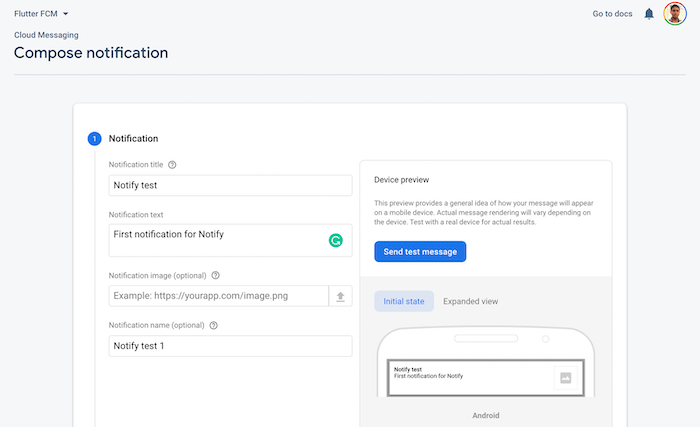
The Firebase Console provides a quick way to push alerts. Navigate to Cloud Messaging, click “Send your first message,” and enter:
- Title and body text
- Target: Individual device (enter the token) or topic
- Optional data payload
Click “Send” to dispatch. For automated workflows, consider using the FCM HTTP v1 API or a server SDK (Node.js, Java, Python).
Customizing Payload and Handling in Flutter
When a message arrives, you can act differently based on its type. Use the onMessage, onMessageOpenedApp, and getInitialMessage callbacks:
FirebaseMessaging.onMessage.listen((RemoteMessage message) {// App in foreground
showDialog(
context: context,
builder: (_) => AlertDialog(
title: Text(message.notification?.title ?? 'New Alert'),
content: Text(message.notification?.body ?? ''),
),
);
});
FirebaseMessaging.onMessageOpenedApp.listen((RemoteMessage message) {
// User tapped notification
Navigator.pushNamed(context, '/details', arguments: message.data);
});
Data-only messages (no notification field) bypass the OS UI and can be handled silently, ideal for background updates.
Managing Notification Channels (Android)
Android 8.0+ requires notification channels to group and style alerts. Create a channel during app startup:
final AndroidNotificationChannel channel = AndroidNotificationChannel('high_importance_channel',
'High Importance Notifications',
description: 'Used for important updates',
importance: Importance.high,
);
await FirebaseMessaging.instance
.setForegroundNotificationPresentationOptions(
alert: true, badge: true, sound: true);
When sending a notification, include the channel ID in the Android payload:
{"notification": {
"title": "Breaking News",
"body": "Click to read",
"android_channel_id": "high_importance_channel"
},
"to": "DEVICE_TOKEN"
}
Testing and Debugging
Use the adb logcat command or Xcode console to inspect FCM logs. In Flutter, enable debug mode for messaging:
FirebaseMessaging.onBackgroundMessage((RemoteMessage message) async {await Firebase.initializeApp();
// Handle background message
});
Verify that notification payloads arrive correctly by checking RemoteMessage.data and RemoteMessage.notification properties.
Best Practices and Common Pitfalls
- Topic Subscriptions: For group alerts, subscribe devices to topics instead of sending individual tokens. Call
messaging.subscribeToTopic('updates'). - Token Rotation: FCM tokens can refresh. Listen to
onTokenRefreshto keep your backend updated. - Background Handling: Ensure the background message handler is a top‑level function; otherwise, it won’t execute on Android.
- Privacy: Never expose raw tokens or sensitive data in the notification payload. Use a server‑side endpoint to sign or encrypt payloads.
By following these steps, you’ll have a robust push notification system that scales across platforms and stays maintainable as your Flutter app grows.
FAQ
Can I send push notifications without a backend?
Yes, the Firebase Console allows manual sending, but for automated or targeted