How to Change Video Color in Easy Steps + Top Software Review
Whether you’re polishing a home‑movie memory or prepping a brand video, tweaking the color can make the difference between flat and cinematic. The good news is that you don’t need a degree in color science to get professional‑looking results. Below you’ll find a clear, step‑by‑step method for changing video color, followed by an honest look at the best software options on the market today.
Why Color Matters in Video Production
Color influences mood, focus, and storytelling. Warm hues can evoke nostalgia, while cooler tones often suggest distance or tension. Even subtle shifts in saturation can bring out details that were lost in the original footage. Because viewers process color subconsciously, a well‑balanced palette helps keep the audience engaged without them realizing why.
Step‑by‑Step Guide to Changing Video Color
1. Prepare Your Source File
Start with the highest‑quality version you have—ideally a lossless or lightly compressed file. Import it into your editing timeline and set the project’s color space to match the footage (usually Rec. 709 for most consumer video). This ensures the adjustments you make are accurate and not distorted by mismatched settings.
2. Apply a Basic Exposure Correction
Before you dive into hue shifts, adjust the exposure. Use the program’s Lift, Gamma, and Gain sliders (or their equivalents) to balance shadows, midtones, and highlights. A well‑exposed image provides a clean canvas for further color work.
3. Choose a Color‑Adjustment Tool
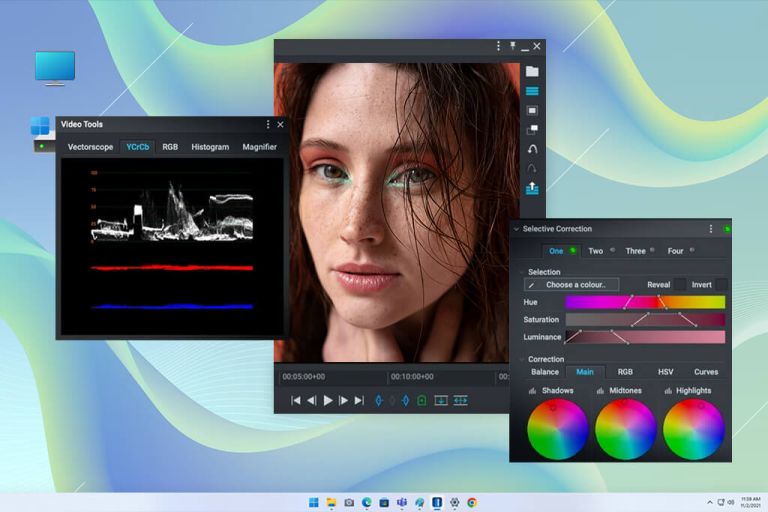
Most editors offer a Color Wheels or Three‑Way Color Corrector. For quick changes, the Hue/Saturation curve works wonders: isolate the hue you want to modify, then drag the curve up or down to boost or mute that color range.
4. Target Specific Colors with Masks
If you only need to shift the sky or a character’s shirt, create a mask around that area. Many programs let you track the mask automatically, so the selection follows the movement. This isolates the effect and prevents unwanted spill onto other parts of the frame.
5. Fine‑Tune with Secondary Color Grading
Secondary grading lets you adjust saturation, contrast, or luminance for a single color range while leaving the rest untouched. Play with the Hue vs. Saturation and Hue vs. Luminance graphs until the target area looks natural in its new palette.
6. Add a Creative Look
Once the technical adjustments are done, consider applying a LUT (lookup table) or a preset that matches the mood you’re after. A subtle teal‑orange LUT, for example, is popular for cinematic action scenes, while a pastel wash can suit a romantic montage.
7. Review on Multiple Displays
Export a short segment and test it on a phone, a laptop, and a calibrated monitor. Color can shift dramatically between devices, so this step helps you catch any glaring inconsistencies before the final render.
Best Software for Color Adjustment in 2024
Choosing the right tool can streamline the workflow and improve the final look. Below is a concise comparison of the most popular options, based on ease of use, feature set, and price.
- DaVinci Resolve (Free & Studio) – Industry‑standard color grading with node‑based workflow; the free version already includes powerful primary and secondary tools.
- Adobe Premiere Pro – Integrated with the Creative Cloud; its Lumetri Color panel offers a familiar timeline‑based approach for editors.
- Final Cut Pro X – Mac‑only but boasts a sleek color inspector and real‑time rendering on Apple hardware.
- HitFilm Express – Good for beginners; includes basic hue‑shift controls and a library of free LUTs.
- PowerDirector – Affordable for hobbyists; its color wheel interface is intuitive, though less granular than Resolve.
For most users who prioritize depth without a steep learning curve, DaVinci Resolve’s free version remains the top pick. It combines professional‑grade color wheels, curves, and tracking tools, all without a subscription fee.
Tips for Consistent Color Grading
Even with the right software, maintaining consistency across clips can be challenging. Here are a few practical habits:
- Create a reference frame from your first clip and use it as a visual benchmark for the rest.
- Use scopes (waveform, vectorscope) to ensure skin tones stay within the “skin tone line” and highlights don’t clip.
- Apply a global LUT early, then fine‑tune each shot individually—this gives you a unified base look.
- Save your custom color settings as a preset so you can quickly apply the same look to future projects.
Frequently Asked Questions
Can I change video color without re‑encoding the whole file?
Yes, most editing suites allow you to export a color‑graded proxy or use a non‑destructive workflow, meaning the original file stays untouched and only the grading metadata is applied during playback.
Is it better to grade in HDR or SDR?
If your delivery platform supports HDR (e.g., YouTube HDR, streaming services), grading in HDR yields a wider dynamic range and richer colors. Otherwise, stick to SDR (Rec. 709) to ensure compatibility with standard displays.
Do I need a calibrated monitor for accurate color work?
While you can achieve decent results with any screen, a calibrated monitor guarantees that the colors you see are true to life. For professional projects, a hardware‑calibrated display is strongly recommended.
How much does color grading typically add to a project’s timeline?
For simple hue shifts, a few minutes per clip may suffice. Complex grading—especially with multiple masks and LUTs—can add several hours. Planning ahead and using presets can dramatically cut down on time.