How to Convert DOCX to PDF Using Pandoc and Python
Turning a Word document into a PDF doesn’t have to involve a mouse click in a GUI. With a few lines of code and Pandoc, you can automate the whole process, whether you’re batch‑processing reports or integrating conversion into a web service.
Why Choose Pandoc with Python?
Pandoc is a powerhouse for document conversion. It understands a wide range of formats—Markdown, LaTeX, DOCX, HTML, and more—so you aren’t limited to a single source type. Pairing it with Python gives you:
- Programmatic control: loop over folders, rename outputs, log errors.
- Cross‑platform consistency: the same script works on Windows, macOS, or Linux.
- Extensibility: hook in custom filters to tweak styling before the PDF is produced.
Getting Started: Install What You Need
1. Install Pandoc
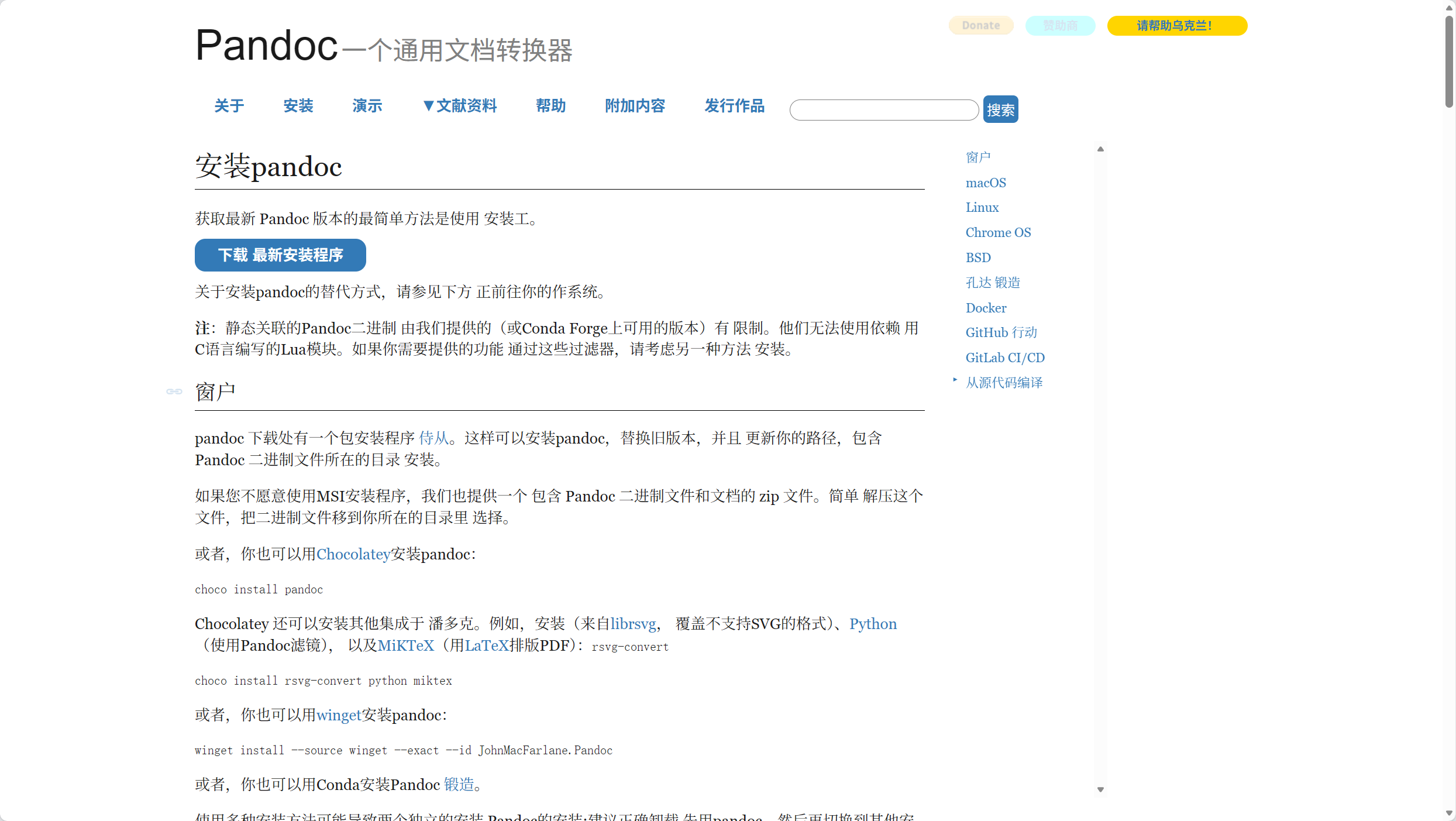
On most systems you can grab the latest release from pandoc.org. On Debian‑based Linux:
sudo apt-get update && sudo apt-get install pandocFor macOS using Homebrew:
brew install pandoc2. Install a LaTeX engine
Pandoc renders PDFs via LaTeX, so you’ll need a distribution such as texlive or MiKTeX. A minimal installation is usually enough:
sudo apt-get install texlive-latex-base3. Set up Python
Make sure you have Python 3.7+ and pip available. Then install the subprocess wrapper (built‑in) and optionally pypandoc if you prefer a higher‑level API:
pip install pypandocSimple Conversion with subprocess
If you like keeping things explicit, call Pandoc directly from the shell. Here’s a minimal script that takes an input .docx and writes out a .pdf:
import subprocessimport pathlib
def docx_to_pdf(src_path, dst_path=None):
src = pathlib.Path(src_path)
if not src.is_file() or src.suffix.lower() != '.docx':
raise ValueError('Provide a valid .docx file')
dst = pathlib.Path(dst_path or src.with_suffix('.pdf'))
cmd = [
'pandoc',
str(src),
'-o', str(dst),
'--pdf-engine=xelatex' # use xelatex for better font handling
]
result = subprocess.run(cmd, capture_output=True, text=True)
if result.returncode != 0:
raise RuntimeError(f'Pandoc error: {result.stderr}')
return dst
# Example usage
if __name__ == '__main__':
print(docx_to_pdf('example.docx'))
The script checks the input, builds a command list, and captures any error messages. Using xelatex helps with Unicode fonts, which can be a headache otherwise.
Using pypandoc for a Cleaner API
If you’d rather avoid dealing with subprocess yourself, pypandoc wraps the call and returns the result as a byte string. That makes it easy to write the PDF to a memory buffer or send it over a network.
import pypandocimport pathlib
def docx_to_pdf_buffer(docx_path):
docx = pathlib.Path(docx_path)
if not docx.is_file():
raise FileNotFoundError(docx_path)
return pypandoc.convert_file(
str(docx),
'pdf',
outputfile=None, # None → return as bytes
extra_args=['--pdf-engine=xelatex']
)
pdf_bytes = docx_to_pdf_buffer('report.docx')
# Save to disk
with open('report.pdf', 'wb') as f:
f.write(pdf_bytes)
This approach shines when you need to embed the PDF in a Flask response or store it directly in a database.
Batch Processing a Folder
Often you’ll have dozens of Word files to convert. A quick loop does the trick:
import osfrom pathlib import Path
def batch_convert(folder):
folder = Path(folder)
for docx_file in folder.rglob('*.docx'):
try:
pdf_file = docx_to_pdf(docx_file)
print(f'✔ {docx_file.name} → {pdf_file.name}')
except Exception as e:
print(f'✘ {docx_file.name}: {e}')
batch_convert('my_documents')
Notice the use of rglob, which walks sub‑directories automatically. Errors are caught so the script keeps running even if a single file is problematic.
Troubleshooting Common Hurdles
- Missing fonts: If the PDF looks blank or reports “Font not found,” install the missing font on your system or point Pandoc to a local
.ttfusing the--variable=mainfontargument. - Unicode characters: Use
xelatexorlualatexinstead of the defaultpdflatex. They handle UTF‑8 out of the box. - Large tables or images: Add
--metadata=geometry:margin=1into give the layout a bit more breathing room.
Putting It All Together in a Flask Endpoint
For a lightweight web service that accepts a DOCX upload and returns a PDF, combine Flask with the pypandoc function:
from flask import Flask, request, send_fileimport io
app = Flask(__name__)
@app.route('/convert', methods=['POST'])
def convert():
uploaded = request.files.get('file')
if not uploaded or not uploaded.filename.endswith('.docx'):
return 'Invalid file', 400
pdf_bytes = pypandoc.convert_text(
uploaded.read(),
'pdf',
format='docx',
extra_args=['--pdf-engine=xelatex']
)
return send_file(
io.BytesIO(pdf_bytes),
mimetype='application/pdf',
as_attachment=True,
download_name=uploaded.filename.rsplit('.', 1)[0] + '.pdf'
)
if __name__ == '__main__':
app.run(debug=True)
This snippet demonstrates the whole pipeline—receive, convert, and stream back—without ever touching the filesystem.
Final Thoughts
Leveraging Pandoc’s robust conversion engine together with Python’s flexibility gives you a reliable, scriptable way to turn DOCX files into polished PDFs. Whether you’re handling a single report or building a conversion microservice, the code snippets above should get you up and running quickly. Happy coding!