How to Convert Subtitles Quickly with SubConverter
In a world where streaming services flood our screens with content in every language, subtitles have become more than a convenience—they’re a bridge to understanding. Whether you’re a filmmaker, a language learner, or just someone who loves binge‑watching, you’ll find yourself juggling multiple subtitle formats. That’s where SubConverter steps in: a free, lightweight tool that turns your subtitle files into the format you need, fast and fuss‑free.
In this guide we’ll walk through what SubConverter is, why it’s worth your time, and how to use it in three simple steps. By the end, you’ll have a polished subtitle file ready for any video player or editing software.
What Is SubConverter?
SubConverter is an open‑source program written in Java. It supports the most common subtitle file types—SubRip (.srt), Advanced SubStation Alpha (.ass), SubViewer (.sub), MicroDVD (.sub), and many others. Because it runs on Java, you can use it on Windows, macOS, or Linux without any extra libraries.
Why Use SubConverter?
- Speed. Unlike online converters that require uploads, SubConverter works locally, so you get instant results.
- Privacy. Your files never leave your computer.
- Batch Conversion. Convert dozens of files with one click.
- Customization. Adjust timing, character sets, and more.
- Zero Cost. No hidden fees or trial periods.
Key Features
- Multiple output formats: SRT, ASS, SSA, SUB, and more.
- Time shift and speed adjustment.
- Text encoding detection.
- Preview window to confirm changes before saving.
- Command‑line interface for advanced users.
Step‑by‑Step Guide
Below is a concise walkthrough that covers the entire conversion process.
Preparing Your Files
1. Gather the subtitle files you wish to convert. Keep them in a single folder to avoid confusion.
2. Check the source format. If you’re unsure, right‑click the file, select Properties, and look at the extension.
Selecting Output Settings
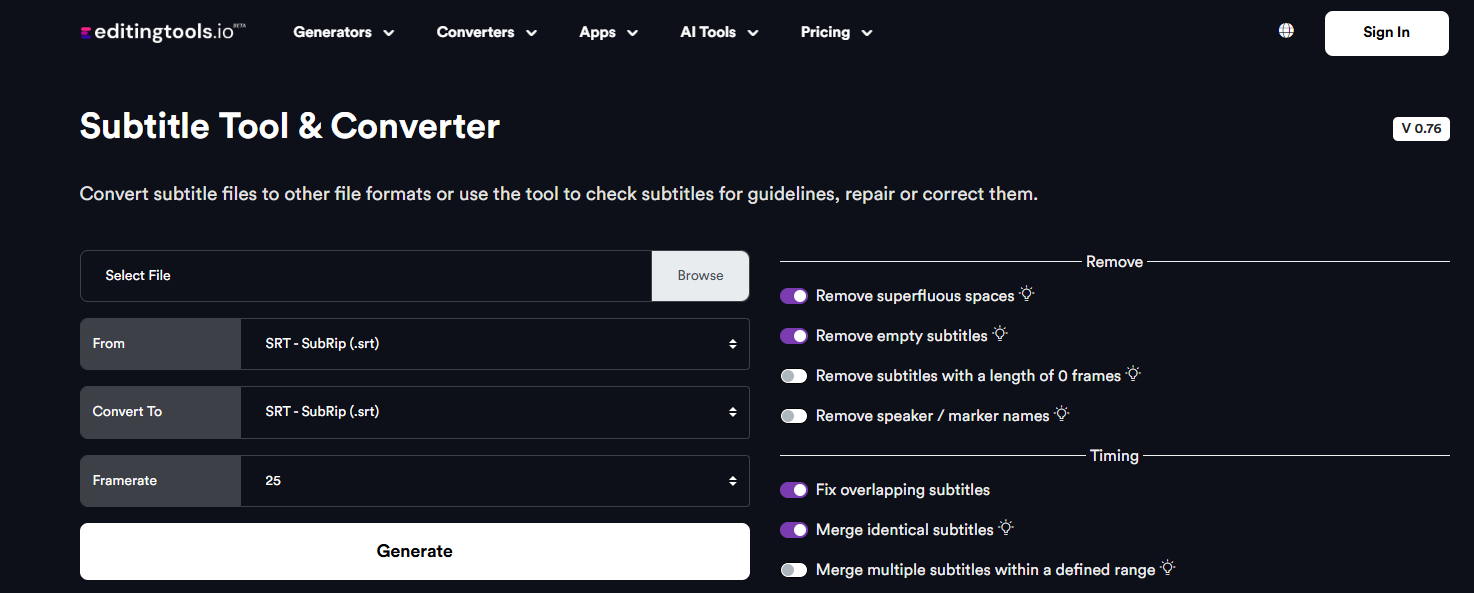
1. Launch SubConverter. The main window shows two panels: left for input, right for output.
2. Click Browse on the left panel, navigate to your folder, and select the file(s). You can hold Ctrl to pick multiple files.
3. On the right panel, click Browse again and choose where the converted file will be saved.
4. Under Format, pick your desired output type—.srt is the most widely supported.
5. If you need to adjust timing, use the Time Shift field. Enter a value in seconds (positive to delay, negative to advance).
6. For character encoding issues (e.g., Japanese subtitles), choose the appropriate encoding from the dropdown.
Running the Conversion
1. Once your settings are configured, click Convert.
2. A progress bar will appear. Most files finish in under a second.
3. After completion, click Open to view the result. If everything looks good, you’re done!
Common Issues & Troubleshooting
File Not Opening: Make sure the input file isn’t corrupted. Try opening it in a text editor.
Timing Off: Double‑check the time shift value. Even a one‑second mistake can throw subtitles out of sync.
Encoding Problems: If you see garbled text, experiment with different encodings—UTF‑8, ISO‑8859‑1, Shift_JIS, etc.
Large Files: SubConverter handles large files, but if you hit memory limits, close other applications or try converting in batches.
Alternatives to SubConverter
While SubConverter is a solid choice, other tools might better suit certain workflows:
- Subtitle Edit – Full‑featured editor with translation support.
- ffmpeg – Command‑line tool that can convert subtitles as part of video processing.
- Kapwing – Online editor, useful for quick edits without installation.
- Subtitle Workshop – Classic Windows tool with a large user base.
FAQ
Can SubConverter handle animated subtitles? Yes, it supports ASS/SSA formats that include styling and animation.
Is SubConverter safe to download? The source code is hosted on GitHub. Download the latest release from the official page or from Maven Central.
Do I need Java installed? The installer bundles its own Java Runtime Environment, so you can run it on any system without separate Java installation.
Can I batch convert dozens of subtitles at once? Absolutely. Simply select all files in the input panel before starting the conversion.