How to Diagnose and Repair a 2012 15‑Inch MacBook Pro (Core i7)
If you’ve been holding onto a 2012 15‑inch MacBook Pro with a Core i7 processor, you’ve probably noticed that age catches up with even the toughest machines. From occasional freezes to a stubborn failure to power on, the issues can feel random, but most of them share a handful of common culprits. Below you’ll find a step‑by‑step guide that walks you through the most frequent problems, how to test each component, and what you can realistically fix yourself before calling in a professional.
Common Symptoms of a Failing 2012 15‑Inch MacBook Pro (Core i7)
- Random kernel panics or unexpected restarts
- Black screen on startup, sometimes accompanied by a chime
- Overheating and loud fan noise even at idle
- Slow performance despite adequate RAM
- Battery that drains quickly or won’t charge
Spotting the pattern early can save you time. For instance, if the machine only crashes when you launch graphics‑intensive apps, the GPU or its cooling system is likely at fault. Conversely, if the system hangs during boot, you might be looking at a failing SSD or a corrupted firmware.
Step 1: Verify Power and Battery Health
Start with the simplest thing: the power supply. Plug the MagSafe adapter into a known‑good outlet, then check the LED indicator. A green light means the battery is fully charged; amber signals it’s still charging. If the LED stays off, try a different adapter or test the current one on another MacBook.
Once power is confirmed, assess the battery’s condition in macOS. Open System Information → Power and look for the “Cycle Count” and “Condition” fields. Anything above 800 cycles or marked as “Service Battery” suggests a replacement is due.
Step 2: Reset SMC and NVRAM
Many power‑related quirks resolve with a simple reset. To reset the System Management Controller (SMC), shut down the Mac, then press Shift‑Control‑Option on the left side and the power button simultaneously for ten seconds. Release, wait a moment, and power on again.
Next, reset the NVRAM: restart while holding Option‑Command‑P‑R for about 20 seconds. This clears stored settings that can cause boot loops or display anomalies.
Step 3: Run Apple Diagnostics
Apple’s built‑in diagnostics can pinpoint hardware failures without opening the case. Disconnect all external devices, then restart while holding the D key. Follow the on‑screen prompts; any error codes that appear (e.g., “4‑1‑1” for memory issues) can be cross‑referenced with Apple’s support site.
If diagnostics report no issues but symptoms persist, you’ll need to dig deeper into the internals.
Hardware Inspection: RAM, SSD, and Logic Board
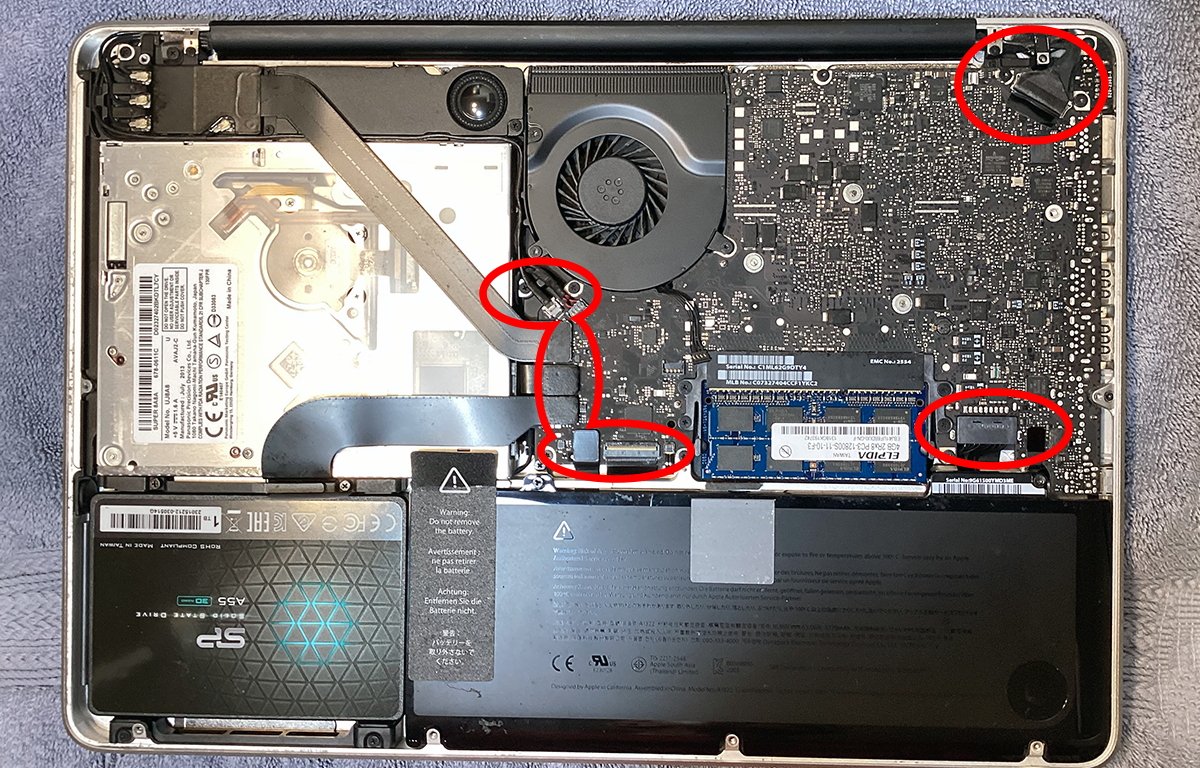
The 2012 15‑inch model uses removable 1333 MHz DDR3 RAM and a SATA‑III SSD or HDD. Start by grounding yourself, then remove the bottom case with a Phillips #00 screwdriver.
- RAM: Reseat each module—push it out gently, then click it back in. If you have two sticks, try booting with only one at a time to isolate a bad module.
- SSD/HDD: Disconnect the drive, then reconnect it firmly. If the drive is an older spinning disk, listen for unusual clicks; a replacement SSD is a worthwhile upgrade for speed and reliability.
- Logic Board: Look for bulging or leaking capacitors, especially near the GPU. Small brownish spots often signal capacitor failure, which can cause sudden shutdowns.
If you spot any physical damage, consider ordering replacement parts from reputable vendors and follow iFixit’s step‑by‑step guides for the 2012 MacBook Pro.
Software Checks: macOS, Firmware, and Startup Items
A corrupted operating system can mimic hardware failure. Boot into macOS Recovery by holding Command‑R at startup. From there, you can run Disk Utility to repair the startup disk, or reinstall macOS without wiping user data.
While in Recovery, also check for firmware updates. Apple occasionally releases EFI updates that resolve GPU power‑management bugs—a known issue for some 2012 models.
Lastly, examine login items. Open System Preferences → Users & Groups → Login Items. Remove anything you don’t recognize; rogue background processes can cause sluggishness and unexpected kernel panics.
When to Consider Professional Repair
If you’ve walked through the power checks, resets, diagnostics, and hardware reseating without improvement, the fault is likely deeper in the logic board or the discrete GPU. The 2012 15‑inch MacBook Pro uses the NVIDIA GeForce GT 650M, which is notorious for solder joint failures.
Repairing the GPU typically requires re‑balling the chip—a task best left to a specialist with a reflow station. Similarly, a failed power‑management IC on the logic board isn’t easily replaceable at home. In those cases, weigh the cost of repair against the value of the laptop; many owners find that upgrading to a newer, refurbished MacBook offers better long‑term reliability.
Preventive Maintenance Tips
- Keep the cooling vents free of dust; a can of compressed air works wonders every six months.
- Replace the thermal paste on the CPU and GPU every few years to maintain optimal heat transfer.
- Back up data regularly with Time Machine or a cloud service; hardware failures become less stressful when you have a recent snapshot.
- Avoid exposing the laptop to extreme temperatures—both heat and cold can stress solder joints.
Frequently Asked Questions
Q: My MacBook Pro shows a flashing question mark at boot. What does that mean?
A: The question mark indicates the system can’t find a valid startup disk. Verify the SSD connection, run Disk Utility from Recovery, and if the drive is dead, replace it.
Q: The fans spin loudly even when the laptop is idle. Is this normal?
A: Not usually. It often points to dust buildup or a failing temperature sensor. Clean the vents, reset the SMC, and check the sensor readings with a third‑party app like iStat Menus.
Q: Can I upgrade the RAM on this model?
A: Yes. The 2012 15‑inch MacBook Pro supports up to 16 GB of DDR3 RAM (2 × 8 GB). Upgrading can noticeably improve multitasking performance.
Q: Is it safe to run the latest macOS on this machine?
A: The newest macOS versions are generally compatible, but they may tax the older GPU and CPU. If you rely on heavy video work, consider staying on macOS High Sierra or Mojave for better stability.




:quality(30):format(webp):focal(0.5x0.5:0.5x0.5)/pekanbaru/foto/bank/originals/Inilah-jawaban-tebak-tebakan-sesuai-yang-kdang-bisa-membuat-kita-tertawa-dan-menangis.jpg)