How to Embed a Word Newsletter Directly Into Outlook Email
Why embed instead of attach?
Embedding a Word newsletter in Outlook email keeps the design looking polished straight from the inbox. Recipients see headings, columns, and images as you intended, rather than opening a separate file. This approach also sidesteps many corporate security filters that block certain attachment types.
Preparation in Microsoft Word
Before you move anything into Outlook, tidy up the source document. Use simple styles—Heading 1, Normal, and a few custom paragraph formats. Avoid complex WordArt or embedded macros; Outlook’s rendering engine handles basic HTML best.
- Set page size to standard letter or A4; Outlook ignores page breaks but a consistent width (usually 6‑8 inches) helps the layout stay tidy.
- Insert images at their final display size. Oversized pictures will be scaled down automatically, often causing loss of clarity.
- Turn off “Track Changes” and accept all revisions. Hidden markup can corrupt the HTML that Outlook generates.
Convert the Word file to HTML
Outlook reads the Word document as HTML when you copy‑paste. The quickest way to get a clean HTML snippet is to save the file as a web page:
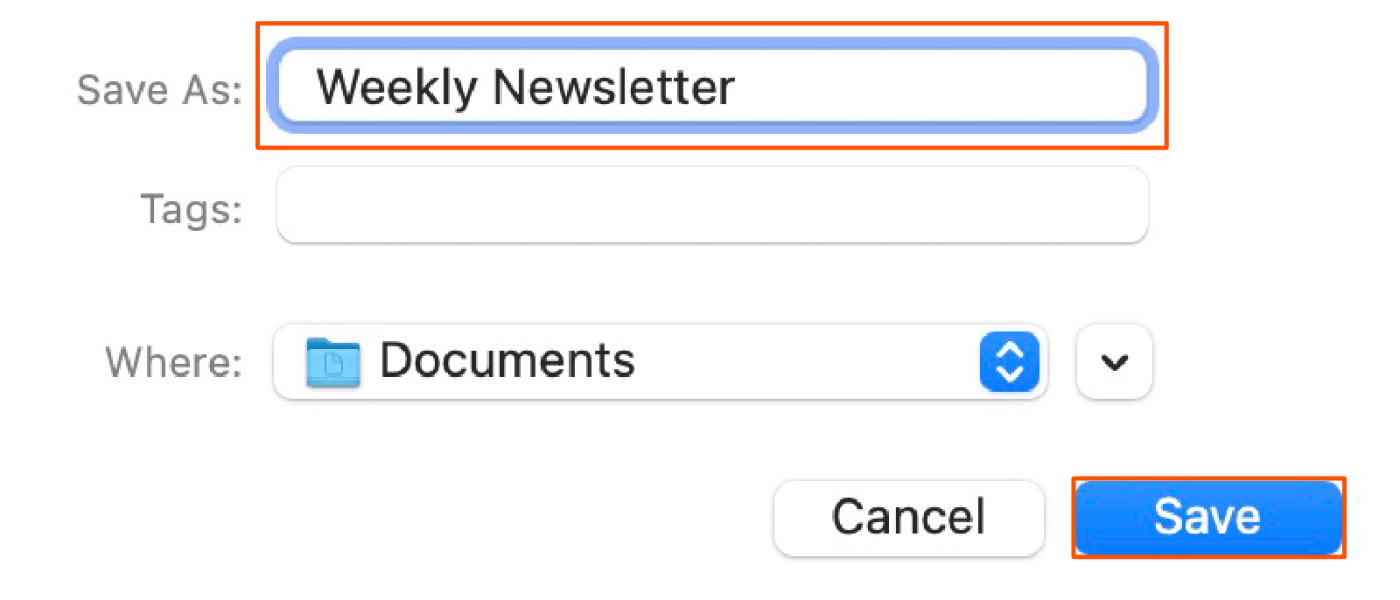
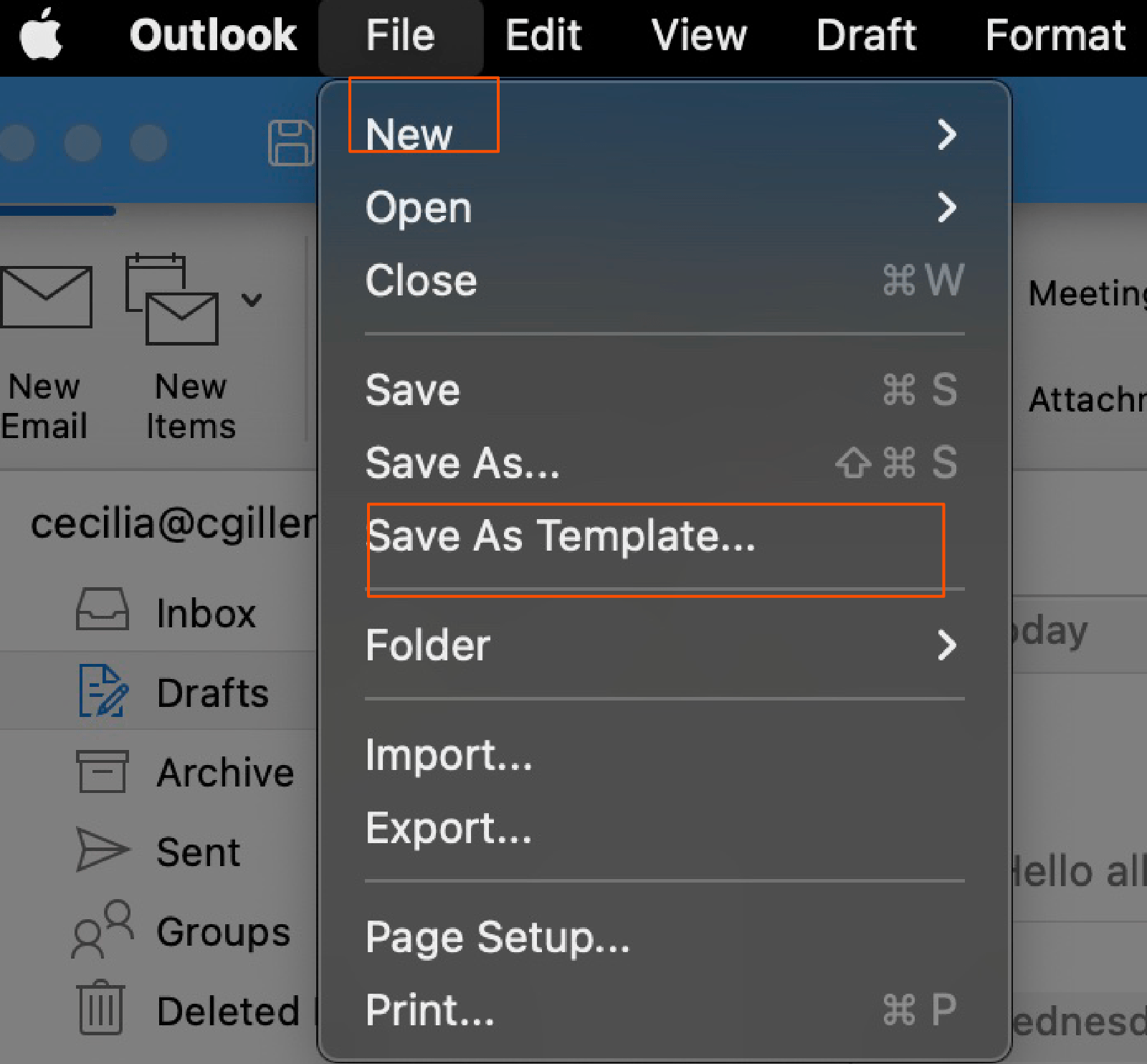
- Click File → Save As and choose “Web Page, Filtered (*.htm)” from the format dropdown.
- Save to a temporary folder; you’ll get a single .htm file plus a folder with any images.
- Open the .htm file in a plain‑text editor (Notepad, VS Code, etc.) and copy the entire markup.
If you prefer a no‑code route, you can also copy directly from Word: select the whole document, press Ctrl + C, then paste into Outlook using “Keep Source Formatting”. The HTML is generated behind the scenes, but the save‑as method gives you a chance to trim excess tags.
Paste the HTML into a new Outlook message
Outlook doesn’t expose a raw‑HTML editor by default, but a little trick lets you inject the code:
- Open a new email, then go to Format Text → HTML to ensure you’re in the right mode.
- Press Alt + F11 to open the VBA editor. (If you’re uncomfortable with macros, skip to the next bullet and use the “Insert → Picture” route instead.)
- In the editor, paste the following tiny script, replace
YOUR_HTML_HEREwith the markup you copied, then run it:
Sub InsertHTML()Dim objMail As Outlook.MailItem
Set objMail = Application.ActiveInspector.CurrentItem
objMail.HTMLBody = "YOUR_HTML_HERE" & objMail.HTMLBody
End Sub
Running the macro inserts the newsletter right at the top of the email body. Delete the macro afterward if you don’t need it again.
Embedding images without broken links
When you saved the Word file as a filtered web page, Outlook stored images in a sub‑folder. To keep those pictures intact:
- In the HTML, image tags will point to something like
src="mynewsletter_files/image001.png". Change the path to a CID (Content‑ID) reference, e.g.,src="cid:image001". - Back in Outlook, click Insert → Attach File**, then select each image, click the dropdown arrow on the Insert button, and choose “Insert as Attachment”.
- After attaching, right‑click the image placeholder in the body and pick “Change Picture → From File” to bind the CID to the actual file.
This method embeds the images directly into the email, so they display even when the recipient is offline.
Testing before you hit Send
Even a perfectly crafted HTML can look different across email clients. Send the draft to yourself first, then open it in Outlook’s web version, Gmail, and any mobile app you use. Pay close attention to:
- Alignment of columns—Outlook often collapses tables if a width isn’t specified.
- Font fallback—If you used a custom font, ensure a sensible default appears.
- Link functionality—Make sure URLs are still clickable after the conversion.
Minor tweaks like adding style="width:100%" to table cells usually solve most quirks.
Alternative: Use Outlook’s “Insert → Object” feature
If you’d rather avoid HTML altogether, Outlook can embed a Word file as an object:
- In a new message, click Insert → Object → Create from File.
- Browse to your newsletter, tick “Display as icon” if you want a compact preview, or leave it unchecked to embed the full document.
- Send—the recipient can double‑click the object to open the original Word layout.
This method preserves every Word feature but does rely on the recipient having a compatible version of Microsoft Office.
Quick checklist before sending
- All images are embedded, not linked to external servers.
- HTML uses inline CSS only; external stylesheets won’t survive.
- Test on at least two email clients.
- Subject line clearly states it’s a newsletter to avoid spam filters.
- Include an “unsubscribe” link if the email is part of a regular mailing list.
FAQ
Can I embed a Word newsletter without using VBA?
Yes. Copy the content from Word, then paste it into Outlook while in HTML mode. Outlook will preserve most formatting, though you may need to re‑attach images manually.
Why do some tables collapse after pasting?
Outlook strips certain table attributes. Adding explicit width and border styles to each <table> tag usually prevents the collapse.
Is there a size limit for embedded images?
Outlook caps total message size at around 20 MB. Keeping each image under 500 KB and using JPEG compression helps stay well under the limit.
Do recipients need Outlook to view the embedded newsletter correctly?
Most modern email clients render basic HTML similarly, but complex Word‑specific features (like SmartArt) may degrade. For full fidelity, recommend Outlook or a web‑mail view.