How to Find and Install Older Firmware on Samsung TVs
When a Samsung TV receives a fresh software update, it can feel like the device has been rebooted overnight—new menus, changed settings, and sometimes features that disappear. For enthusiasts, developers, or anyone troubleshooting a specific issue, downloading older firmware versions becomes a practical step. Below is a straightforward guide that walks you through why you might need an older build, where to locate it safely, and how to install it without bricking your screen.
Why you might need an older firmware
New releases are not always perfect. A fresh Samsung TV update may introduce bugs that affect picture calibration, HDMI‑CEC behavior, or even cause certain apps to crash. In some regions, a firmware rollout can unintentionally remove support for legacy peripherals like older soundbars. If you’ve noticed a regression after a recent update, reverting to a previous version can restore the functionality you relied on.
Another common scenario involves custom mods. Developers who create home‑brew apps or custom launchers often test against a specific firmware baseline. When Samsung pushes a newer build, the mod may stop working, prompting a need to roll back to the exact version the code was written for.
Where to locate official Samsung firmware archives
Samsung does not maintain a public “archive” page that lists every historic build, but there are reliable ways to fetch older files:
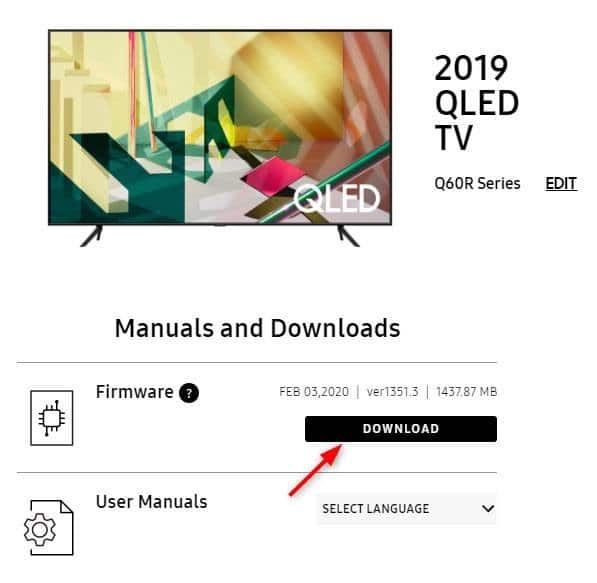
- Samsung’s Support Portal: Enter your model number (e.g., “UN55NU6900”) and click “Software & Downloads.” Occasionally, older releases remain in the dropdown list.
- Samsung Members App: On a smartphone, the app offers a “Firmware Update” section that sometimes displays previous versions for manual download.
- Trusted third‑party repositories: Sites like Sammobile.com maintain a curated collection of Samsung TV firmware. While not an official source, they mirror Samsung’s files and provide version histories.
Always verify the file’s checksum (usually an MD5 or SHA‑1 hash) against the value listed on the source page. A mismatch can indicate corruption or tampering.
How to download older firmware safely
Follow these steps to obtain a clean copy:
- Identify your exact model number and region code (e.g., “US,” “EU”). The region determines which builds are compatible.
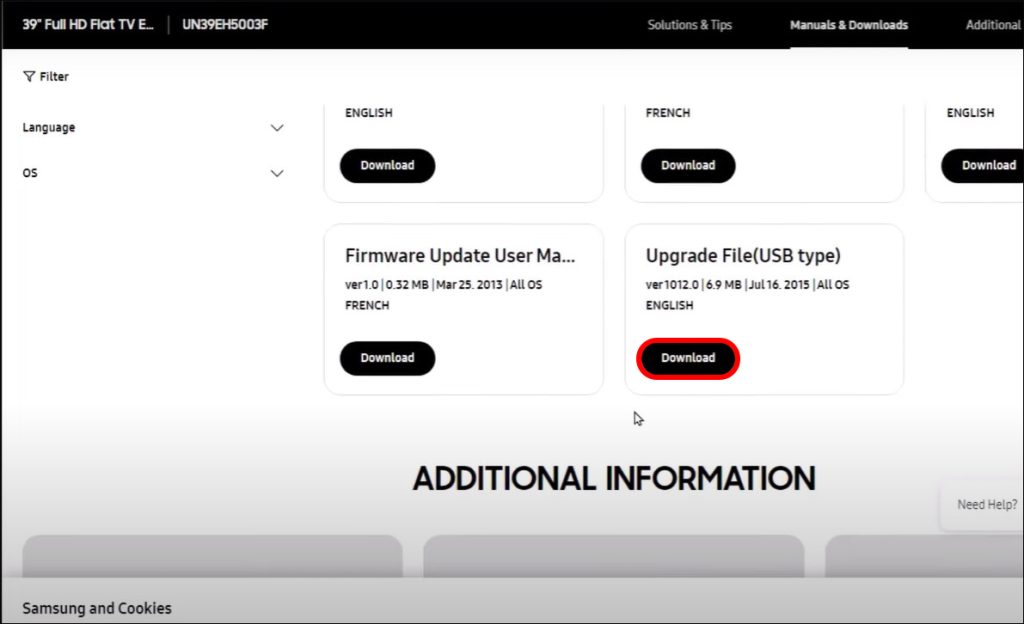
- Visit the official Samsung Support page for your model. If older versions are not listed, head to a reputable repository like Sammobile.
- Download the
.zipfile and extract it to a USB flash drive formatted in FAT32. The folder should contain a single.binor.tskfile along with aReadMe.txtif provided. - Check the file’s integrity by comparing the checksum displayed on the download page with the one computed on your computer. Tools such as WinMD5Free or the built‑in
certutilcommand work well.
Installing the firmware on your TV
With the USB prepared, you’re ready to flash the older build. The process is intentionally similar across most recent Samsung models:
- Power off the TV and unplug it for a minute. This ensures the hardware resets before the flash.
- Insert the USB drive into one of the TV’s side ports.
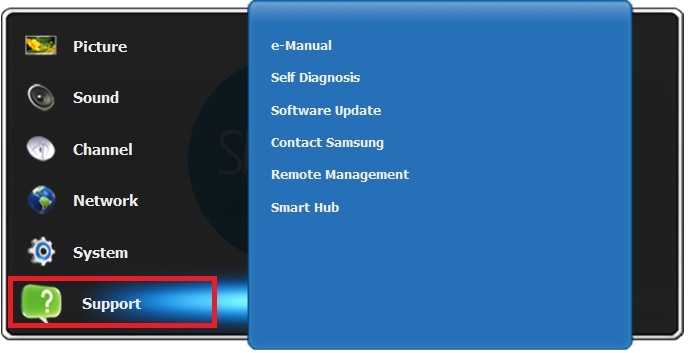
- Turn the TV back on and navigate to Settings > Support > Software Update > Update Now. The system should detect the firmware file automatically.
- If the update prompt does not appear, select Update via USB (sometimes hidden under “Manual Update”). Confirm the file name and proceed.
- Do not turn off the TV or remove the USB during the flashing process. The TV will restart several times; this is normal.
After the installation completes, the TV will display a confirmation screen showing the new (older) firmware version.
Verifying the version after install
It’s easy to double‑check that the downgrade succeeded:
- Go to Settings > Support > About This TV. The firmware version line should match the number you installed (e.g., “T-KTM2DEUC-2004”).
- If the TV reverts to a newer build automatically, you may have “Auto‑Update” enabled. Disable it under Settings > Support > Software Update > Auto Update to prevent the TV from re‑upgrading.
- Test the functionality that prompted the downgrade—whether it’s a specific app, HDMI handshake, or picture setting—to confirm the issue is resolved.
Potential risks and how to mitigate them
Rolling back firmware is generally safe, but a few pitfalls exist. Installing a version that doesn’t match your region can lead to network‑related errors or missing subtitles. Moreover, some older builds lack security patches, exposing the TV to known vulnerabilities. To minimize risk, keep a backup of the current firmware (if possible) and always retain the latest secure build as a fallback.
Frequently Asked Questions
Can I downgrade my Samsung TV more than once?
Yes, you can flash multiple versions as long as each file is compatible with your model and region. Just repeat the USB‑install steps each time.
Will downgrading void my warranty?
Samsung’s warranty typically covers hardware defects, not software changes. Downgrading does not automatically void the warranty, but if a problem arises directly from a non‑official firmware, Samsung may refuse service.
Is there a way to automate the download of older firmware?
Some community scripts scrape Samsung’s support pages for version lists, but they require technical know‑how and run the risk of violating Samsung’s terms of service. Manual download remains the safest route.
What should I do if the TV gets stuck during the flash?
Power down the TV, unplug it, wait 30 seconds, then plug it back in and power on. If the firmware file was corrupted, repeat the download and checksum verification steps before trying again.