How to Fix Roku TV Screen Mirroring Problems: An Inside Look
Screen mirroring is one of the easiest ways to bring photos, videos, or a whole app from your phone or laptop onto the big screen. Yet, many Roku owners find the feature stubbornly unresponsive, flickering, or dropping out altogether. Below is an inside look at troubleshooting Roku TV screen mirroring issues, broken down into practical steps you can try before calling support.
Why Screen Mirroring Fails on Roku TVs
Even when both devices are on the same Wi‑Fi network, a handful of hidden factors can sabotage the connection. Signal interference, outdated firmware, and mismatched mirroring protocols are the usual suspects. Understanding these culprits helps you target the right fix instead of cycling through random settings.
Signal interference
Microwave ovens, cordless phones, and even neighboring Wi‑Fi networks can crowd the 2.4 GHz band that most Roku devices default to. When the spectrum gets noisy, the hand‑off between your phone and the TV can time out.
Outdated software
Roku releases firmware updates several times a year. If your TV is still on a legacy version, the mirroring engine may lack compatibility with newer Android or iOS devices.
Protocol mismatches
Roku supports both Miracast (for most Android phones) and AirPlay (for iPhones and iPads). Trying to use the wrong protocol will simply result in a “no signal” message.
Check Your Network Basics
Start with the network, because a stable connection is the foundation for any wireless feature.
- Confirm both devices are on the same SSID. It’s easy to have a 2.4 GHz and a 5 GHz network with the same name; make sure the phone and Roku are literally on the same band.
- Restart the router. A quick power‑cycle clears temporary congestion and forces a fresh DHCP lease.
- Test signal strength. If the Roku’s Wi‑Fi icon shows fewer than three bars, move the router closer or consider a Wi‑Fi extender.
Confirm Device Compatibility
Not every smartphone can talk to every Roku model.
For Android users, look for “Screen Mirroring” or “Cast” in the quick‑settings panel. If the option is missing, your device may not support Miracast, or the feature could be disabled in the manufacturer’s settings. iPhone and iPad owners should ensure AirPlay is turned on in Settings → General → AirPlay & Handoff.
Adjust Roku Settings
The Roku itself has a few toggles that often go unnoticed.
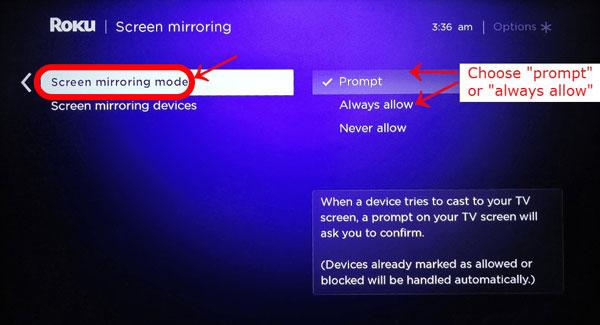
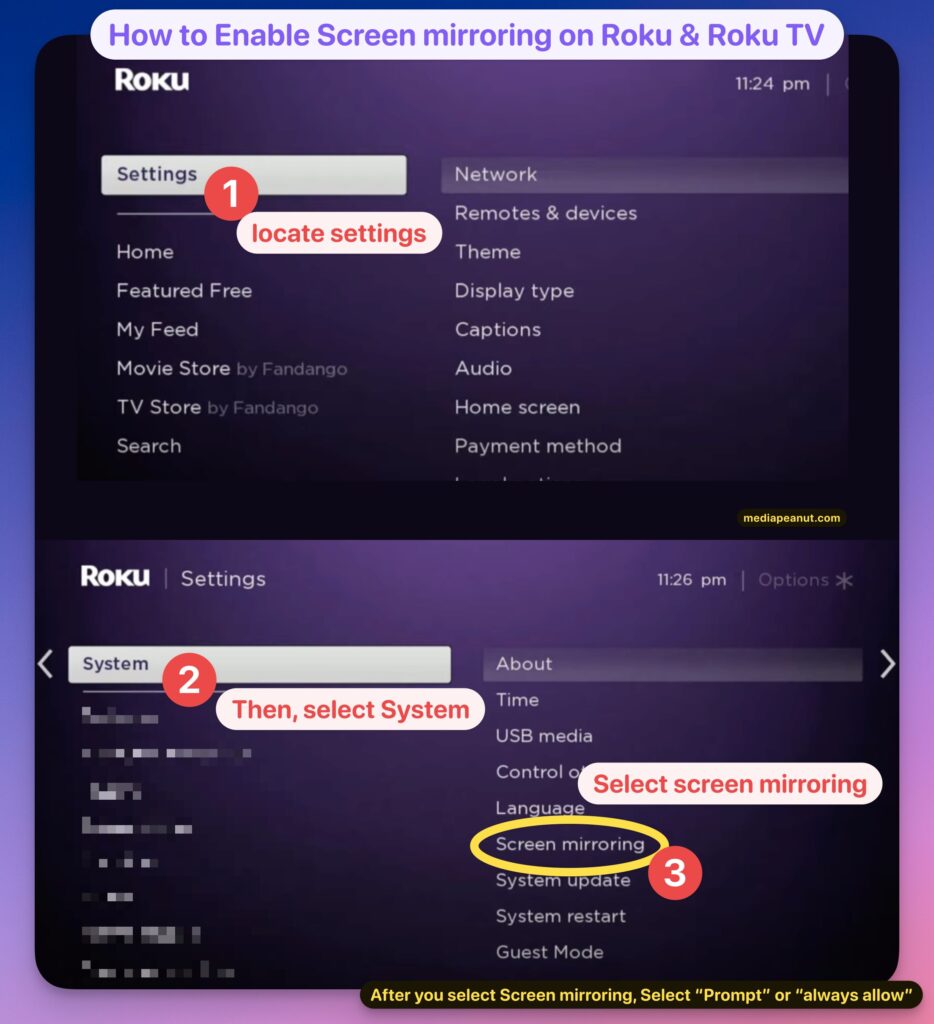
- Enable screen mirroring. Navigate to Settings → System → Screen mirroring and set the mode to “Prompt” or “Always allow.” “Never allow” is the default on some new units.
- Choose the right mirroring mode. “Prompt” asks you each time, which is handy for security; “Always allow” streamlines the process but may open a small privacy window.
- Set the correct network. Under Settings → Network → Wi‑Fi, double‑check that the TV is not connected to a guest network that isolates devices.
Common Error Messages and What They Mean
When mirroring fails, Roku often displays a brief alert. Here’s a quick decode:
- “Unable to connect to device.” – Usually a network mismatch or protocol conflict.
- “Device not compatible.” – Your phone may lack Miracast support; try AirPlay if you have an iOS device.
- “Connection timed out.” – Signal interference or a weak Wi‑Fi link.
Knowing the exact wording saves you from guessing which setting to tweak next.
Step‑by‑Step Troubleshooting Flow
If you’re still stuck, follow this concise flowchart:
- Verify both devices are on the same Wi‑Fi band.
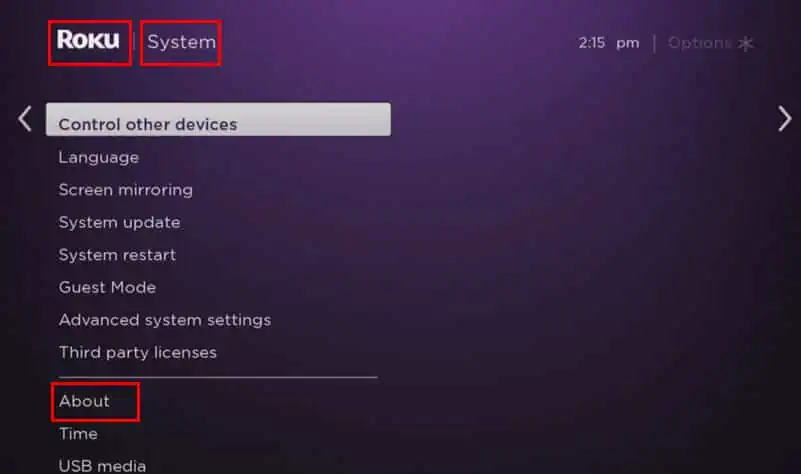
- Restart the router, then the Roku TV (Settings → System → System restart).
- Check for Roku firmware updates (Settings → System → System update).
- On your phone, toggle AirPlay or Cast off and on again.
- Re‑enable screen mirroring on the Roku and select “Prompt.”
- If the prompt still doesn’t appear, temporarily disable any VPN or firewall on the phone.
- As a last resort, perform a factory reset on the Roku (Settings → System → Advanced system settings → Factory reset).
Most users find the issue resolves by the third step—usually a firmware update that adds support for the latest Miracast standards.
FAQ
Q: Can I mirror a laptop to a Roku TV?
Yes, Windows 10 and later include a “Connect” feature that uses Miracast. Just select the Roku from the list of wireless displays.
Q: Why does my iPhone show “AirPlay Not Available”?
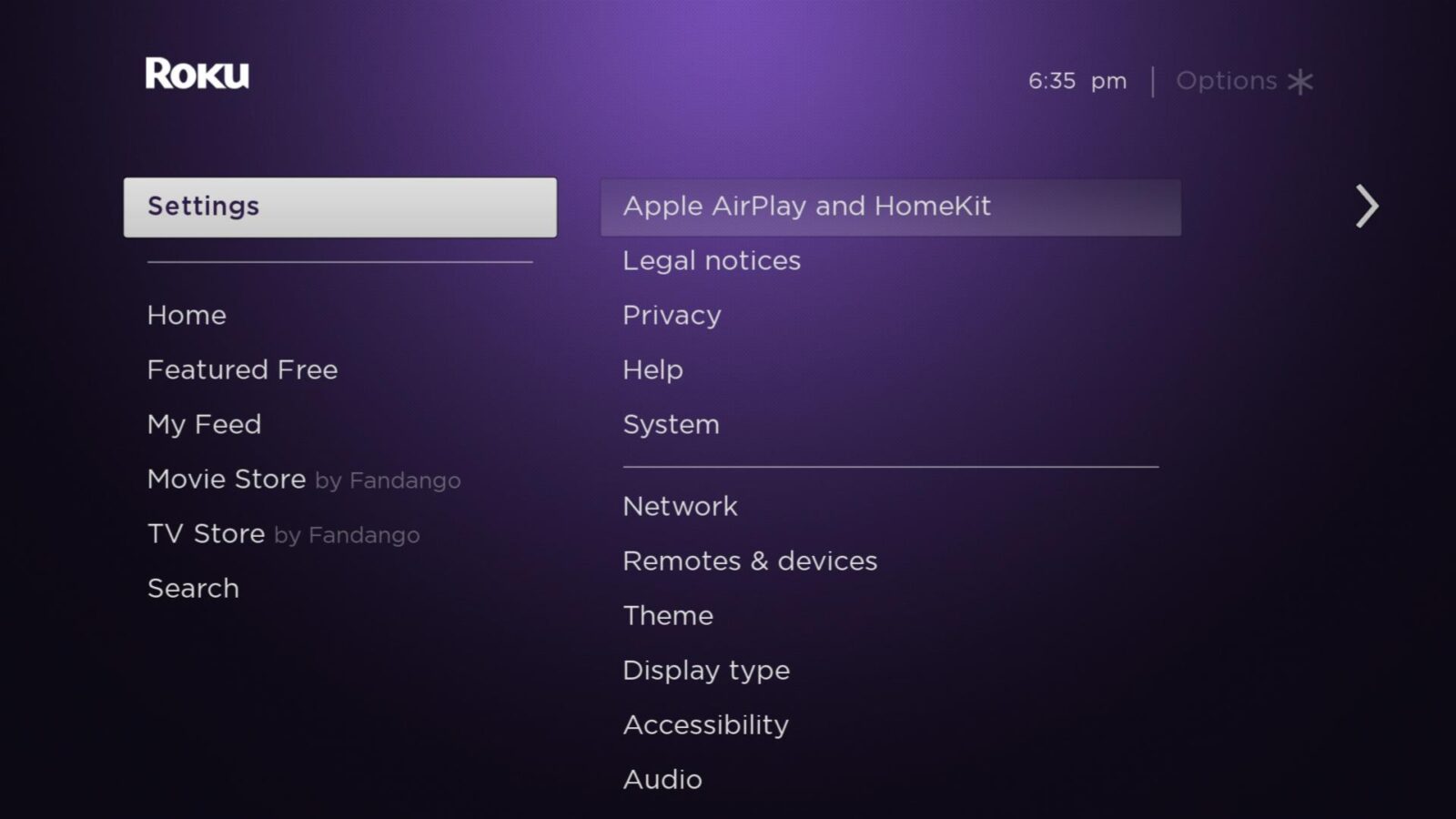
This typically means the Roku’s AirPlay setting is disabled or the device is on a different network. Enable AirPlay in the Roku’s Settings → Apple AirPlay and HomeKit menu.
Q: Does a wired Ethernet connection improve mirroring?
Connecting the Roku to Ethernet can stabilize its internet link, which in turn reduces dropouts caused by a flaky Wi‑Fi signal.
Q: Are there any apps that help with troubleshooting?
Apps like “Wi‑Fi Analyzer” (Android) or “AirPort Utility” (iOS) let you see channel congestion and signal strength, making it easier to locate the best spot for your router.