How to Fix the Can't Read Install Info Error in Battle.net
If you’ve opened Battle.net only to see a cryptic “Can’t read install info” message, you’re not alone. The glitch usually pops up after an update, a sudden crash, or a manual file move. Below we break down why it happens and, more importantly, how you can get your games back up and running without reinstalling everything from scratch.
What the error actually means
The Battle.net client stores a tiny database that tells it where each game is installed, which version is present, and what patches have been applied. When that database becomes corrupted or unreadable, the client throws the “Can’t read install info” alert. It isn’t a sign that your game files are gone; the client simply can’t locate the reference data it relies on.
Typical culprits behind the problem
- Interrupted updates. Power loss or a forced shutdown while Battle.net is writing its install manifest can leave the file half‑written.
- Moved or renamed folders. Drag‑and‑dropping a game folder to a new drive without updating the client’s path settings confuses the tracker.
- Corrupt cache. Cached data in the
CacheorAgentfolders sometimes gets out of sync after a Windows update. - Permission issues. If the client loses read/write rights to its own program folder—perhaps after a recent security‑software tweak—it can’t pull the install info.
Step‑by‑step fixes you can try first
Before you reach for a full reinstall, follow these troubleshooting steps. Each one addresses a common root cause, so you can stop after the method that works for you.
1. Restart Battle.net and your PC
It sounds trivial, but a fresh launch clears temporary memory and often forces the client to rebuild its internal index. Shut down the app, reboot Windows, and open Battle.net again.
2. Clear the client’s cache
Navigate to C:\ProgramData\Battle.net\Agent (or the equivalent folder on your system) and delete everything inside the Cache subfolder. Then launch Battle.net; the client will recreate fresh cache files.
3. Verify the installation path
Open Battle.net, click the gear icon next to the game that’s showing the error, and choose “Show in Explorer.” If the folder can’t be found, use the “Locate Install Folder” button to point the client to the correct directory. This re‑writes the install info for that title.
4. Run the client as administrator
Right‑click the Battle.net shortcut, select “Run as administrator,” and see if the error disappears. Elevated privileges give the client the permission it needs to read and write its manifest files.
5. Delete the Agent folder
If the cache clear didn’t help, close Battle.net entirely (check the system tray), then delete the whole Agent folder located at C:\ProgramData\Battle.net\Agent. The next time you start the client, it will rebuild the folder from scratch, often fixing hidden corruption.
6. Reinstall the Battle.net desktop app
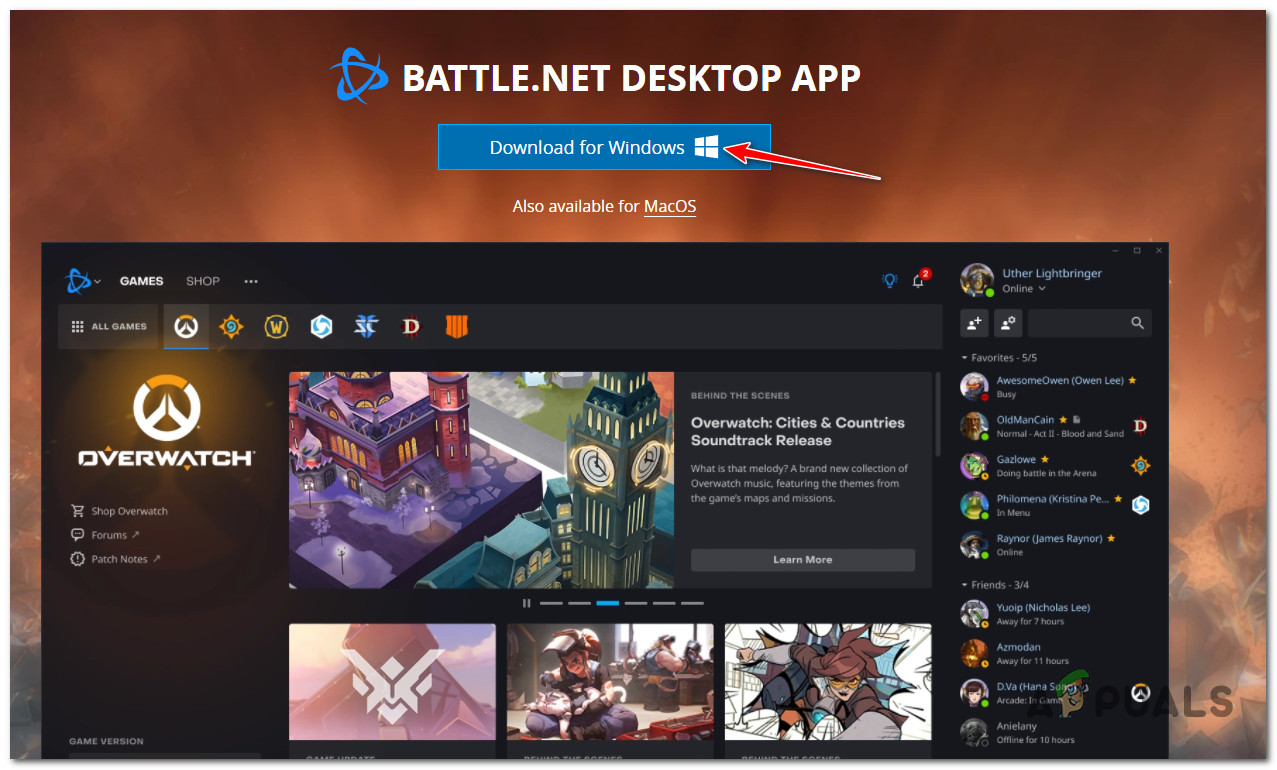
When all else fails, a clean reinstall is the safest fallback. Uninstall the client via the Control Panel, download the latest installer from Blizzard’s website, and run it. Your game files stay where they are; the client simply creates a fresh set of install info.
Additional tips to keep the error at bay
- Keep Windows updates turned on, but give the system a quick restart after large patches.
- Avoid moving game folders while the client is running; always close Battle.net first.
- If you use third‑party antivirus, whitelist the
Battle.netfolder to prevent it from blocking read/write operations. - Regularly back up the
Agentfolder if you’re comfortable with it—restoring a known‑good copy can be faster than troubleshooting each time.
FAQ
Q: Will deleting the Agent folder delete my game saves?
A: No. The Agent folder only contains client‑side data like caches and manifest files. Your actual game saves live in separate “Documents” or “Saved Games” directories, which remain untouched.
Q: Is the “Can’t read install info” error the same as a corrupted game file?
A: Not exactly. The error points to the client’s inability to locate the install record, not to the game files themselves. Corrupted game files would usually trigger a different error during launch.
Q: Can I fix the issue without reinstalling Battle.net?
A: Yes. In many cases, clearing the cache, resetting permissions, or manually re‑pointing the install folder resolves the problem without a full reinstall.
Q: My games still won’t launch after fixing the error—what next?
A: Try the built‑in “Scan and Repair” option for each game. It checks the actual game files for integrity and replaces any missing or broken components.