How to Fix the ESPN App on Your Smart TV Quickly
If the ESPN app isn’t working on your smart TV, you’re not alone. Streaming sports on a big screen should be effortless, yet a frozen screen, missing audio, or a stubborn “app not responding” message can ruin the game day vibe. Below we’ll walk through the most common hiccups and give you a clear, step‑by‑step plan to get the app back in action.
Why the ESPN App Often Stumbles on Smart TVs
Understanding the root cause makes troubleshooting less guesswork. Here are the typical culprits:
- Out‑of‑date software. Both the TV’s firmware and the ESPN app receive regular updates; a lagging version can cause incompatibility.
- Network glitches. Spotty Wi‑Fi, router throttling, or DNS issues interrupt the data stream.
- Cache overload. The app stores temporary files to speed up loading, but an overfull cache can lead to crashes.
- Account hiccups. Expired subscriptions or mismatched login credentials sometimes block playback.
- Device‑specific quirks. Some brands handle background processes differently, which can affect how ESPN runs.
Step‑by‑Step Troubleshooting Guide
Before you grab the remote and start flipping settings, try these quick checks. Each step takes just a minute or two.
1. Restart Your TV and Router
Power cycling clears transient memory and forces a fresh network handshake.
- Turn off the TV and unplug it for 30 seconds.
- Do the same with your router or modem.
- Plug both back in, wait for lights to stabilize, then power on the TV.
2. Verify Your Internet Speed
ESPN streams in HD or 4K, so a steady 5 Mbps minimum is advisable. Run a speed test on a phone or laptop connected to the same Wi‑Fi network. If results fall short, consider moving the router closer, switching to a 5 GHz band, or using a wired Ethernet cable.
3. Clear the ESPN App Cache
Most smart TV platforms let you clear app data without a full reinstall.
- Navigate to Settings > Apps (or Applications).
- Find ESPN in the list and select Clear Cache and, if available, Clear Data.
- Restart the app and attempt playback.
4. Update the App and TV Firmware
Outdated code is a frequent source of bugs.
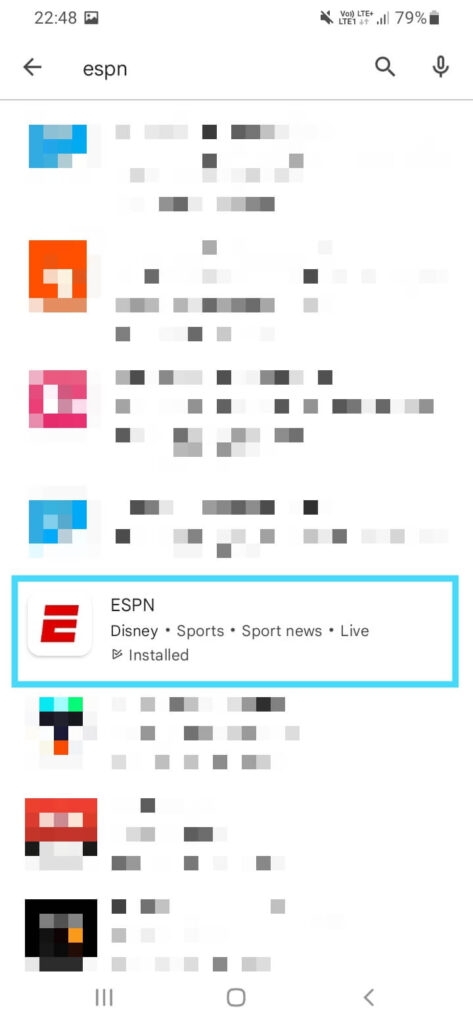
- Open the TV’s app store, locate ESPN, and hit Update if the button appears.
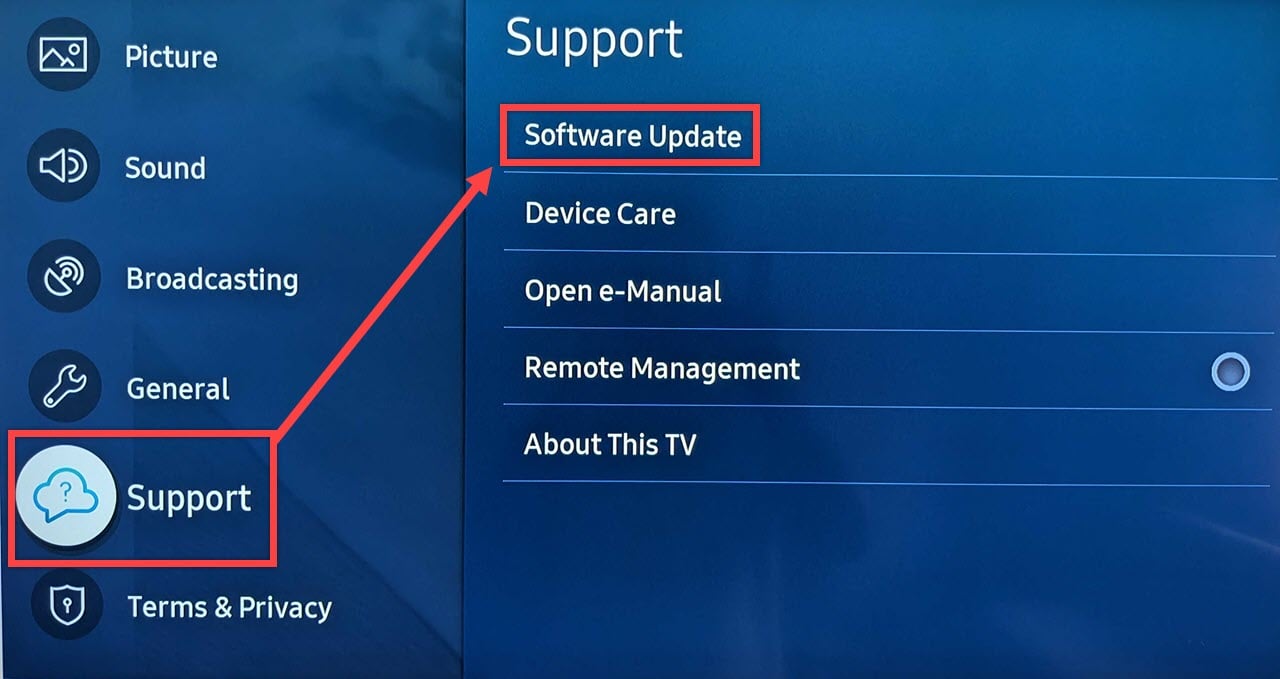
- Next, go to Settings > System > Software Update and install any available firmware patches.
- After both updates, launch the ESPN app again.
5. Reinstall the ESPN App
If clearing the cache didn’t help, a clean reinstall often does the trick.
- Uninstall ESPN from the app menu.
- Reboot the TV (quick power off and on).
- Return to the app store, download ESPN anew, and log in.
6. Adjust DNS Settings (Optional)
Some users find that switching to a public DNS, like Google’s 8.8.8.8, reduces buffering.
- Enter Network Settings on your TV.
- Choose Advanced or Manual DNS and input 8.8.8.8 (primary) and 8.8.4.4 (secondary).
- Save and restart the TV.
Check Your ESPN Account and Subscription
Even a perfectly running app won’t stream if the back‑end denies access. Log into ESPN.com on a computer to confirm your subscription is active. If you recently changed passwords, update them on the TV app as well. Occasionally, regional restrictions block certain live events; a VPN can help, but it may also violate ESPN’s terms of service.
When the Problem Persists: Contact Support
If you’ve run through the checklist and the app still freezes, it’s time to reach out.
- TV manufacturer support. They can diagnose firmware‑specific bugs.
- ESPN customer service. Use the in‑app chat or the help page on ESPN.com for account‑related issues.
- Your internet provider. Persistent speed drops or packet loss often stem from ISP throttling.
Quick FAQ
Why does the ESPN app keep buffering on my smart TV?
Buffering usually points to a weak Wi‑Fi signal, outdated app firmware, or an overloaded cache. Trying the steps above—especially restarting the router and clearing the cache—solves most cases.
Can I install ESPN on any brand of smart TV?
Most major brands (Samsung, LG, Sony, Vizio, and TCL) offer the ESPN app in their respective stores. A few older or budget models may lack native support, in which case a streaming device (Roku, Fire TV, Apple TV) is a reliable workaround.
Do I need a cable subscription to watch ESPN through the app?
ESPN offers both a standalone streaming tier (ESPN+) and bundle options that require a cable or satellite login. ESPN+ gives you access to a growing library of live events and original shows, while the full ESPN channel often still needs a traditional TV provider credential.
Is there a way to improve picture quality on the ESPN app?
Make sure your TV’s picture mode is set to “Standard” or “Sports” rather than “Dynamic,” which can oversaturate colors. Also, enable “HDMI UHD Color” if you’re using an external streaming stick that supports 4K HDR.