How to Install Google Generative AI with npm – A Quick Guide
If you’ve been curious about tapping into Google’s Generative AI models from a Node.js environment, you’re in the right place. In less than ten minutes you can have the official @google/generative-ai package on your machine and run a basic prompt‑completion demo. The steps below assume you already have Node.js installed, but we’ll note the exact versions that tend to work best.
Prerequisites: Setting the Stage
- Node.js (v18 or newer) – The package uses modern JavaScript features, so older runtimes may stumble.
- npm (comes with Node) – You’ll use it to pull the library from the public registry.
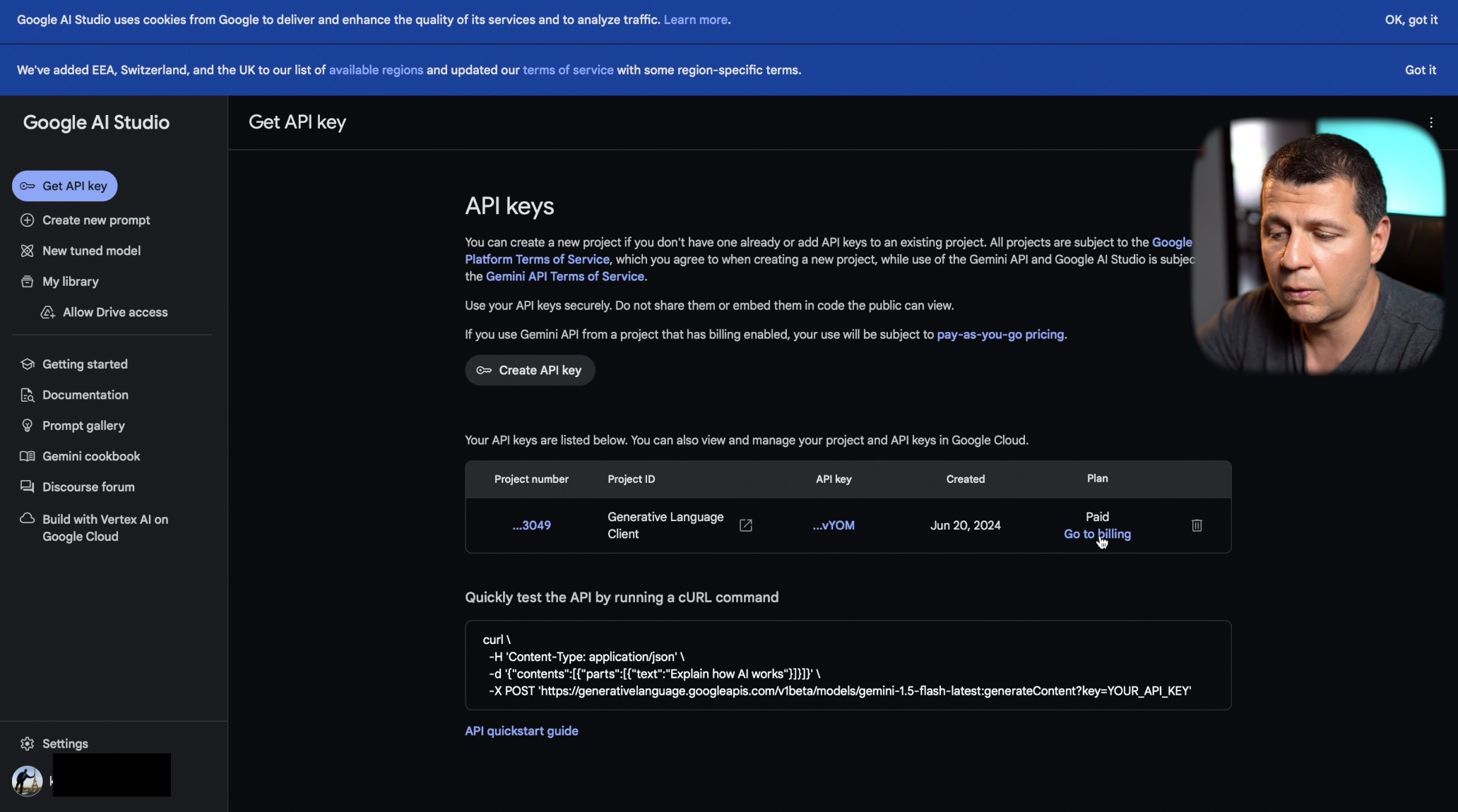
- A Google Cloud project with the Generative AI API enabled – This is where you’ll obtain the API key needed for authentication.
Once those items are in place, you can move straight to the installation.
Installing Google Generative AI with npm
The actual npm command is a single line, but it helps to wrap it in a tidy project folder. Here’s a quick walkthrough:
- Open your terminal and create a fresh directory:
mkdir gen‑ai‑demo && cd gen‑ai‑demo - Initialize a minimal
package.jsonfile:npm init -y - Pull the official SDK from Google’s registry:
npm install @google/generative-ai
After the install finishes, you’ll see @google/generative-ai listed under dependencies in your package.json. That’s the core library you’ll import in your code.
Configuring Your API Key Safely
Google protects its models behind an API key, which you can generate from the Google Cloud console. Store the key outside of your source files—environment variables are the simplest approach.
# .env file (do not commit this!)GOOGLE_API_KEY=YOUR_ACTUAL_KEY_HERE
To load the variable at runtime, install a tiny helper:
npm install dotenvThen add the loader at the top of your script:
require('dotenv').config();const apiKey = process.env.GOOGLE_API_KEY;
Writing Your First Prompt Script
With the package installed and the key in place, a few lines of code are enough to talk to a generative model. Below is a minimal example that asks the model to rewrite a sentence in a more formal tone.
const { GoogleGenerativeAI } = require('@google/generative-ai');// Initialize the client
const genAI = new GoogleGenerativeAI(apiKey);
const model = genAI.getGenerativeModel({ model: 'gemini-1.5-flash' });
async function runDemo() {
const prompt = "Turn this casual sentence into something you'd write in a business email: 'Hey, can you send me the files?'.";
const result = await model.generateContent(prompt);
console.log('AI response:', result.response.text());
}
runDemo().catch(console.error);
Save the snippet as demo.js and execute it with node demo.js. If everything is wired correctly, you’ll see a polished rewrite printed to the console.
Troubleshooting Common Hiccups
Even a straightforward setup can hit snags. Here are a few issues you might encounter and quick ways to address them:
- Authentication errors – Double‑check that the environment variable is loaded (run
echo $GOOGLE_API_KEYin your terminal) and that the key has the “Generative AI API User” role. - Version mismatches – If you see syntax errors, make sure Node is at least v18. Upgrading Node usually resolves unexpected token problems.
- Rate‑limit messages – The free tier imposes modest request caps. Space out calls or consider applying for a higher quota if you’re doing bulk testing.
Beyond the Basics: What to Explore Next
Now that you’ve got a working install, the SDK opens doors to richer interactions:
- Streaming token‑by‑token responses for real‑time UI updates.
- Fine‑tuning prompts with system messages to steer the model’s style.
- Integrating with frameworks like Express or Next.js for web‑based AI features.
The official documentation includes sample projects that illustrate these patterns, so a quick browse can spark ideas for your own applications.
FAQ
Do I need a credit card to enable the Generative AI API?
Yes, Google requires a billing account for API usage, even if you stay within the free quota. The first $300 of credit is often enough for experimentation.
Can I use the npm package on the client side in a browser?
Officially, the library is intended for server‑side Node environments because it handles the API key securely. For browser use you’d typically proxy requests through your own backend.
Is there a way to test the installation without writing code?
Google provides a quick “Try it now” console on the API’s web page, but running the demo.js script is the fastest local sanity check.
What model should I start with?
The gemini-1.5-flash model balances cost and performance well for most prototypes. If you need higher fidelity, the gemini-1.5-pro tier is available at a higher price point.