How to Join Minecraft Multiplayer Servers Quickly and Easily
Whether you’re fresh out of single‑player mode or just looking for a new crew to explore, hopping onto a Minecraft multiplayer world is surprisingly straightforward once you know the steps. Below is a compact guide that walks you through everything from setting up your account to troubleshooting common hiccups, so you can start building with strangers (or friends) in no time.
What You Need Before You Can Join Minecraft Multiplayer
First things first: you can’t connect without a few basics in place.
- Minecraft Java or Bedrock edition – The two editions use different server types, so be sure you’ve downloaded the version that matches the server you want.
- A valid Mojang or Microsoft account – Free to create, but you’ll need to be logged in for online play.
- Stable internet connection – A wired connection isn’t mandatory, but a consistent ping helps avoid lag.
- Server address – This is the IP or domain name of the server you plan to join. Many sites list public servers; you can also use a friend’s IP for a private world.
With those items checked, you’re ready to move on to the actual joining process.
Step‑By‑Step: How to Join Minecraft Multiplayer
Follow these actions in order, and you’ll be inside a new world faster than you can craft a wooden pickaxe.
- Launch the game and sign in. Open Minecraft, select the correct edition, and log in using your Microsoft account credentials.
- Navigate to the Multiplayer menu. From the main screen, click “Multiplayer” (Java) or “Play → Friends → Joinable Friends” (Bedrock) to open the server list.
- Add a server. Click “Add Server” (Java) or “Add Server” under “Servers” (Bedrock). Enter a recognizable name and paste the server’s IP address or domain. For Bedrock, you might also need the port number, which is typically 19132 unless the host specifies otherwise.
- Save and select. After saving, the server will appear in your list. Click it, then press “Join Server” (Java) or “Join” (Bedrock).
- Wait for the connection. The game loads the world, syncs player data, and drops you into the spawn area. If you see a loading screen for more than a minute, there may be a connectivity issue.
That’s the core workflow. Most servers will automatically place you on a lobby or directly into the game, depending on how the host configured it.
Choosing the Right Server for Your Playstyle
Not all multiplayer worlds are created equal. Here are three common categories you might encounter, each with its own vibe.
- Survival servers – Classic gameplay where you gather resources, fend off mobs, and build cooperatively. Look for tags like “Survival” or “SMP.”
- Creative servers – Unlimited blocks and flying abilities let you focus on design. These often require a subscription or donation to access premium plots.
- Minigame hubs – Quick‑fire games such as “Bed Wars,” “Skyblock,” or “Hide and Seek.” Perfect for short sessions and meeting new players.
Read the server’s description, check its rules, and maybe peek at community forums before you commit. A well‑matched server can make the difference between a frustrating slog and an enjoyable adventure.
Common Issues and How to Fix Them
Even a smooth‑sailing guide can hit snags. Below are typical roadblocks and practical fixes.
- Version mismatch – If you see “Incompatible version” when connecting, verify that your game version aligns with the server’s listed version. Most servers note this on their website or in the server list.
- Whitelist restrictions – Some servers require an application or a whitelist entry before you can join. Follow the provided Discord or forum link to request access.
- Network blocks – Firewalls or ISP restrictions can block the necessary ports. Ensure your router forwards port 25565 (Java) or 19132 (Bedrock) if you’re hosting locally, and consider testing with a VPN if the problem persists.
- Latency spikes – High ping often stems from distance to the server. Choose a server geographically closer to you, or use a wired connection to reduce packet loss.
Most problems resolve after a quick double‑check of the above items, but if you’re still stuck, the server’s community support channels are usually eager to help.
Staying Safe While Playing Multiplayer
Multiplayer brings social fun, but it also invites unwanted behavior. Keep these safety tips in mind.
- Read the server’s rules before you speak in chat.
- Avoid sharing personal information like your real name, address, or payment details.
- Use the built‑in “Report” or “Mute” functions if a player behaves abusively.
- Consider playing on servers that require a verified email or two‑factor authentication for added security.
Staying vigilant lets you enjoy the community without unnecessary drama.
FAQ
Can I join a Minecraft multiplayer server on a mobile device?
Yes. The Bedrock edition runs on iOS, Android, consoles, and Windows 10. The process is similar: open the “Play” menu, select “Servers,” add the address, and tap “Join.”
Do I need a paid Minecraft account to play multiplayer?
For Java Edition, a purchased license is required. Bedrock Edition also needs a valid account, though some platforms (like Xbox Game Pass) include the game as part of the subscription.
Why does the server say “Server is full” even though it shows open slots?
This usually means the server has reached its maximum player count but hasn’t updated the list yet. Waiting a few minutes or trying again later often resolves the issue.
Is it possible to host my own multiplayer world?
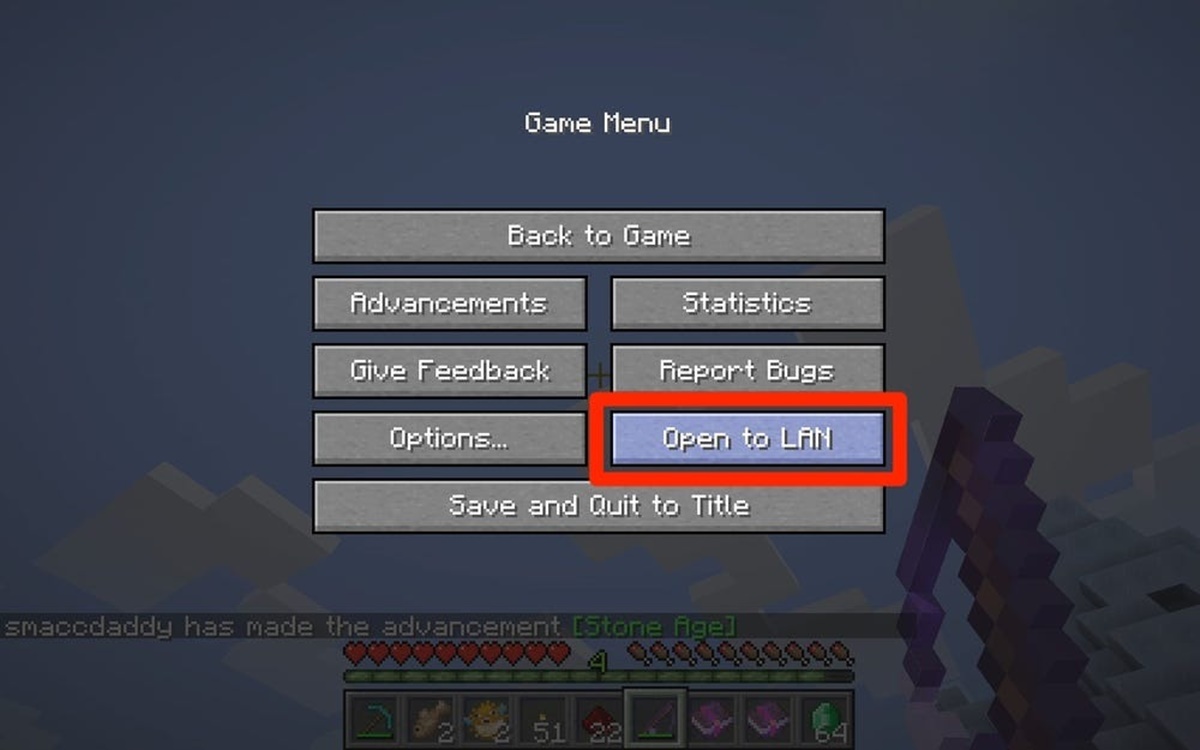
Absolutely. You can run a local server using the official Minecraft server JAR (Java) or enable “Open to LAN” for quick, temporary sessions. For a persistent world, consider renting a VPS or using a hosting service that offers one‑click setups.