How to Master QuickBooks Payroll Taxes: A Complete Tutorial
If you’ve ever stared at a payroll report and wondered where all the tax figures come from, you’re not alone. QuickBooks Payroll Taxes can feel intimidating, especially when deadlines loom and compliance rules shift. This guide walks you through every step—setting up tax items, running a payroll, and filing the forms—so you can keep the IRS happy without pulling your hair out.
Understanding Payroll Tax Basics
Before you click any buttons, it helps to know the three main categories of payroll taxes: federal, state, and local. Federal taxes include Social Security, Medicare, and federal income withholding. State taxes vary by jurisdiction but typically cover unemployment insurance (SUI) and state income tax. Some cities add a local withholding, and a handful of states require additional disability or training levies.
Each employee’s tax burden depends on their filing status, allowances, and any extra withholdings they’ve entered on a W‑4. QuickBooks uses this information to calculate the correct amounts each pay period, but you still need to confirm the rates are current—most agencies update them annually.
Setting Up Payroll Taxes in QuickBooks
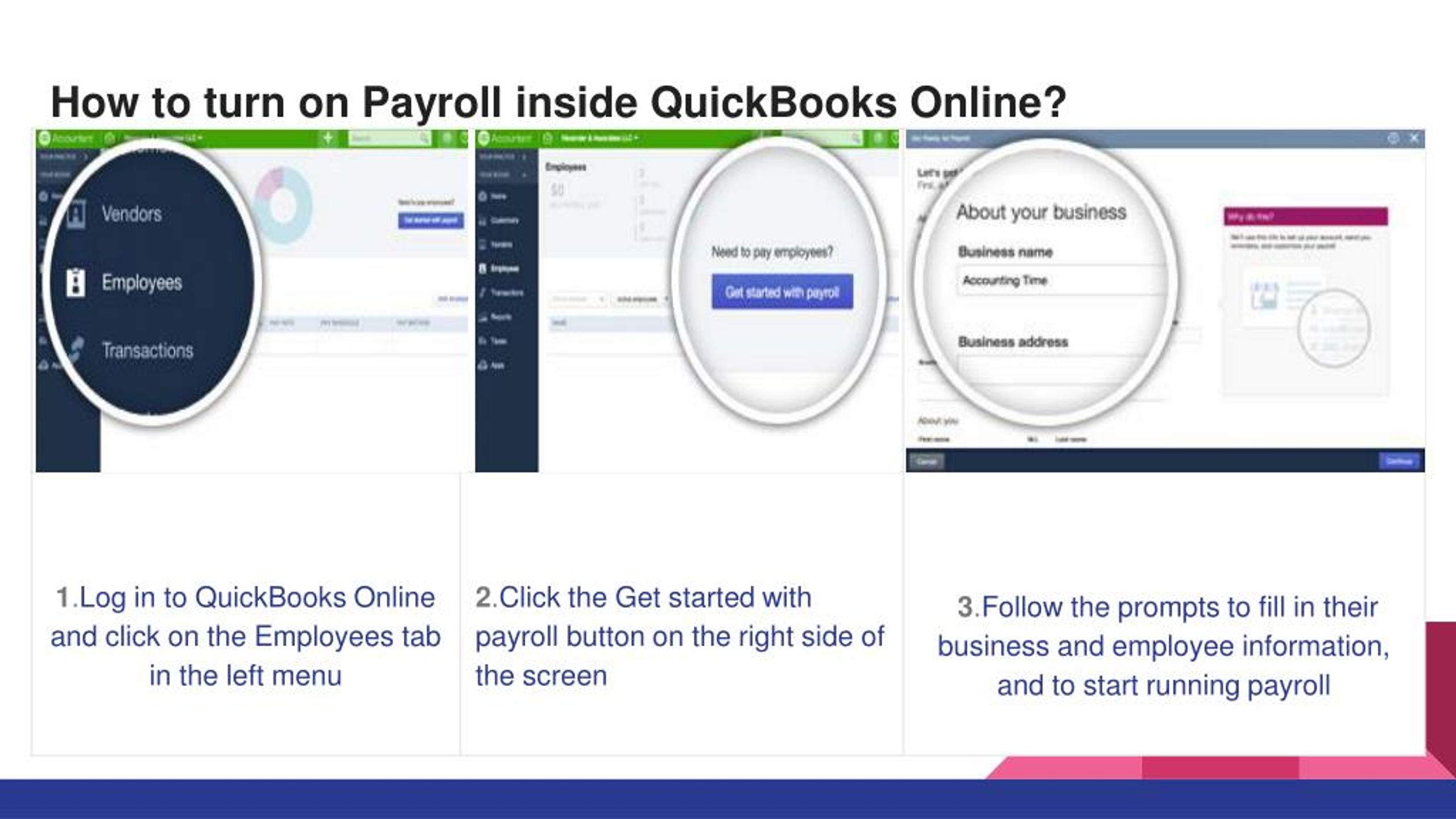
When you first enable payroll in QuickBooks, the software asks you to confirm a few key details. Follow the prompts, but keep this checklist handy:
- Company EIN and state tax IDs
- Employees’ W‑4 data (filing status, dependents, extra withholding)
- Current federal and state tax tables (QuickBooks usually downloads these automatically)
- Any local tax jurisdictions that apply to your workforce
If a tax rate looks off, you can edit it manually by navigating to Payroll Settings > Tax Rates & Agencies. Remember to save a copy of the official rate sheet for your records; QuickBooks won’t replace a custom entry unless you tell it to.
Running a Payroll and Handling Tax Withholdings
Once the setup is complete, processing a payroll is straightforward. Select Employees > Run Payroll, choose the pay schedule, and enter each employee’s hours or salary. QuickBooks instantly calculates:
- Gross wages
- Employee tax withholdings (federal, state, local)
- Employer tax liabilities (the matching portion of Social Security and Medicare, plus unemployment contributions)
- Any pre‑tax deductions like health insurance or retirement plans
Double‑check the preview screen for anomalies—perhaps an employee’s withholding jumped because they updated their W‑4. If everything looks good, click “Submit Payroll.” QuickBooks then creates a journal entry that records both the employee‑side deductions and the employer’s tax expenses.
Filing and Paying Taxes Through QuickBooks
QuickBooks can generate most of the forms you need, but you still have to file them with the appropriate agencies. Here’s a typical workflow:
- At month‑end, go to Payroll Center > Taxes > View/Pay Taxes.
- Review the “Tax Summary” report to see totals owed for each agency.
- Click “Create Tax Form” to produce forms such as 941 (federal), 940 (unemployment), and state equivalents.
- Choose “E‑File” if your state supports it; otherwise, print and mail the forms.
- Use the “Pay Taxes” button to schedule electronic payments directly from your bank account.
QuickBooks also tracks filing deadlines, sending you reminders a few days before they’re due. Setting up automatic payments can eliminate the last‑minute scramble, though you should still verify the amounts before the funds leave your account.
Common Pitfalls and Tips for Smooth Payroll Tax Management
Even seasoned accountants stumble over a few recurring issues:
- Out‑of‑date tax tables: Agencies release updates early each year. Make it a habit to run “Update Payroll Tax Tables” right after a new year begins.
- Mis‑classifying workers: Contractors should not be on the payroll; they belong in the “1099” section. Misclassification can trigger hefty penalties.
- Ignoring local taxes: Small municipalities often have their own withholding requirements. Use the “Add Local Tax” option to stay compliant.
- Failing to reconcile: Run the “Payroll Tax Liability” report monthly and match it against your bank statements. Discrepancies usually point to a data entry error.
One practical tip: enable the “Payroll Checklist” feature. It creates a to‑do list for each payroll cycle, reminding you to verify employee data, review tax totals, and confirm payment methods.
FAQ
Q: Can QuickBooks automatically calculate the correct tax rate for each state?
A: Yes, once you’ve entered the correct state tax IDs, QuickBooks pulls the latest rates from the Department of Labor databases. It’s still wise to double‑check the numbers after each annual update.
Q: What should I do if an employee’s paycheck shows a negative tax amount?
A: A negative amount usually means the employee’s withholding exceeded the taxable wages for that period. Verify the W‑4 entries and adjust the paycheck manually if needed, then run a payroll correction.
Q: How often do I need to file Form 941?
A: Form 941 is a quarterly filing. QuickBooks will flag the due dates in the “Taxes” tab, but you must still submit the form to the IRS—either electronically or by mail—by the deadline.