How to Mix Like a Pro: A Beginner’s Guide to Virtual DJ
Getting Started with Virtual DJ
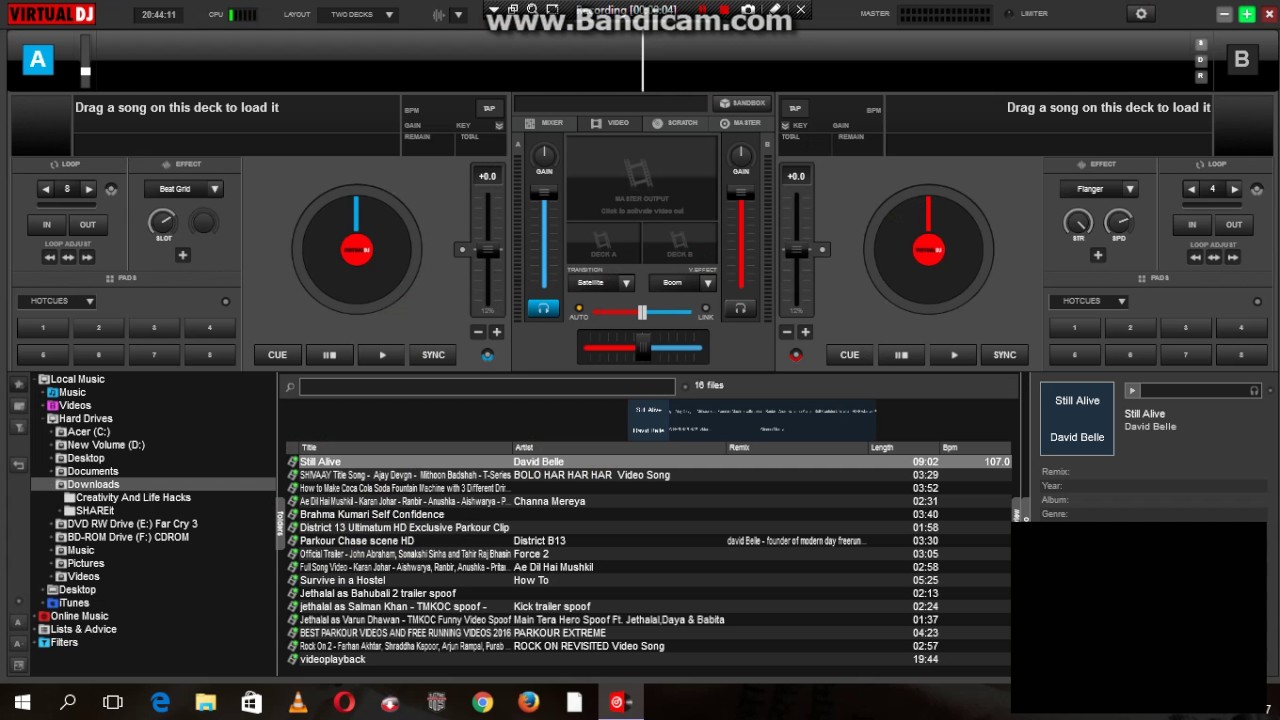
If you’ve ever wondered how DJs blend tracks so seamlessly, Virtual DJ is one of the most approachable tools to start experimenting. The software runs on both Windows and macOS, offers a free home‑edition, and packs enough features to grow with you. After downloading and installing the program, fire it up and take a quick look at the two decks in the center—these are where your songs will sit, ready to be mixed.
Before you load any music, set your audio output. Headphones are essential for cueing, while your speakers should be assigned to the “master” output. In the settings menu, you’ll find a simple dropdown that lets you pick your sound card; most users stick with the default, but if you have a dedicated DJ interface, select it here.
Understanding the Interface
Virtual DJ’s layout may feel crowded at first, but each element serves a purpose. The waveform display shows the track’s beats and structure—think of it as a visual map of the song. Directly below, the pitch fader lets you speed up or slow down a track without altering its key, which is crucial for beatmatching.
On the right side, you’ll see the sampler and the effects rack. The sampler holds short audio clips you can trigger on the fly, while the effects rack offers filters, echo, and flanger, among others. Don’t be tempted to load every effect at once; start with one or two that complement the genre you’re playing.
Basic Beatmatching Techniques
Beatmatching is the foundation of any good mix. In Virtual DJ, you can rely on the sync button, which automatically aligns the beats of two tracks. However, learning the manual method builds intuition and helps you recover when the software glitches.
Here’s a quick manual routine:
- Load a track on Deck 1 and start it.
- Load a second track on Deck 2, pause it, and look at both waveforms.
- Match the tempo by nudging the pitch fader on Deck 2 until the beats line up visually.
- When the beats line up, press play on Deck 2 and use the crossfader to blend the two songs.
Practice this with tracks that have a steady 4/4 beat, such as house or pop. After a few sessions, you’ll develop a feel for the “groove” and be able to match tempos without staring at the screen.
Adding Effects and Transitions
Once you’re comfortable with beatmatching, spice up your sets with transitions. A classic technique is the “filter sweep,” where you gradually roll off the low frequencies of the outgoing track while bringing in the high frequencies of the incoming one. In Virtual DJ, select the “Filter” effect, set it to “Low Pass” for the fading‑out deck, and “High Pass” for the incoming deck.
Another favorite is the echo tail. Apply a short echo to the track you’re exiting, then let the echo fade naturally as the new song takes over. This creates a sense of continuity without abrupt cuts. Remember, less is often more; a single well‑placed effect can be more impactful than a barrage of them.
Tips for Practicing and Improving
Consistency beats occasional marathon sessions. Set aside 20‑30 minutes each day to experiment with new tracks, effects, and cue points. Record your mixes within Virtual DJ—there’s a built‑in recorder that exports to MP3 or WAV—so you can listen back and spot awkward transitions.
Don’t ignore the community. Virtual DJ’s forum is full of tutorials, sample packs, and feedback threads. Upload a short segment of your mix and ask for constructive criticism; fresh ears often catch things you miss.
Finally, curate a well‑organized library. Tag songs with BPM, key, and genre. This makes it easier to find compatible tracks on the fly and reduces the time spent scrolling through endless folders during a live set.
FAQ
Q: Do I need expensive hardware to use Virtual DJ?
A: No. The free version runs perfectly with a standard computer and headphones. A dedicated controller can improve ergonomics, but it’s not required for beginners.
Q: How can I avoid “key clashes” when mixing?
A: Use the key detection feature (usually displayed near the track title) and try to mix tracks that share the same musical key or are compatible according to the Camelot wheel.
Q: Is it okay to rely on the sync button?
A: Sync is a helpful safety net, especially in fast‑paced live environments. However, learning manual beatmatching will give you confidence when the software fails or when you transition to hardware decks later.
Q: What’s a good first set length for a beginner?
A: Aim for a 15‑minute mix. It forces you to plan transitions and keeps the session focused, making it easier to spot mistakes and improve quickly.