How to Quickly Fix PC Errors in Seven Deadly Sins: Grand Cross
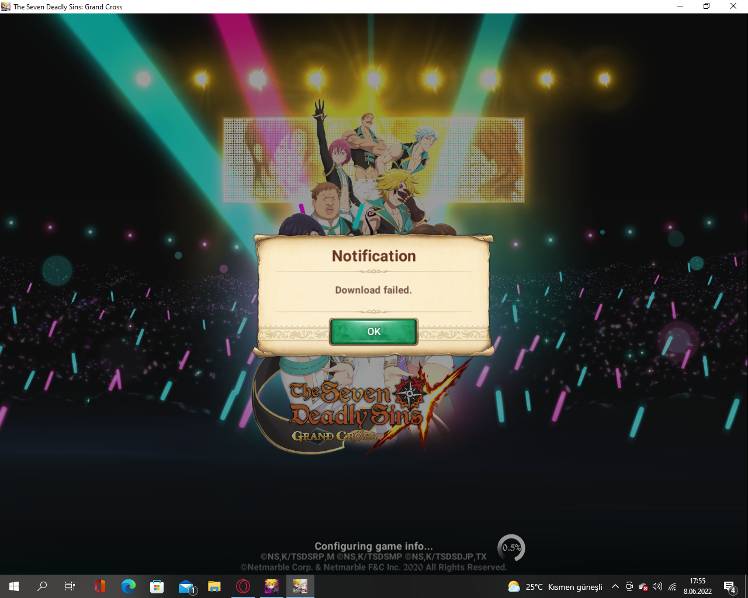
If you’ve installed Seven Deadly Sins: Grand Cross on your PC and suddenly find yourself staring at error messages, you’re not alone. The game, originally designed for mobile, can run into hiccups when ported to a desktop environment—especially on hardware that doesn’t match the recommended specs. In this quick‑read guide we’ll walk through the most common PC‑related problems and give you a concise, step‑by‑step remedy list that gets you back to battling alongside the Boar’s Clan in no time.
Common PC Errors and What Triggers Them
Before diving into fixes, it helps to know which glitches tend to surface and why. Below are the three error categories most players encounter.
Crash on Launch
A sudden “program has stopped working” dialog can appear the moment you click the Grand Cross shortcut. This usually stems from an outdated graphics driver, a conflict with another running program, or a missing Visual C++ runtime component.
Login Failures
Even if the game opens, you might see “Failed to connect to server” or “Invalid credentials” errors. These are often linked to firewall rules, an unstable internet connection, or the game’s own server‑maintenance schedule.
Graphics Glitches or Black Screens
Players sometimes report missing textures, flickering UI, or an all‑black screen after the loading bar finishes. Such visual anomalies often trace back to incompatible DirectX versions, an over‑aggressive overlay (Discord, Nvidia ShadowPlay), or a corrupted cache.
Step‑by‑Step Quick Fix Checklist
Grab a pen or screenshot this list—most of the steps can be completed in under five minutes each. Follow them in order; if the problem persists, you can skip ahead to the next item.
- Verify System Requirements: Ensure your PC meets at least the minimum specs—Windows 10 (64‑bit), 4 GB RAM, and a GPU supporting DirectX 11 (e.g., GTX 750 Ti or better). If you’re on integrated graphics, consider lowering the in‑game resolution or switching to a laptop mode.
- Update Graphics Drivers: Visit the Nvidia, AMD, or Intel website for the latest driver package. A fresh driver often resolves hidden memory leaks that cause crashes.
- Run as Administrator: Right‑click the Grand Cross executable, select “Run as administrator.” This grants the game the permissions it needs to write to the AppData folder and open network ports.
- Install or Repair Visual C++ Redistributables: Download the 2015‑2022 Visual C++ redistributable from Microsoft and run the installer with the “Repair” option if it’s already present.
- Check Windows Updates: Occasionally, a pending cumulative update includes critical DirectX patches. A quick “Check for updates” can eliminate that hidden blocker.
- Disable Conflicting Overlays: Turn off Discord overlay, GeForce Experience HUD, or any screen‑recording software while troubleshooting. Overlays can intercept the game’s rendering pipeline.
- Clear Cache and Temp Files: Navigate to
C:\Users\YourName\AppData\LocalLow\Netmarble\GrandCrossand delete theCachefolder. The game will rebuild it on the next launch. - Verify Game Files (Steam or Microsoft Store): If you installed via a launcher, use its “Verify integrity of game files” feature. Corrupted assets often cause black screens.
- Adjust Firewall/Antivirus Settings: Add an exception for
GrandCross.exein Windows Defender or your third‑party security suite. A blocked outbound connection is a common login culprit. - Switch to Windowed Mode: In the game’s settings (or by adding
-windowedto the launch arguments), select windowed mode. This can bypass full‑screen compatibility issues on some monitors. - Reinstall the Game: As a last resort, uninstall Grand Cross, delete any residual folders in
AppData, then reinstall from the official source. A clean install wipes hidden configuration errors.
If you’ve ticked off every item and the problem still lingers, it may be a server‑side issue or a bug that needs a patch from Netmarble. In those cases, patience and a quick check of the official forums or social media channels can save you a lot of guesswork.
When to Reach Out for Support
Most glitches are resolved by the checklist above, but a few scenarios warrant direct contact with the developer’s support team.
First, if you encounter an error code that references “ERR_5XX” or similar HTTP status, it almost certainly points to server downtime. Posting a screenshot on the official Discord, along with your OS version and GPU model, helps the support staff verify whether the issue is widespread.
Second, persistent crashes that generate a .dmp file can be attached to a support ticket. Include details about the exact moment of the crash (e.g., “after selecting a stage” or “when opening the character menu”). The more context you give, the faster they can replicate the bug.
Finally, if you’re running a non‑standard setup—such as a virtual machine, dual‑boot with Linux, or a high‑refresh‑rate monitor—mention that explicitly. Unusual hardware configurations sometimes expose edge‑case bugs that aren’t covered in the standard FAQ.
FAQ
- Q: My game freezes at the loading screen. What should I do?
A: Start by clearing the cache folder (see the checklist). If that doesn’t help, update your DirectX runtime via Windows Update and temporarily disable any screen‑recording overlays.
- Q: I get “Failed to connect to server” even though my internet works for other apps.
A: Add Grand Cross to your firewall’s allowed list, then restart the router. Occasionally, the game’s server IP changes after maintenance, so a quick router reboot forces a fresh DNS lookup.
- Q: The graphics look blurry or pixelated.
A: Lower the in‑game resolution to 1280 × 720, then enable “Sharpness” in the graphics settings. If the problem persists, reinstall the latest graphics driver and ensure the game is set to use the high‑performance GPU in your graphics control panel.
- Q: Is there a way to back up my progress before reinstalling?
A: Yes. Your save data lives in the
AppData\LocalLow\Netmarble\GrandCrossfolder. Copy the entire folder to another location, then restore it after a fresh install.