How to Re‑Enable Freeze Panes When It’s Greyed Out in Excel
Why the Freeze Panes Option Might Be Disabled
Seeing “Freeze Panes” dimmed in the ribbon can be frustrating, especially when you rely on it to keep headers visible while scrolling. Excel disables the command for a handful of reasons—most of them tied to the current view, protection settings, or collaborative modes. Understanding the underlying cause is the first step toward restoring the feature.
Check Your Worksheet View Settings
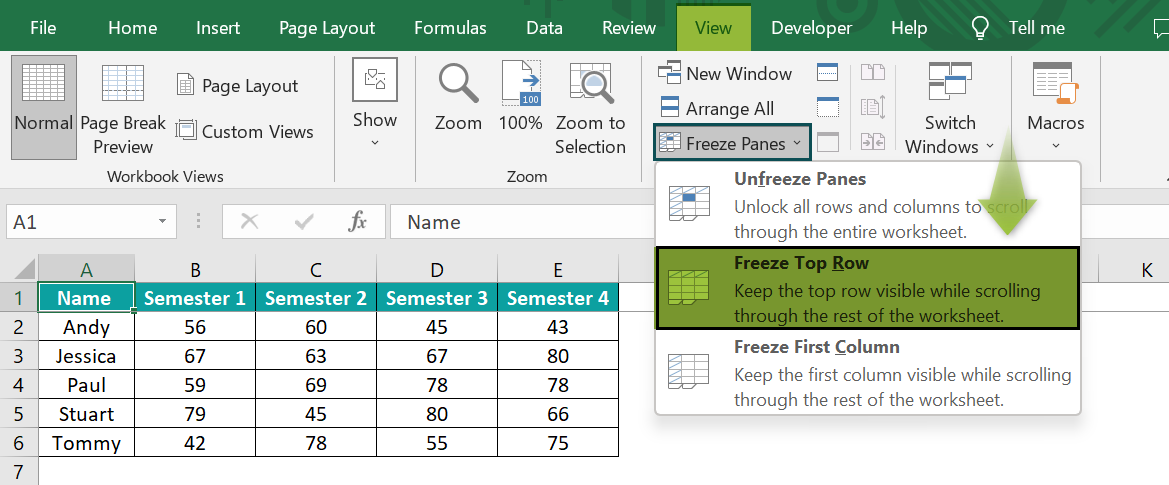
The simplest culprit is the view mode you’re using. Freeze Panes only works in Normal view; if you’re in Page Layout or Page Break Preview, the button will appear greyed out.
- Go to the View tab.
- Select Normal from the Workbook Views group.
- Return to the View tab and try clicking Freeze Panes again.
Switching back to Normal view usually restores the command instantly.
Look for Protected Sheets or Workbooks
Excel disables many editing tools when a sheet or the entire workbook is protected. If someone has applied protection without allowing formatting changes, Freeze Panes will be unavailable.
To verify:
- Click Review > Unprotect Sheet (or Unprotect Workbook).
- If a password is required, you’ll need to obtain it from the person who set the protection.
- After unprotecting, the Freeze Panes button should become active.
Inspect Shared Workbooks and Collaboration Mode
When a file is shared via Excel’s older “Shared Workbook” feature, or when you’re editing a document stored on OneDrive/SharePoint in real‑time, certain UI elements become read‑only. Freeze Panes is among those limited functions.
If you’re collaborating:
- Click File > Info > Manage Workbook to see if the document is marked as shared.
- Consider turning off sharing temporarily (Review > Share Workbook > uncheck “Allow changes by more than one user…”) or download a local copy to work on.
Make Sure You’re Not Editing a Table or Pivot Table
When your cursor is inside an Excel Table (the structured range created via Insert > Table) or a Pivot Table, Freeze Panes is suppressed. This is because those objects have their own scrolling behavior.
Simply click on a regular cell outside any table, then revisit the Freeze Panes command.
Quick Fix: Turn Off Full‑Screen Mode and Reset the Window
Occasionally the issue is visual rather than functional. Full‑screen mode or a maximized window that’s been resized oddly can cause ribbon commands to misbehave.
Try this quick reset:
- Press Esc to exit full‑screen if you’re in it.
- Close Excel, then reopen the file.
- Before doing anything else, go to View > Normal, and then test Freeze Panes again.
When All Else Fails: Reset Excel’s Settings
If none of the above solutions work, your Excel installation may have corrupted settings. A safe way to refresh them without reinstalling is to rename the registry key that stores user preferences.
On Windows:
- Close Excel.
- Open Run (Win + R) and type
regedit. - Navigate to
HKEY_CURRENT_USER\Software\Microsoft\Office\xx.0\Excel(replace xx with your Office version, e.g., 16 for Office 2016). - Right‑click the Excel key and choose Rename. Add “_old” to the end.
- Reopen Excel; it will recreate the key with default settings.
After this reset, the Freeze Panes button should behave normally. If it remains grey, a deeper issue such as a corrupted workbook might be at play.
Tips to Prevent Future Freeze Panes Glitches
- Keep your workbook in Normal view before applying Freeze Panes.
- Avoid protecting sheets unless absolutely necessary; instead, lock specific cells.
- Save a backup copy before enabling sharing or collaborative editing.
- Regularly update Office to benefit from bug fixes that address UI quirks.
Frequently Asked Questions
Can I freeze rows and columns at the same time?
Yes. Place the cursor in the cell that is directly below the rows you want to freeze and to the right of the columns you want to lock, then choose Freeze Panes > Freeze Panes from the ribbon.
Why does Freeze Panes disappear after I close and reopen the file?
Excel saves the freeze state with the workbook, but if the file was saved in a different view (like Page Layout) or if protection was added after the freeze, the setting can be lost. Re‑apply the freeze after reopening, ensuring you’re in Normal view.
Is there a shortcut for freezing the top row?
Press Alt +
Will Freeze Panes work in Excel for Mac?
Absolutely. The feature works the same way on macOS; just use the Layout tab on the ribbon and look for the Freeze Panes dropdown.