How to Rescue an HP PC Frozen on Automatic Repair in Windows 10
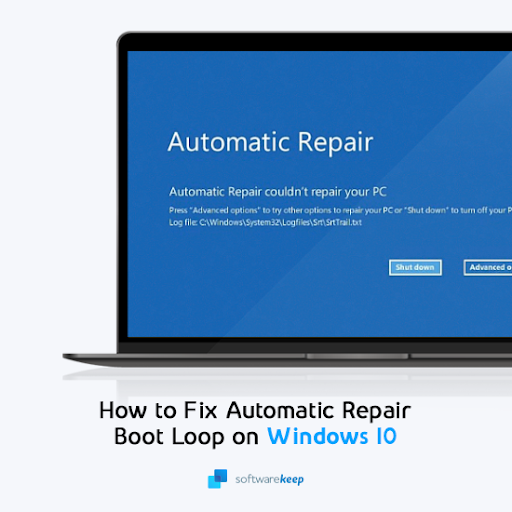
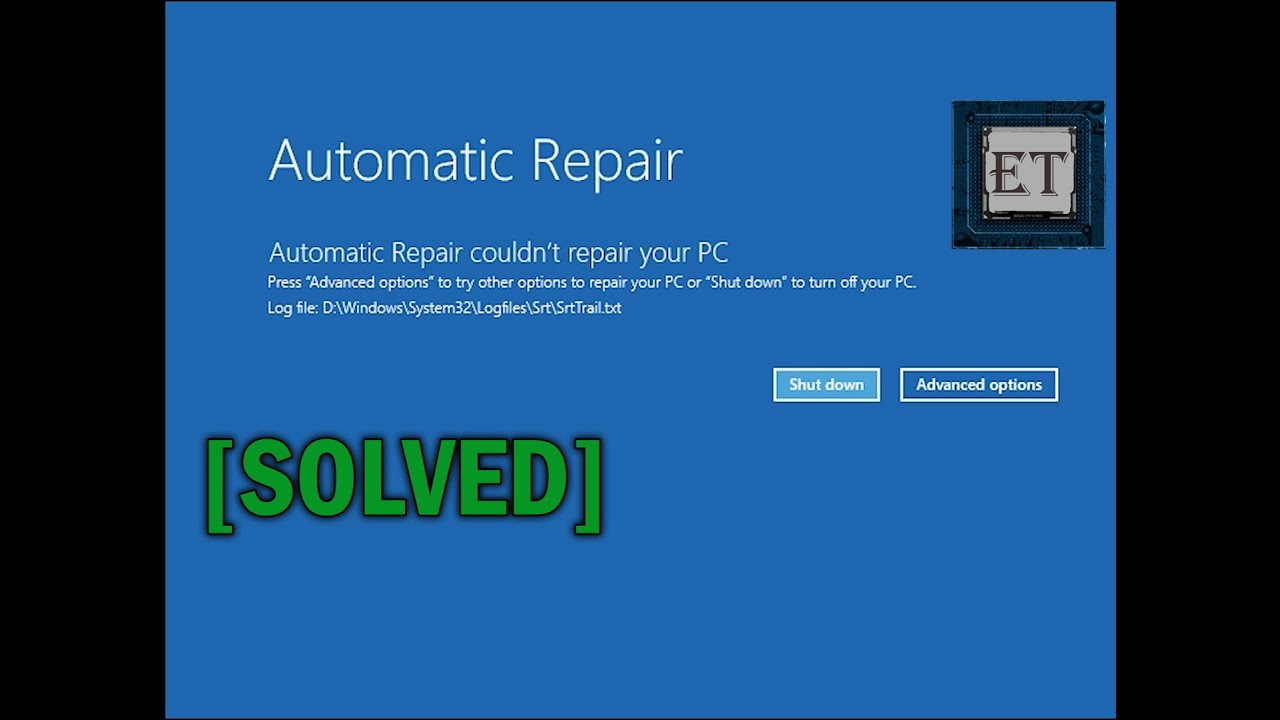
If you’ve powered on your HP laptop or desktop only to be greeted by the looping “Preparing Automatic Repair” screen, you know how frustrating it can be. The issue isn’t unique to HP; many Windows 10 users hit this snag after a sudden power loss, a faulty driver update, or a corrupted system file. Below you’ll find practical, step‑by‑step methods that usually get the machine back to normal without a full reinstall.
Why Your HP PC Gets Stuck on Automatic Repair
Automatic Repair is Windows’ safety net, designed to detect boot‑time problems and attempt fixes before you even see the login screen. When the tool can’t resolve the issue, it may restart the cycle, leaving you in a perpetual loop. Common culprits include:
- Interrupted Windows updates or driver installations.
- Corrupted bootmgr or BCD files.
- Physical drive errors that prevent Windows from reading essential files.
- Recent hardware changes that confuse the boot process.
Understanding the root cause helps you choose the right fix, rather than just clicking “Restart” hoping for a miracle.
Step‑by‑Step Fixes You Can Try
1. Boot Into Safe Mode via Advanced Startup
Safe Mode loads a minimal set of drivers, giving you a clean environment to troubleshoot.
- Power off the PC completely (hold the power button for 10 seconds).
- Turn it on and, as soon as the HP logo appears, press F11 repeatedly. This should open the Choose an option screen.
- Select Troubleshoot > Advanced options > Startup Settings, then click Restart.
- After the restart, press 4 for Safe Mode.
If the system boots, uninstall any recent updates or drivers that might have triggered the loop.
2. Run Startup Repair Manually
Even if the automatic attempt failed, you can launch it again from the same Advanced Startup menu.
- Go to Troubleshoot > Advanced options > Startup Repair.
- Choose your Windows 10 installation and let the tool run. It will scan for missing or corrupted files and try to replace them.
The process may take several minutes; patience is key.
3. Disable the Automatic Repair Loop
Sometimes the repair routine itself becomes stuck. Disabling it forces Windows to attempt a normal boot.
- From the Advanced Startup screen, open Command Prompt under Advanced options.
- Type
bcdedit /set {default} recoveryenabled Noand press Enter. - Restart the computer. If Windows boots, you can later re‑enable recovery with
bcdedit /set {default} recoveryenabled Yes.
This command tells the boot manager not to launch Automatic Repair automatically.
4. Check the Hard Drive for Errors
Physical or logical disk issues often cause boot failures.
- Open Command Prompt again.
- Run
chkdsk /f /r C:(replace C: with the appropriate drive letter if different). - Confirm the schedule if prompted, then restart. The scan will run before Windows loads.
Chkdsk attempts to fix bad sectors and repair file system inconsistencies, which can clear the blockage.
5. Perform a System Reset (Keep Your Files)
If none of the previous steps work, a Windows reset often does the trick while preserving personal data.
- Navigate to Troubleshoot > Reset this PC from the Advanced Startup menu.
- Select “Keep my files” and follow the on‑screen instructions.
The reset reinstalls Windows system files but leaves documents, photos, and apps untouched. Still, backing up critical data on an external drive is advisable before you begin.
When to Consider Professional Help
If the loop returns after a reset, or if the hard‑drive diagnostics report unrecoverable errors, the problem may be hardware‑related. In those cases, contacting HP support or a trusted technician can save you time and prevent data loss.
Frequently Asked Questions
Q: Will disabling Automatic Repair erase my data?
A: No. The bcdedit command only stops the repair prompt from launching. Your files remain on the drive.
Q: My HP PC still won’t boot after a reset. What’s next?
A: At that point, create a Windows 10 installation USB on another computer, boot from it, and try the “Repair your computer” option. If that fails, a clean install may be necessary.
Q: Can a BIOS update cause this loop?
A: It’s rare, but a failed BIOS flash can corrupt the boot process. If you suspect this, consult HP’s recovery instructions for BIOS restoration before proceeding with software fixes.
Q: Is it safe to use third‑party “repair” tools?
A: Many free tools promise a quick fix but can introduce malware or further corruption. Stick to Windows’ built‑in utilities or reputable software from well‑known vendors.