How to Run iOS Simulator on Android: A Developer's Guide
When you’re developing iOS apps but only have an Android device at hand, you might wonder how to Run iOS Simulator on Android. While Apple’s simulator is tightly coupled to macOS, several workarounds let developers preview, test, or debug iOS builds from Android. This guide walks through three proven methods: remote desktop streaming, cloud‑based emulation, and third‑party web simulators. By the end you’ll know how to set up each approach, what trade‑offs to consider, and when each is most appropriate.
Running the iOS Simulator on Android Devices
To get the simulator’s UI on your Android screen, you need a bridge that can capture the Mac’s display and send it to the phone. The most straightforward bridge is a remote‑desktop protocol. Here’s how to set it up with VNC, one of the most popular options.
- Prerequisites – A macOS machine with Xcode installed, a network connection, and an Android phone with the VNC Viewer app from the Play Store.
- Step 1: Enable VNC on macOS – Open
System Preferences > Sharing, tick Screen Sharing, click Computer Settings…, and enable “VNC viewers may control screen with password.” Note the password. - Step 2: Launch the iOS Simulator – From Xcode, open
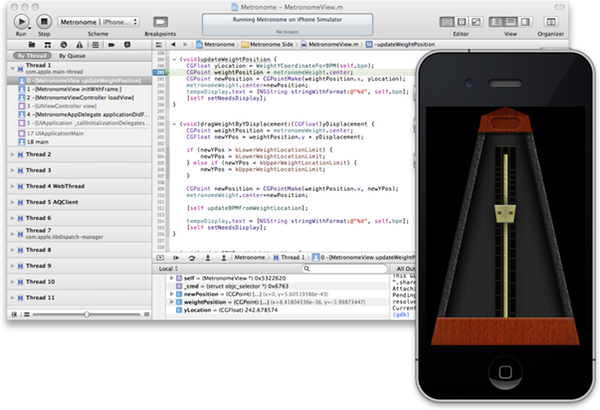
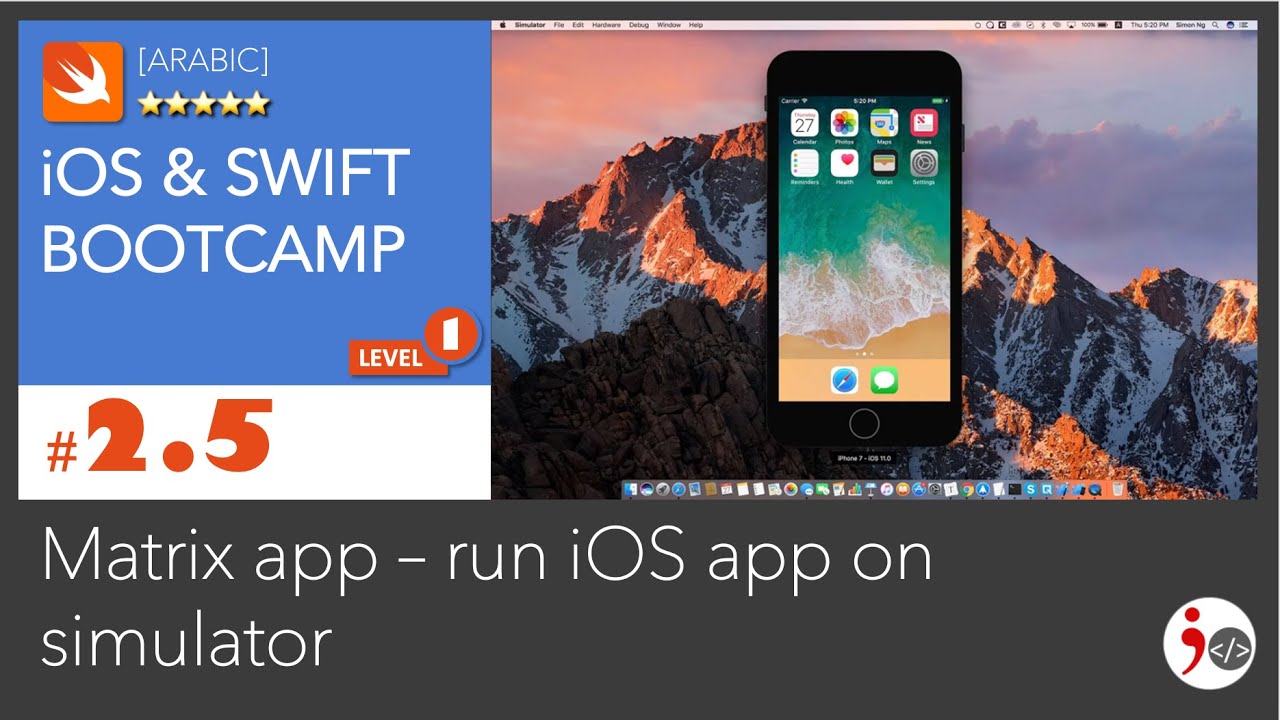
Xcode > Open Developer Tool > Simulator, then run your test app. - Step 3: Connect from Android – Open VNC Viewer, add a new connection using the Mac’s IP address and the password you set. Once connected, you’ll see the macOS desktop; tap the Simulator window to interact.
- Tips for smoothness – Lower the simulator’s resolution (
Hardware > Device > Small) and disable animations in iOS Settings to reduce bandwidth usage.
This method offers full interactivity but depends on a stable network link; latency can affect touch input responsiveness.
Cloud‑Based Mac Services
When you don’t own a Mac, cloud providers give you instant access to a remote machine with Xcode pre‑installed. MacStadium, AWS EC2 Mac instances, and GitHub Codespaces (with macOS) are popular choices.
- Set up a cloud Mac and enable VNC or SSH with X11 forwarding.
- Launch the iOS Simulator on the remote machine.
- Use VNC Viewer on Android or a web‑based VNC client to view the screen.
- Remember the cost: most services charge hourly rates, so keep the simulator running only when needed.
Cloud Macs are great for continuous integration pipelines, but they introduce latency similar to local VNC and incur recurring expenses.
Appetize.io: Browser‑Based iOS Emulator
For quick previews, Appetize.io hosts your compiled iOS app inside a web browser. No Mac is required on the developer’s side; you simply upload the .ipa bundle.
- Build your app in Xcode for Ad Hoc or App Store distribution.
- Upload the resulting
.ipato Appetize.io via their web UI or CLI. - Once processed, the service provides a shareable link that opens a virtual iPhone or iPad screen in Chrome or Firefox on Android.
- You can tap, scroll, and even simulate shake gestures. The emulator records logs and captures screenshots.
Appetize.io is perfect for demos, bug reporting, or when you need to let stakeholders test an app without installing Xcode. Free accounts allow 100 minutes per month; larger projects require a paid tier.
Choosing the Right Approach
When deciding which method to use, consider:
- Interactivity – VNC gives full control; Appetize.io is limited to touch input and basic gestures.
- Latency – Local VNC is usually faster than a cloud session; Appetize.io’s web interface adds browser overhead.
- Cost – Remote desktop on your own Mac is free; cloud Macs and Appetize.io charge per use.
- Setup complexity – VNC is straightforward; cloud services require account setup; Appetize.io needs a signed build.
For debugging low‑level issues like memory leaks, a local VNC setup is best. For stakeholder demos, Appetize.io wins due to its simplicity.
Troubleshooting Common Issues
Slow or choppy video – Reduce simulator resolution, disable background processes on the Mac, and ensure the Android device uses a 5G or Wi‑Fi connection.
Connection refused – Verify the Mac’s IP and that screen sharing is enabled. If behind a firewall, open port 5900 for VNC.
App crashes on upload – Make sure the .ipa is built with the same signing identity used for the Appetize.io upload. Missing frameworks can cause failures.
When encountering persistent problems, check the service’s status page or consult the community forums for the chosen method.
Frequently Asked Questions
- Can I run the native iOS Simulator directly on Android? No, the simulator is compiled for macOS and relies on Apple


.jpg)