How to Safely Update Firmware on the Hikvision DS7232HQ‑HIK2 NVR
Keeping the Hikvision DS7232HQ‑HIK2 running the latest firmware is more than a routine chore—it’s a safeguard against security holes, performance hiccups, and compatibility glitches. This firmware update guide walks you through everything you need to know, from preparation to post‑install verification, so you can stay confident that your video surveillance system remains reliable and secure.
Why Keep Your NVR Firmware Up to Date?
New firmware releases typically address three key areas:
- Security patches. Vulnerabilities discovered in older versions can expose the NVR to ransomware or unauthorized access.
- Feature enhancements. Manufacturers often add support for newer camera models, improve UI responsiveness, or introduce advanced analytics.
- Stability fixes. Minor bugs—like occasional network drops or playback freezes—are ironed out, leading to smoother daily operation.
Skipping updates may not cause immediate trouble, but over time the accumulated risks can compromise footage integrity or even cause system downtime.
Preparing for the Firmware Update
Before you click “Upgrade,” take a few precautionary steps to protect both data and hardware.
- Back up configuration files. Use the NVR’s Export Settings function to download a .xml file to a USB drive or network share.
- Verify power stability. Connect the unit to an uninterruptible power supply (UPS) or at least ensure the mains won’t flicker during the process.
- Download the correct firmware. Visit Hikvision’s official support portal, locate the DS7232HQ‑HIK2 model page, and grab the latest
.binfile that matches your hardware revision. - Check storage space. The NVR needs at least 100 MB of free internal memory to stage the update.
- Disable unnecessary services. Temporarily turn off auto‑recording schedules or motion detection that could overload the device while it’s rebooting.
Step‑by‑Step Firmware Upgrade Process
With the groundwork laid, follow these precise actions to install the new firmware.
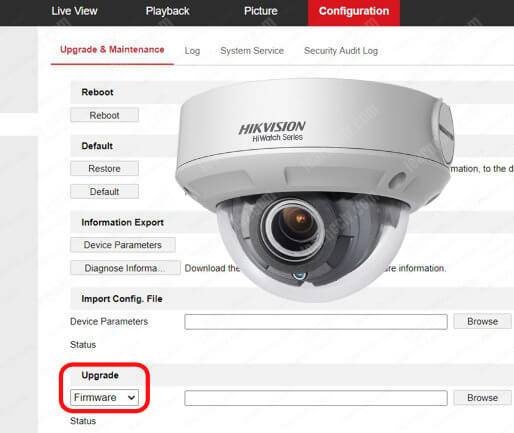
- Log in to the web interface. Open a browser, enter the NVR’s IP address, and sign in with an administrator account.
- Navigate to the Upgrade section. Typically found under Configuration → System → Firmware Upgrade.
- Upload the firmware file. Click “Browse,” select the previously downloaded
.binfile, and confirm. - Start the upgrade. Hit “Upgrade” and watch the progress bar. Do not refresh the page or close the browser.
- Allow the NVR to reboot. The device will automatically restart once the upload completes. This can take 3‑5 minutes; the LED indicators will flash during the process.
- Log back in. After the boot, reconnect to the web UI. If you’re prompted to re‑enter credentials, do so.
If the upgrade succeeds, the system status page will display the new firmware version next to the model number.
Post‑Update Checks and Troubleshooting
A successful flash isn’t the end of the story. Verify that everything works as expected.
- Import the saved configuration file (if needed) and compare key settings—network, NTP, and recording schedules—to ensure they persisted.
- Play back a recent video segment from each channel. Look for missing frames or audio sync issues that sometimes surface after a major firmware jump.
- Check device logs (Configuration → System → Log) for any error entries that appeared during the reboot.
- If the NVR fails to boot, perform a recovery mode flash using the built‑in USB port and the same firmware file. Hikvision’s documentation provides a step‑by‑step recovery procedure.
Best Practices to Avoid Common Pitfalls
Even seasoned installers stumble over a few recurring mistakes. Here’s how to sidestep them.
- Match firmware to hardware revision. The DS7232HQ‑HIK2 comes in “V1” and “V2” hardware versions; installing the wrong file can brick the unit.
- Use a wired connection. Updating over Wi‑Fi introduces latency that may corrupt the transfer.
- Keep a copy of the old firmware. If the new version causes unexpected behavior, you can revert by flashing the previous
.bin. - Read the release notes. Some updates require manual configuration changes—like adjusting the NTP server address—to work correctly.
- Schedule updates during low‑traffic periods. This minimizes the impact on live monitoring and reduces the chance of missing critical events.
Frequently Asked Questions
Q: Can I update the DS7232HQ‑HIK2 firmware from the mobile app?
A: The official Hikvision iVMS‑Mobile app does not support NVR firmware upgrades. You’ll need to use a web browser on a computer or tablet connected to the same network.
Q: What should I do if the NVR becomes unresponsive after the upgrade?
A: Power cycle the unit, then attempt a recovery flash via the USB port. If the device still won’t boot, contact Hikvision support with the serial number and a description of the issue.
Q: Is it safe to skip a firmware version and jump straight to the latest release?
A: Generally, yes—Hikvision packages cumulative fixes. However, read the release notes; some major version jumps may require intermediate steps, such as database migration.
Q: How often should I check for new firmware?
A: A quarterly check is a good rule of thumb. Subscribe to Hikvision’s mailing list or monitor the support portal for announcements related to the DS7232HQ‑HIK2.