How to Seamlessly Add Images to News Articles
In the fast‑paced world of digital journalism, a well‑chosen photograph can be as powerful as the written story itself. Adding images to news articles not only grabs attention, it also helps readers grasp context, remember facts, and stay on the page longer. Below is a step‑by‑step guide that walks you through everything from sourcing a photo to optimizing it for load speed, so you can enrich your reporting without getting tangled in technical headaches.
Why Images Matter in Modern News Reporting
First, consider the psychology behind visual content. Studies show that people retain up to 80% of what they see compared with just 20% of text. An image can illustrate a protest scene, map a disaster zone, or put a human face on a policy debate—making abstract concepts concrete. Moreover, search engines treat images as ranking signals, especially when they’re properly tagged and described.
That said, a picture is only useful when it serves the story. A random stock photo may look polished, but it can also erode credibility if it feels disconnected from the article’s core message. The goal, therefore, is to blend relevance with visual appeal.
Preparing Your Visual Assets
Before you upload anything, take a moment to verify the image’s legal status. Public domain archives, Creative Commons‑licensed collections, and your newsroom’s own photo pool are safe bets. If you’re using a photographer’s work, confirm you have the appropriate usage rights and credit line.
Next, assess technical quality. Aim for a resolution that looks crisp on both desktop monitors and mobile screens—generally around 1200 × 800 pixels for a standard article hero image. Avoid overly large files; a well‑compressed JPEG around 150 KB strikes a good balance between clarity and speed.
Choosing the Right Placement
Where you position an image can influence how readers flow through the story. The most common pattern is a lead image at the top, followed by smaller inline visuals that break up long paragraphs. If the article contains a timeline or a series of events, a gallery or carousel can keep the narrative tidy.
Consider the “visual hierarchy” principle: the first image should be the most compelling, while supporting visuals should reinforce specific points. Align images with accompanying captions—readers often skim captions before the main text, so make them informative and succinct.
Technical Steps for Embedding Images
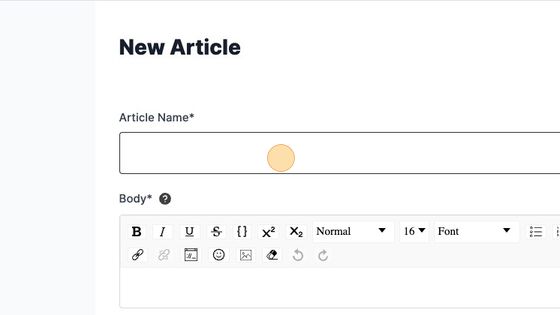
- Upload to the CMS. Most content management systems let you drag and drop files directly into the editor. Rename the file before uploading; use a descriptive, hyphen‑separated name like city‑march‑climate‑protest.jpg rather than IMG_1234.jpg.
- Insert the image. Place the cursor where you want the picture, click the “Add Media” button, and select the uploaded file. Most editors will let you choose alignment (left, right, center) and size (thumbnail, medium, full width).
- Add alt text. Write a concise description of what the image shows, e.g., “Protesters holding signs demanding climate action outside the city hall, June 2024.” This improves accessibility for screen‑reader users and feeds search‑engine crawlers.
- Caption wisely. Captions should add context not repeat the alt text. A good caption might note the photographer, date, and a brief fact that enriches the story.
- Link if needed. If the image originates from an external source that permits linking, you can wrap it in an
<a>tag pointing to the original page, offering credit and a path for curious readers.
Optimizing for Speed and SEO
Page load time directly impacts bounce rates. After you’ve placed the image, run it through a compression tool—TinyPNG or ImageOptim work well—to shave off excess kilobytes. Then, add a srcset attribute if your CMS supports responsive images; this tells browsers to serve the appropriate size for each device.
Don’t forget the surrounding markup. Use <figure> and <figcaption> tags if your platform allows them, as they semantically tie the image to its caption. For SEO, sprinkle relevant keywords naturally into the alt text and file name, but avoid stuffing—search engines penalize overly repetitive phrasing.
Common Pitfalls to Avoid
One frequent mistake is relying on a single large image at the top and ignoring the rest of the article. This can make the piece feel static and cause readers to lose interest halfway through. Another error is neglecting copyright checks; legal disputes over unlicensed photos can stall publication and damage reputation.
Finally, be wary of “image‑only” articles. While a photo‑essay format works for certain features, a standard news piece should still prioritize clear, factual text. Images are a supplement, not a substitute, for solid reporting.
Quick Checklist Before Publishing
- Image source verified and credited.
- File name descriptive, hyphenated, and keyword‑rich.
- Alt text concise, accurate, and inclusive of key terms.
- Caption adds value beyond the alt text.
- File compressed to under 200 KB without visible loss.
- Responsive
srcsetimplemented (if possible). - Placement supports the article’s narrative flow.
FAQ
Q: Can I use any royalty‑free image for news articles?
A: Only if the image’s license permits editorial use. Some “free” collections restrict commercial or news contexts, so always read the fine print.
Q: How many images are ideal for a typical online news story?
A: There’s no hard rule, but most articles benefit from a lead image plus one or two inline photos that illustrate key points. Overloading the page can slow load times and distract readers.
Q: Do I need to add captions for every image?
A: Captions are highly recommended for any image that adds factual context. If an image is purely decorative, a short credit line may suffice.
Q: What’s the best way to ensure images are mobile‑friendly?
A: Use responsive image tags (srcset), keep file sizes low, and test the article on common devices. Images that scale too large can push text off‑screen, harming readability.