How to Set Up PS4 Wi‑Fi in a Hotel (Easy Guide)
Finding a reliable connection for your PS4 while traveling can feel like hunting for a hidden cheat code. Hotels often use captive portals, hidden networks, or MAC‑address filters that throw a wrench into the usual console setup. This guide walks you through the whole PS4 hotel Wi‑Fi setup process, from the moment you step into the lobby to those late‑night gaming sessions you’ve been looking forward to.
Why Hotel Networks Can Trip Up a PS4
Most hotels provide a “guest” Wi‑Fi that requires you to log in through a web page—something the PS4’s built‑in browser can’t always handle. In addition, some properties lock the network to specific devices by checking the device’s MAC address, and the PS4 doesn’t automatically send the credentials the portal expects. Knowing these quirks ahead of time saves you a lot of trial‑and‑error.
Step‑by‑Step PS4 Hotel Wi‑Fi Setup
- 1. Locate the network name and password. The front desk usually prints them on a card or displays them on a TV screen. Write them down; you’ll need both the SSID (network name) and the passphrase.
- 2. Open Settings → Network → Set Up Internet Connection. Choose Use Wi‑Fi, then select Easy for the connection method.
- 3. Pick the hotel’s SSID from the list. If the network doesn’t appear, make sure you’re within range and that the Wi‑Fi isn’t hidden.
- 4. Enter the password when prompted. The PS4 will attempt to connect, but most hotels will redirect you to a login page that the console can’t display.
- 5. Open a web browser on another device (phone, tablet, or laptop). Connect the same Wi‑Fi and complete the portal’s sign‑in process—usually entering a room number and last name.
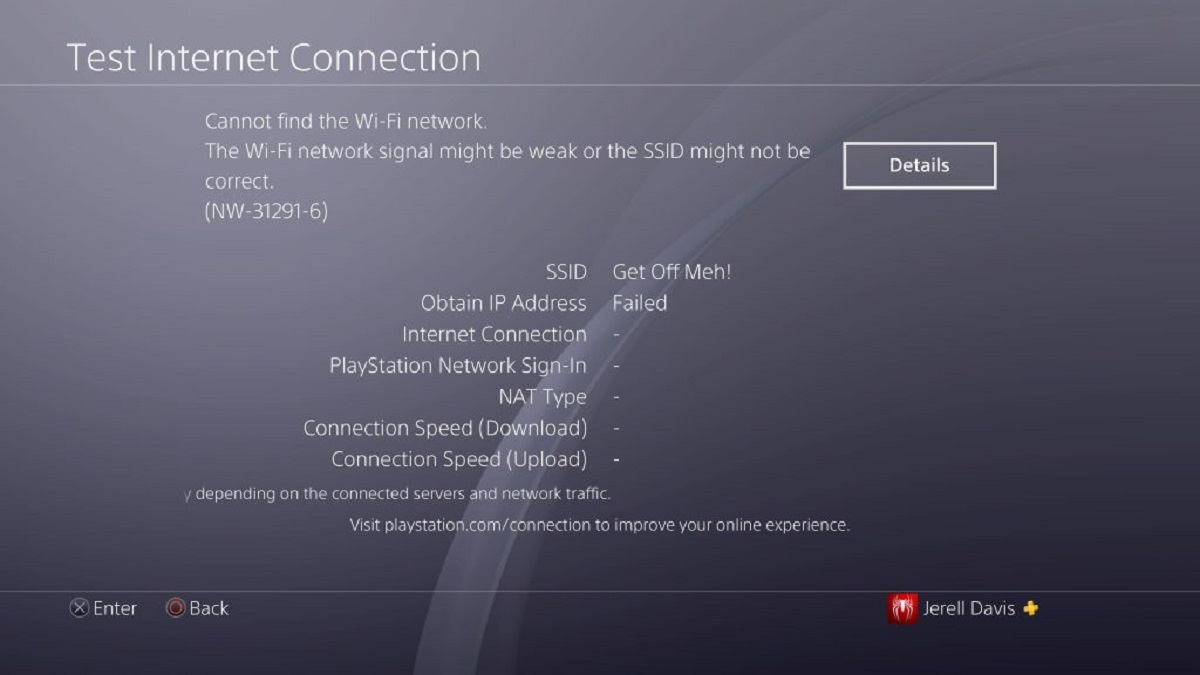
- 6. Return to the PS4 and test the connection. Go to Settings → Network → Test Internet Connection. If it still says “Unable to connect,” move on to the optional travel‑router trick.
Using a Travel Router to Bypass the Portal
Plug a compact travel router into the hotel room’s Ethernet port (if available) or into a power socket with a built‑in USB outlet. Configure the router with the hotel’s SSID and password, then connect your PS4 to the router’s private network. The router handles the captive‑portal handshake, letting the console think it’s on a regular home network.
Troubleshooting Common Hurdles
- “Connection timed out” or “Cannot connect to PSN.” Double‑check the password, then restart both the router (if you’re using one) and the PS4.
- Network appears but never shows a login screen. Some hotels block the console’s MAC address. Try changing the PS4’s MAC address in Settings → Network → View Connection Status → MAC Address (System) to “Manual” and enter the MAC of a device that successfully logged in.
- Lag or frequent disconnections. Reduce bandwidth hogs by pausing downloads on other devices, and if possible, switch to the 5 GHz band for a cleaner signal.
Best Practices for a Stable Connection
- Keep the console close to the router or Wi‑Fi access point—walls and metal furniture can degrade the signal.
- Turn off automatic updates during your stay; they can consume precious bandwidth and cause unexpected restarts.
- Consider using a wired Ethernet adapter for the PS4 if the hotel offers a wired port; wired connections are far less prone to interference.
- When using a travel router, give it a simple SSID (like “MyRoom”) and a strong password to keep other guests off your network.
FAQ
Can I connect my PS4 without a travel router?
Yes, most hotels let you log in through a phone or laptop first, then you can connect the PS4 once the portal’s session is active. However, a travel router is the most reliable workaround for captive portals that block consoles.
Why does the PS4 say “Cannot connect to PSN” even after I’m online?
PlayStation Network requires ports that some hotel firewalls close by default. Opening ports 80, 443, 3478‑3480 on the router (or asking the front desk to allow them) often resolves the issue.
Is it safe to use the hotel’s Wi‑Fi for gaming?
Hotel Wi‑Fi is public, so it’s wise to enable two‑factor authentication on your PlayStation account and avoid transmitting sensitive data during gameplay. Using a VPN on a travel router adds an extra layer of privacy.
What should I do if the hotel only offers a hidden SSID?
Manually enter the SSID and password in the PS4’s network settings under “Custom.” Then follow the same portal‑login steps on another device before testing the connection.