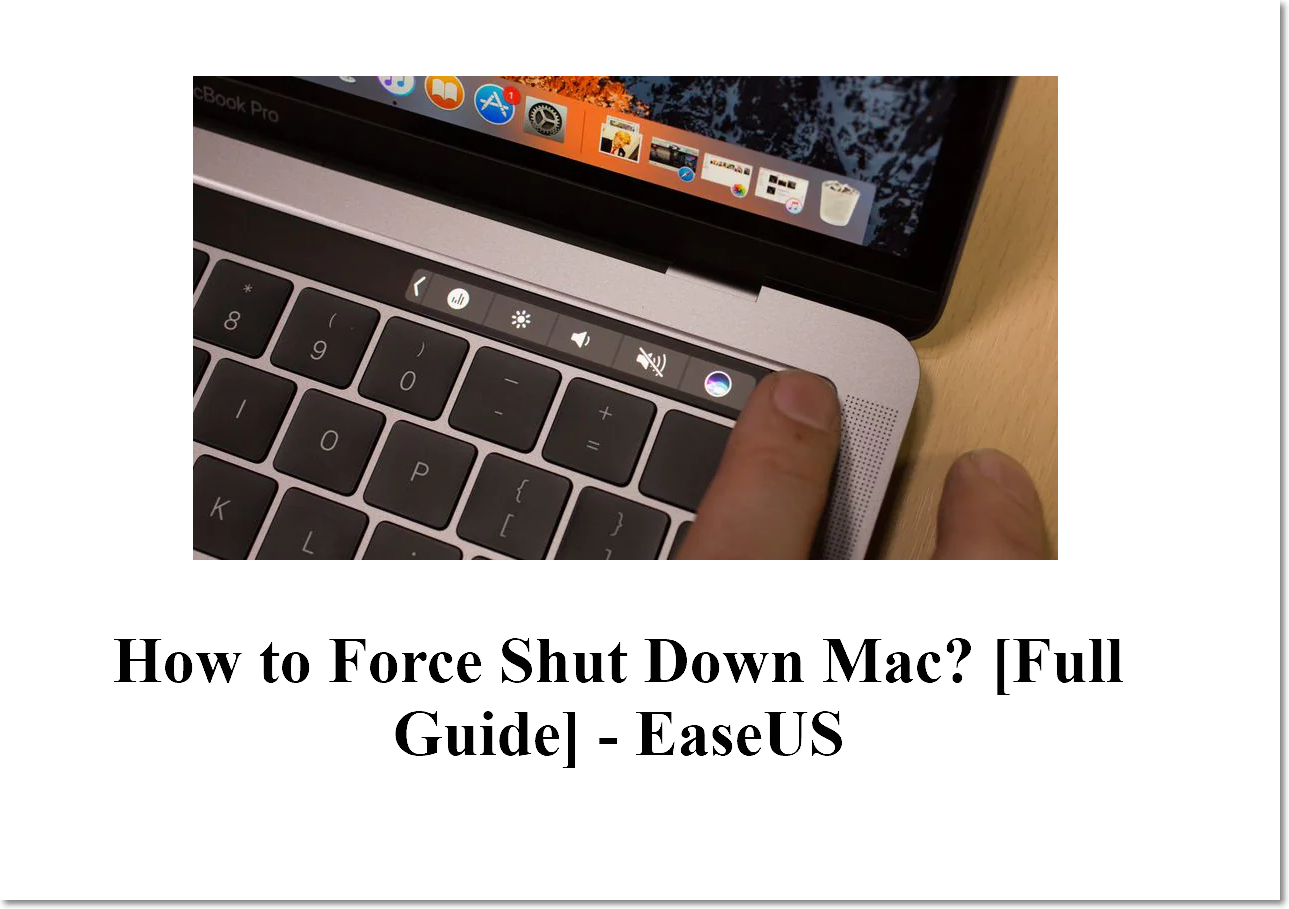
How to Shut Down Your Mac with a Keyboard Shortcut
When you’re deep in a project, reaching for the mouse or trackpad to turn off your Mac can feel like a needless distraction. A quick keyboard shutdown not only saves time but also reduces wear on your hardware buttons. Below we’ll walk through the built‑in shortcut, how to customize it, and a few safety tips to keep your workflow smooth.
Keyboard Shutdown Mac: The Built‑In Shortcut
Apple includes a ready‑made key combo that instantly powers down the machine. Press Control + Option + Command + Power (or Control + Option + Command + Eject on older models) and the Mac will begin the shutdown sequence without prompting for confirmation. This works on macOS Ventura and earlier, provided the shortcut hasn’t been disabled in System Settings.
Why Use a Keyboard Shortcut?
Speed is the obvious benefit, but there are a few subtler reasons to prefer the keyboard. First, it eliminates the need to navigate through menus, which can be a hassle when you’re using a full‑screen app that hides the menu bar. Second, the shortcut works even if the screen is frozen—pressing the power button alone may just put the Mac to sleep, whereas the key combo forces a proper shutdown.
Customizing the Shortcut in System Settings
If the default combo feels awkward, macOS lets you assign a new key sequence. Open System Settings → Keyboard → Keyboard Shortcuts, then scroll to App Shortcuts and click the “+” button. Choose “All Applications,” type “Shut Down…” as the menu title, and enter your preferred keys, such as Control + Shift + S. Remember that the shortcut must include at least one modifier key (Control, Option, Command, or Shift) to avoid conflicting with standard typing.
Using the Apple Menu Shortcut
For those who prefer a visual cue, the Apple menu also offers a quick path. Press Control + F2 (or Fn + Control + F2 on some keyboards) to focus the menu bar, then navigate to the Apple icon with the arrow keys and hit Enter. From there, use the down‑arrow to reach “Shut Down…” and press Enter** again. While a couple more keystrokes than the direct combo, this method works even if you’ve disabled the global shortcut.
Terminal Command for Power Users
When you’re already in Terminal, the sudo shutdown -h now command does the job. It asks for your administrator password, then initiates an immediate shutdown. This can be scripted into an Automator workflow or a keyboard shortcut using the “Run AppleScript” action, giving you a one‑click solution that bypasses the GUI entirely.
Safety Tips and Common Pitfalls
- Save your work. The shortcut does not prompt for unsaved documents; any open files will be closed abruptly.
- Avoid during updates. If macOS is installing updates in the background, forcing a shutdown may corrupt the installation.
- Check for external drives. Unmounted external storage can become corrupted if the power is cut suddenly.
- Battery level. On a laptop with low battery, the shutdown may happen faster than the OS can close applications gracefully.
Troubleshooting Unresponsive Shortcuts
Sometimes the key combo seems to do nothing. First, verify that the “Keyboard” preferences haven’t been altered by a third‑party utility like Karabiner‑Elements, which can remap keys silently. Next, ensure that no other app is intercepting the shortcut; many screen‑recording tools and virtual‑machine software reserve similar combos. Finally, reboot your Mac and test again—if the problem persists, resetting the NVRAM (restart and hold Option + Command + P + R for about 20 seconds) can clear lingering shortcut conflicts.
FAQ
Can I assign a custom key combo to shut down my Mac?
Yes. Use System Settings → Keyboard → Keyboard Shortcuts → App Shortcuts, then add a new entry titled “Shut Down…” and choose any unused combination of modifier keys.
Does the shutdown shortcut work on all Mac models?
The default shortcut works on Intel‑based Macs and Apple‑silicon Macs running macOS 10.12 or later, as long as the keyboard includes a Power or Eject key. On newer keyboards without a dedicated power key, the Control + Option + Command + Power combination still functions.
What if the shortcut doesn’t respond?
Check for conflicting utilities, confirm that the shortcut is enabled in System Settings, and try a quick NVRAM reset. If the issue remains, a terminal command (sudo shutdown -h now) can serve as a fallback.