How to Simplify Inventory Management in Excel: A Step‑by‑Step Guide
Why Choose Excel for Your Stock Tracker?
When you’re juggling dozens of SKUs, the last thing you need is a clunky, overpriced software suite. Excel offers a familiar interface, powerful formulas, and no extra licensing fees—making it an ideal platform for easy inventory management in Excel. It scales from a single‑product boutique to a mid‑size warehouse, and you can start with nothing more than the spreadsheet you already have on your computer.
Lay the Groundwork: Planning Your Columns
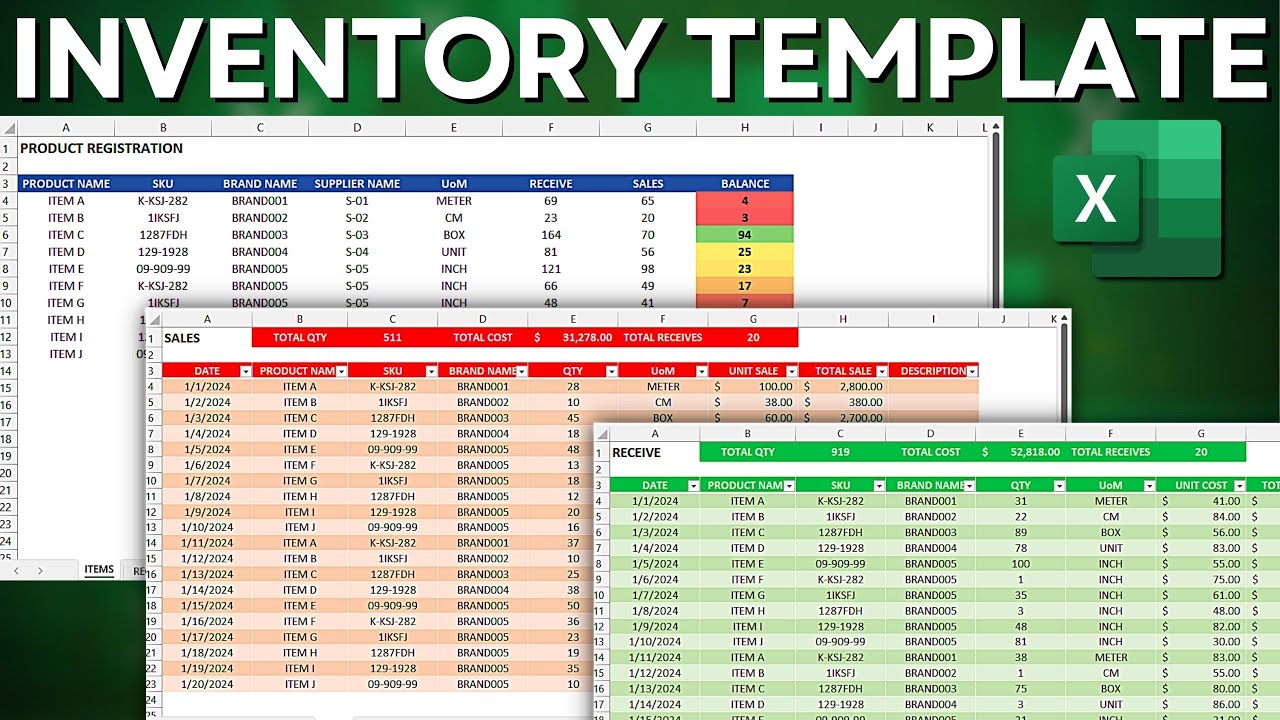
Before you type a single number, sketch out the data you actually need to capture. Most inventory sheets include:
- Item ID – a unique code for each product.
- Description – short text that tells you what the item is.
- Category – helps you group similar items.
- Supplier – where you reorder from.
- Cost Price – per‑unit purchase cost.
- Sell Price – per‑unit selling price.
- Current Stock – units on hand.
- Reorder Level – the threshold that triggers a new order.
- Last Received – date of the most recent delivery.
Set these as column headers in row 1; freeze that row (View → Freeze Panes) so it stays visible as you scroll.
Data Validation: Keep Entries Consistent
Typos are the silent killers of any spreadsheet. Use Excel’s data‑validation feature to restrict entries to predefined lists. For example, select the Category column, go to Data → Data Validation, choose “List,” and paste a comma‑separated list like Electronics, Apparel, Office Supplies. Now every new row can only pick from those options, and you’ll avoid the dreaded “electrnics” typo.
Automate Stock Calculations with Simple Formulas
Once your base data is in place, let Excel do the math. In the Current Stock column, you might have a formula that adds incoming shipments and subtracts sales:
=[@[Beginning Stock]]+[@[Received]]-[@[Sold]]
Copy the formula down the column; Excel will adjust the references automatically. If you prefer a cleaner look, convert the range into a Table (Ctrl + T); the structured references above become more readable and stay dynamic as you add new rows.
Highlight Low Stock with Conditional Formatting
Seeing a red flag pop up as soon as an item dips below its reorder level saves you from stock‑outs. Select the Current Stock column, choose Conditional Formatting → New Rule → Use a formula to determine which cells to format, and enter:
=[@[Current Stock]]<[@[Reorder Level]]
Pick a bright fill color, click OK, and every under‑stocked line will glow instantly.
Summarize with Pivot Tables
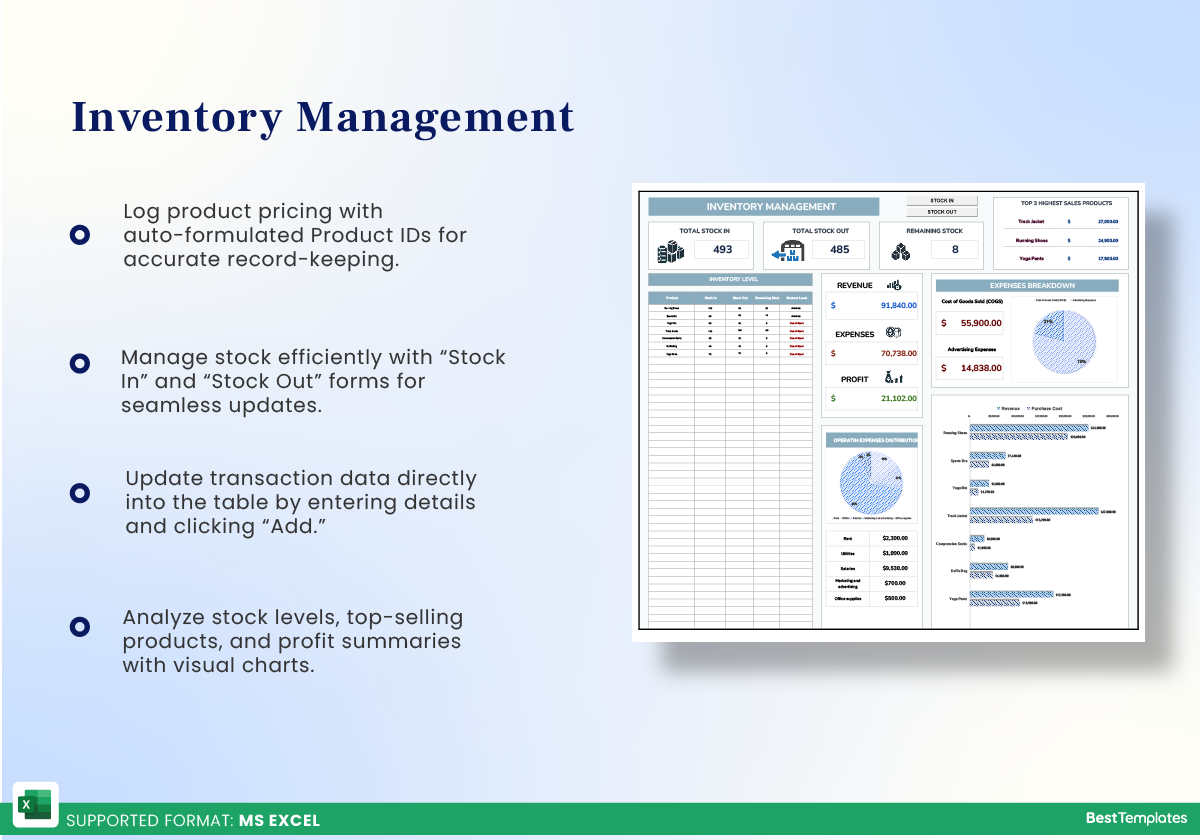
If you want to know, at a glance, how many units of each category you hold, a Pivot Table is your friend. Insert → PivotTable, drag Category to Rows, and Current Stock to Values (set to “Sum”). In seconds you have a dashboard that updates whenever you add or modify rows.
Set Up Automated Reorder Alerts
Excel can even send you an email when stock falls short—though it requires a tiny bit of VBA. For most small businesses, a simple “low‑stock” sheet works fine:
- Copy rows where Current Stock < Reorder Level into a new sheet called “Reorder”.
- Refresh this sheet daily with a one‑click macro.
When the “Reorder” tab populates, you have a ready‑to‑print purchase list.
Protect Your Data Without Locking Yourself Out
Accidental deletions happen. Protect the worksheet (Review → Protect Sheet) but leave the data‑entry columns unlocked. That way teammates can add new shipments while the core formulas stay safe.
Tips for Maintaining Accuracy Over Time
- Audit regularly. Run a quick “Find Duplicates” on the Item ID column each month.
- Back up. Save a copy of the file to a cloud folder or external drive weekly.
- Standardize units. If you sometimes buy in cases and sell in pieces, add a conversion column to keep everything in the same unit.
Common Pitfalls to Avoid
It’s easy to slip into a spreadsheet nightmare if you ignore a few best practices. Avoid hard‑coding numbers directly into formulas—use reference cells instead, so updates are painless. Also, resist the urge to cram every possible metric onto one sheet; split “master inventory” from “sales log” to keep calculations fast.
Quick Recap of the Workflow
1. Sketch column headers.
2. Turn the range into a Table.
3. Apply data validation for categories and suppliers.
4. Add formulas for stock levels.
5. Use conditional formatting for low‑stock alerts.
6. Build a Pivot Table for high‑level insight.
7. Create a “Reorder” sheet for easy purchasing.
Frequently Asked Questions
Can I use Excel on a mobile device for inventory updates?
Yes. The Excel mobile app supports tables, basic formulas, and data validation, so field staff can scan barcodes and input quantities on the go.
How many items can a single Excel workbook realistically handle?
Excel can hold over a million rows, but performance drops noticeably after a few hundred thousand rows. For most small‑to‑medium operations, staying under 50,000 rows keeps calculations snappy.
Is it safe to share the inventory file with multiple users?
Sharing via OneDrive or SharePoint enables real‑time co‑authoring, but you should still lock the sheet to protect formulas. Assign edit permissions only to trusted users.
Do I need to know VBA to get alerts?
Not necessarily. Simple conditional formatting and a “low‑stock” summary sheet cover most needs. VBA becomes useful only when you want automated email notifications.