How to Solve Voice Chat Problems in PUBG Emulators
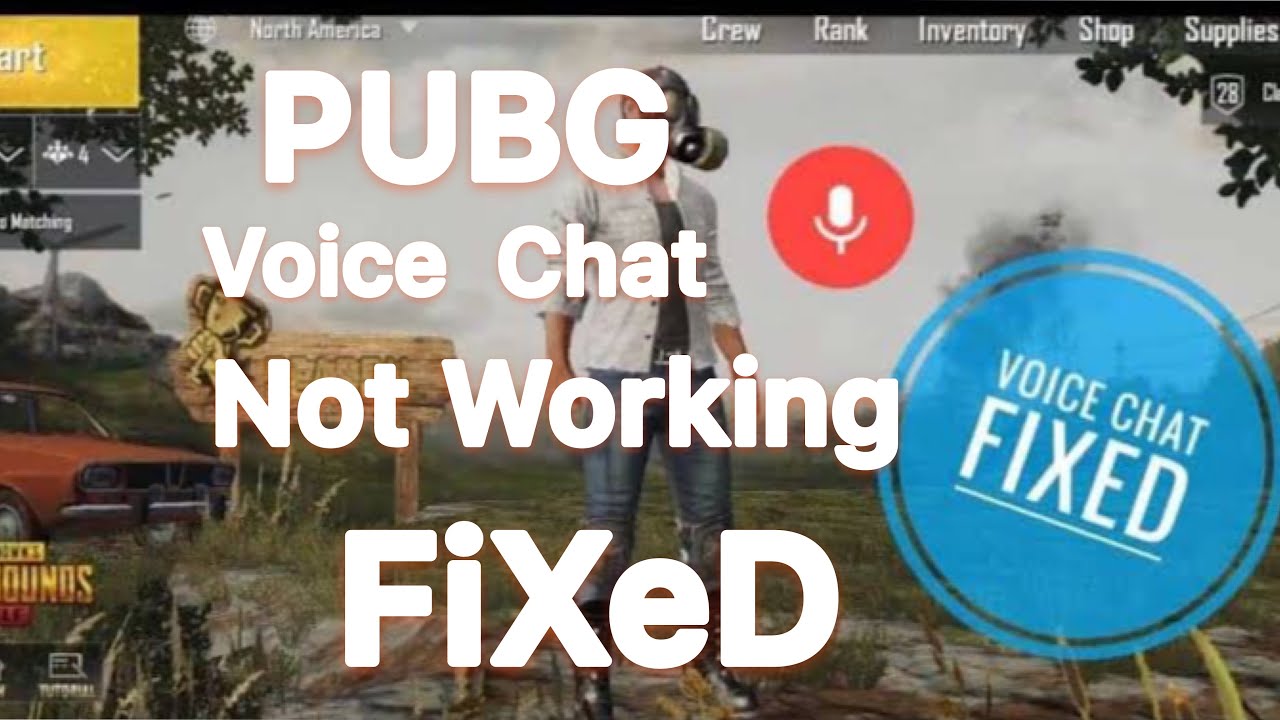
If you’ve ever tried to squad up in PUBG on an Android emulator only to hear silence or garbled noise, you know how frustrating voice chat issues can be. Those PUBG emulator voice chat issues aren’t just a nuisance; they can cost you a match. Fortunately, most of the problems stem from simple settings or driver quirks that you can correct without reinstalling the whole program. Below is a complete guide that walks you through the most common culprits and shows you how to get your teammates talking again.
Understanding Why Voice Chat Fails in Emulators
Emulators translate mobile code into a PC environment, which means they rely on the host’s audio stack instead of the phone’s native hardware. When that bridge breaks—due to outdated audio drivers, conflicting capture devices, or mis‑configured permissions—PUBG’s voice chat simply stops transmitting. The issue often appears only in the emulator, not in the native Windows version of the game, because the emulator adds an extra layer of abstraction.
Another hidden factor is the way Windows handles “exclusive mode” for certain sound cards. If a program locks the microphone for its own use, the emulator can’t access it, leading to the dreaded “no audio” error. Recognizing these underlying mechanics helps you target the right fix rather than flailing through random settings.
Common Configuration Mistakes
Before diving into advanced tweaks, double‑check the basics. Many players leave the emulator’s microphone set to “Default” while the system default points to a non‑functional device, such as a disabled line‑in. Likewise, PUBG’s in‑game voice chat option might be set to “Push‑to‑Talk” without a key bound, making it seem like the mic never works. Resetting these options to “Always On” and explicitly choosing the correct input device often resolves the problem instantly.
Step‑by‑Step Fix for Windows Emulators
Below is a practical checklist that works for the most popular emulators—BlueStacks, LDPlayer, and Nox. Follow the steps in order; if one method solves the issue, you can stop there.
- Update Audio Drivers: Visit the motherboard or sound card manufacturer’s website and install the latest Windows audio driver. Restart after installation.
- Set the Emulator’s Mic Manually: Open the emulator’s settings → Audio → choose your microphone from the dropdown instead of “Default.” Save and restart the emulator.
- Disable Exclusive Mode: Right‑click the speaker icon in the taskbar → Sounds → Recording tab → select your mic → Properties → Advanced. Uncheck “Allow applications to take exclusive control of this device.” Apply and close.
- Grant Microphone Permissions: In Windows Settings → Privacy & Security → Microphone, make sure “Allow apps to access your microphone” is on, and scroll down to enable access for the emulator executable.
- Configure PUBG In‑Game Settings: Launch PUBG in the emulator, go to Settings → Audio → Voice Chat, set “Input Device” to the same mic you chose earlier, and switch “Voice Chat Mode” to “Always On” for testing.
- Test with a Voice Recorder: Use Windows Voice Recorder or a third‑party app to confirm the mic works outside the emulator. If it records fine, the issue is likely within PUBG’s settings; if not, revisit the driver step.
After completing the checklist, join a squad and speak a few words. Most users report clear audio within a single match, but if you still hear echo or low volume, the next section offers alternative workarounds.
Alternative Solutions When the Built‑in Chat Won’t Work
Sometimes, the emulator’s integration with PUBG is simply too buggy for a particular hardware setup. In those cases, consider using a third‑party voice platform such as Discord or TeamSpeak. Both tools allow push‑to‑talk and have robust noise‑suppression filters, giving you clearer communication than the in‑game chat. Just create a private channel, invite your squad, and keep the emulator’s voice chat muted to avoid double audio.
If you prefer staying inside PUBG, you can try launching the emulator in “DirectX 11” mode instead of the default “OpenGL.” The change can affect how audio buffers are handled, and many users have seen the issue disappear after toggling the graphics API.
Testing Your Setup
When you think you’re done, a quick verification helps avoid false confidence. Join a practice match, enable voice chat, and ask a teammate to repeat a phrase. Listen for latency or distortion—if everything sounds natural, you’ve nailed the fix. If problems linger, repeat the checklist, paying special attention to the “Exclusive Mode” setting, which is often missed on the second pass.
Can I use a USB headset instead of the built‑in mic?
Absolutely. USB headsets are recognized as separate audio devices, making it easier to assign the correct input in both Windows and the emulator. Just select the headset in the emulator’s audio settings and repeat the permission steps.
Why does my voice sound tinny only on certain maps?
That’s usually a result of in‑game audio distance settings. PUBG reduces voice quality for players far away to save bandwidth. If you’re testing close‑range communication, you should hear a full‑range signal; otherwise, the “tinny” effect is expected.
Is there a way to record voice chat for later review?
While PUBG itself doesn’t provide a built‑in recorder, you can use Windows’ Game Bar (Win + G) to capture gameplay and audio simultaneously. Just enable the “Record game clips” option and make sure the microphone is set to “All.”
What if my emulator crashes after changing audio settings?
Crashes often point to a conflict between the emulator’s virtual sound driver and the physical driver you installed. Revert to the previous driver version, then try the fix again using a different audio output mode (e.g., switch from “Stereo” to “Mono”).