How to Turn Any Device Into a Second Monitor With spacedesk
Why a Virtual Second Screen Makes Sense
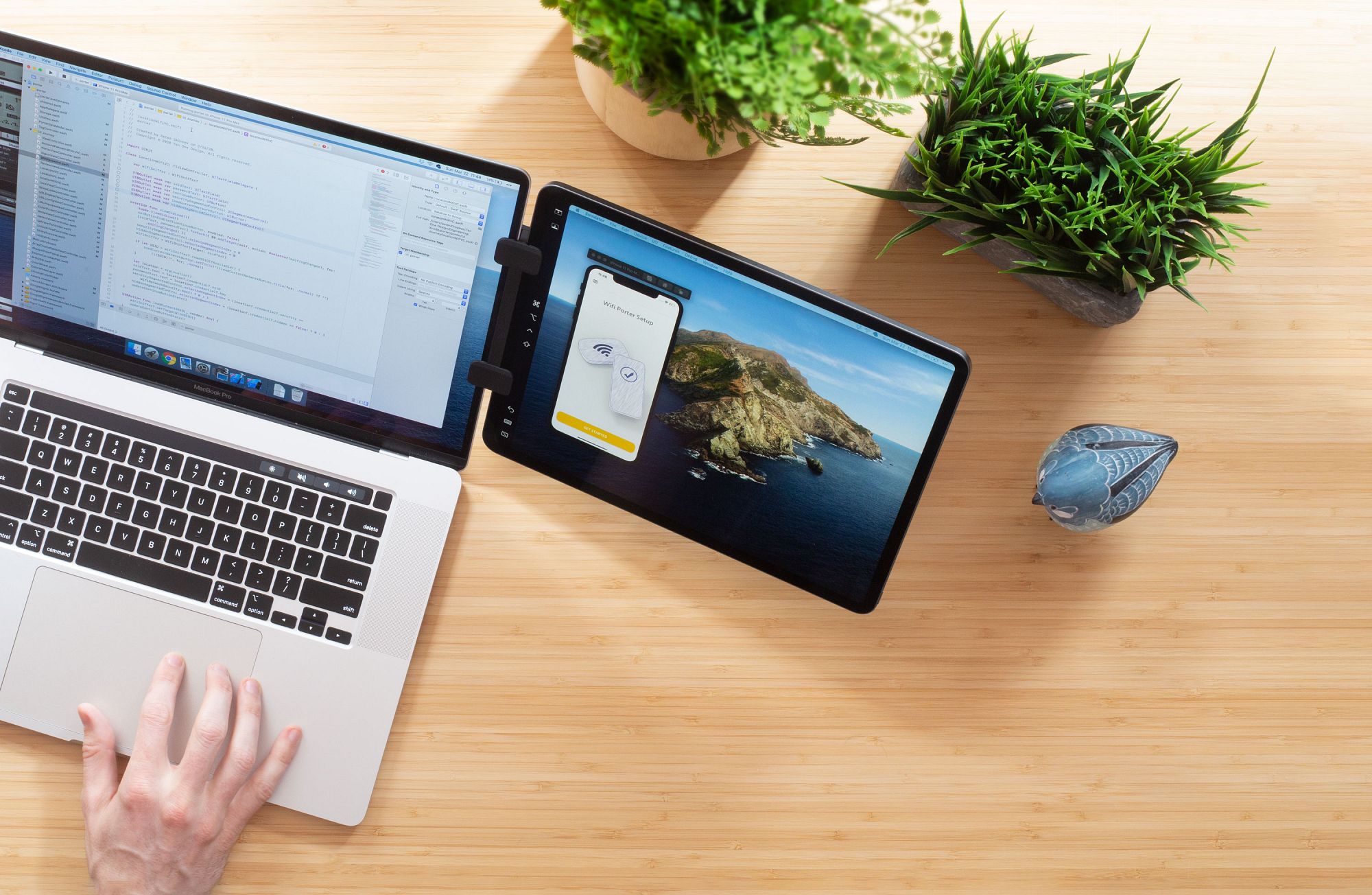
Most of us have a laptop that feels cramped when we try to juggle spreadsheets, chat apps, and a web browser all at once. Adding a second monitor can instantly widen your workspace, but buying a dedicated display isn’t always practical. That’s where spacedesk steps in: it turns a tablet, smartphone, or even another PC into a full‑featured external monitor without any extra hardware.
The appeal isn’t just about extra pixels. A secondary screen lets you keep reference material in view while you work, isolates communication tools to reduce distraction, and can even serve as a dedicated canvas for creative apps. Because the solution is software‑driven, you can experiment with different devices and configurations without committing to a permanent setup.
Getting Started: Installing spacedesk on Windows and Your Companion Device
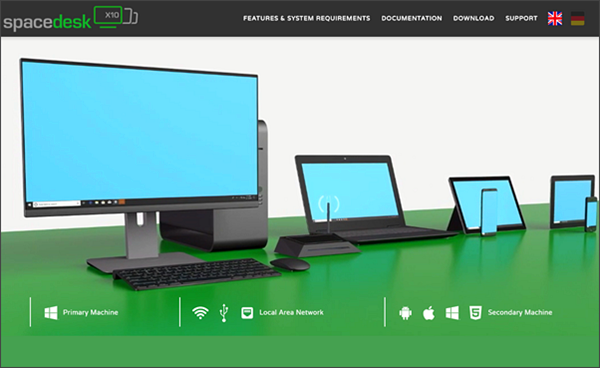
spacedesk works best when the primary computer runs Windows 10 or 11, while the companion device can be Android, iOS, macOS, or another Windows machine. Follow these three steps to get the networked display up and running:
- Download the driver. Head to the official spacedesk website and install the spacedesk DRIVER on your Windows PC. The installer automatically configures the necessary services and opens the appropriate firewall ports.
- Install the viewer app. On your tablet, phone, or second PC, grab the spacedesk VIEWER from the Google Play Store, Apple App Store, or the spacedesk website for macOS/Windows. The app is lightweight and doesn’t require a separate account.
- Connect over the local network. Both devices must share the same Wi‑Fi or Ethernet segment. Open the viewer app; it will automatically discover the Windows host. Tap the listed computer, and within a few seconds your secondary screen appears.
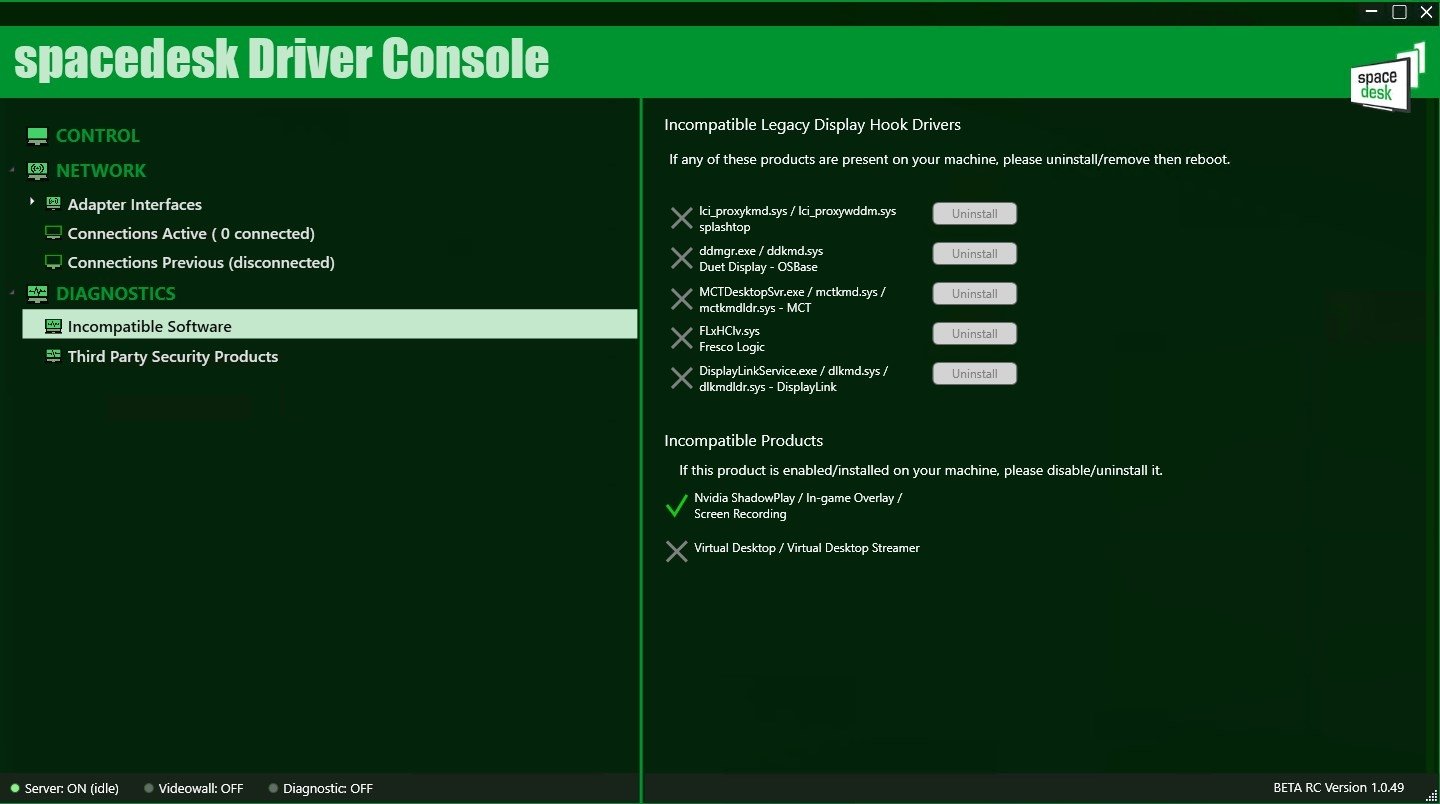
If the devices don’t see each other, double‑check that they’re on the same subnet and that any VPN or firewall rules aren’t blocking port 2710, which spacedesk uses for communication.
Fine‑Tuning Display Settings for a Seamless Experience
Once the connection is live, you’ll notice a new display showing up in Windows’ Display Settings. Treat it like any other monitor: drag it to the left or right of your primary screen, adjust resolution, and decide whether you want it to extend or mirror the main desktop.
For a crisp look on high‑density tablets, set the scaling factor to 150% or 200% inside the Windows settings. On the viewer side, many apps let you toggle orientation, enabling a portrait‑mode layout that works wonders for coding or reading long documents.
Performance tweaks are also possible. If you experience lag on a Wi‑Fi connection, switch the viewer to “Low‑Latency” mode, which reduces color depth slightly but delivers a smoother cursor response. For the ultimate fluidity, connect both devices via Ethernet or use a 5 GHz Wi‑Fi band rather than the crowded 2.4 GHz spectrum.
Creative Ways to Leverage Your New Virtual Screen
Beyond the classic productivity boost, spacedesk opens doors to niche use cases that many users overlook:
- Live streaming dashboards. Keep chat, alerts, and stream‑control panels on a tablet while the main monitor stays dedicated to gameplay or video editing.
- Digital art companion. Use a stylus‑compatible tablet as a sketchpad, with the primary PC handling rendering and layer management.
- Home automation hub. Turn a cheap Android tablet into a permanent control center for smart lights, cameras, and thermostats, all while you work on your laptop.
- Remote support station. IT professionals can carry a lightweight device that mirrors a client’s screen, allowing them to troubleshoot without lugging a second monitor.
Because the connection is essentially a video stream, you can also flip the roles: make your laptop the secondary display for a more powerful desktop, useful in cramped office cubicles.
Security and Privacy Considerations
Since spacedesk transmits screen data over your local network, it’s wise to keep the network secured. Enable WPA3 encryption on your Wi‑Fi router, and consider setting a static IP for the host PC to avoid accidental connections from strangers on a public network.
The software itself doesn’t store any personal data on its servers; all rendering happens locally. If you’re working with sensitive documents, you can further lock the viewer app with a PIN or biometric authentication, a feature available on most modern mobile operating systems.
Troubleshooting Common Hurdles
If the viewer shows a black screen or freezes, try these quick fixes:
- Restart the spacedesk service on the Windows PC via
services.msc. - Update graphics drivers, as outdated drivers can cause rendering glitches.
- Switch the viewer’s connection mode from “Auto” to “TCP” or “UDP” depending on which yields better stability on your network.
When all else fails, reinstall both the driver and viewer—this clears lingering configuration bugs that sometimes appear after Windows updates.
FAQ
Can I use spacedesk with a Mac as the primary computer?
No. The driver component currently runs only on Windows, so a Mac cannot act as the host. However, you can still use a Mac as a secondary display if the host PC is Windows.
Does spacedesk support touch input from the secondary device?
Yes. When the companion device has a touch screen, input is transmitted back to the Windows PC, allowing you to interact with apps as if the primary monitor were touch‑enabled.
Is there a limit to how many secondary displays I can add?
In practice, you can connect several viewers simultaneously, but performance will depend on network bandwidth and the host PC’s graphics capabilities. Most users find two to three additional screens comfortable.