Master Hyper‑V Networking for Windows XP Like a Pro
If you’re looking to get the most out of Hyper‑V networking with a Windows XP virtual machine, you’ve come to the right place. Even though XP is long past its mainstream support window, many legacy applications still rely on it, and a solid network setup can make the difference between a glitchy demo and a seamless experience. Below we’ll walk through the essentials—virtual switches, adapter types, integration services, and a few troubleshooting tricks—so you can treat your XP guest as if it were running on native hardware.
Why Hyper‑V Networking Still Matters for Windows XP
Hyper‑V gives you a virtualized environment that’s isolated, reproducible, and easy to back up. When you add a well‑configured network layer, the XP VM can communicate with the host, other VMs, and the outside world without the quirks that typically plague older operating systems. This matters for:
- Legacy testing. QA teams often need a clean XP sandbox to verify software compatibility.
- Legacy hardware integration. Some industrial controllers still speak the old TCP/IP stack found in XP.
- Training scenarios. Simulating an outdated network helps staff recognize and troubleshoot vintage protocols.
All of these use‑cases hinge on a network that behaves predictably, which starts with choosing the right virtual switch.
Choosing the Right Virtual Switch
Hyper‑V offers three switch types: External, Internal, and Private. Each serves a different purpose, and picking the wrong one can leave your XP VM stranded.
External Switch
An external switch binds a virtual network adapter to a physical NIC on the host. Use it when the XP VM must reach the internet, a corporate LAN, or any device outside the hypervisor. The downside is that traffic shares the host’s NIC bandwidth, which can be a bottleneck for high‑throughput scenarios.
Internal Switch
Internal switches allow communication between the host and its VMs, but they block outside traffic. This is perfect for lab environments where you want the XP VM to talk to the host (for file transfers or shared folders) without exposing it to the broader network.
Private Switch
With a private switch, only VMs on the same host can see each other. If you’re running multiple XP VMs that need to simulate a small office network, a private switch isolates their traffic from the host entirely.
For most “pro” setups—where you need both internet access and host‑VM interaction—create an external switch and then add a second internal adapter for host‑only services. This dual‑adapter approach gives you flexibility without sacrificing security.
Configuring the Network Adapter in the XP Guest
Once the virtual switches are ready, attach them to the XP VM. Open the Hyper‑V Manager, right‑click the VM, choose Settings, and add a Network Adapter**. Select the appropriate virtual switch for each adapter. Inside XP, you’ll see the adapters appear as “Local Area Connection” entries.
Next, configure the IP settings. XP’s networking stack is straightforward:
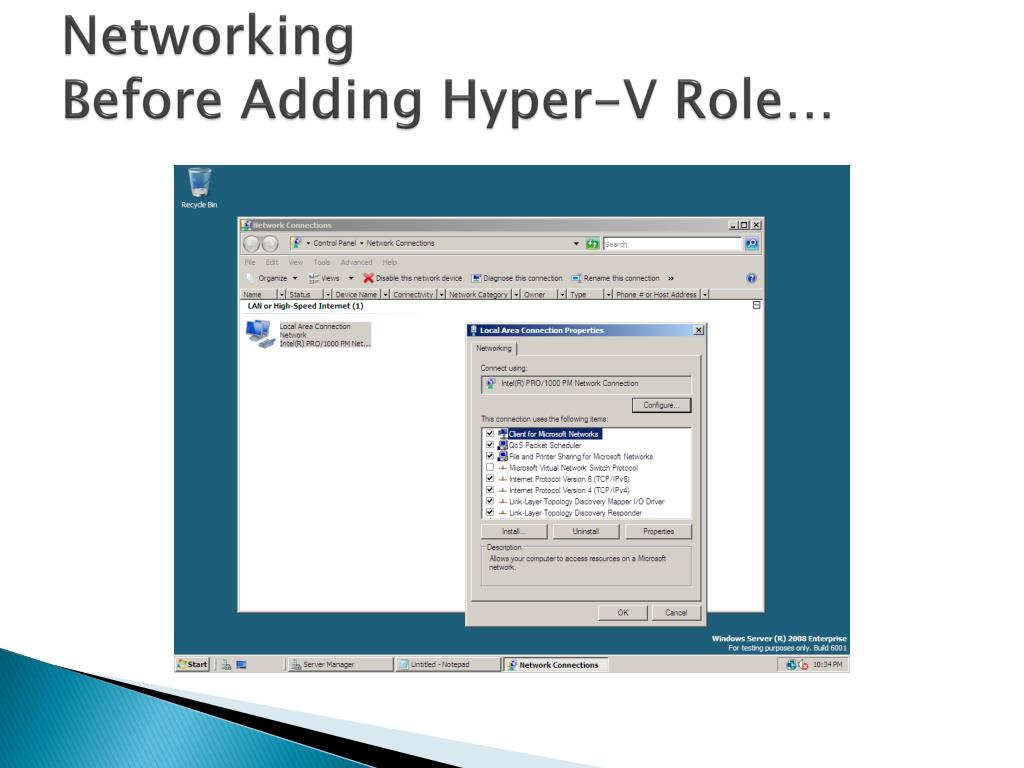
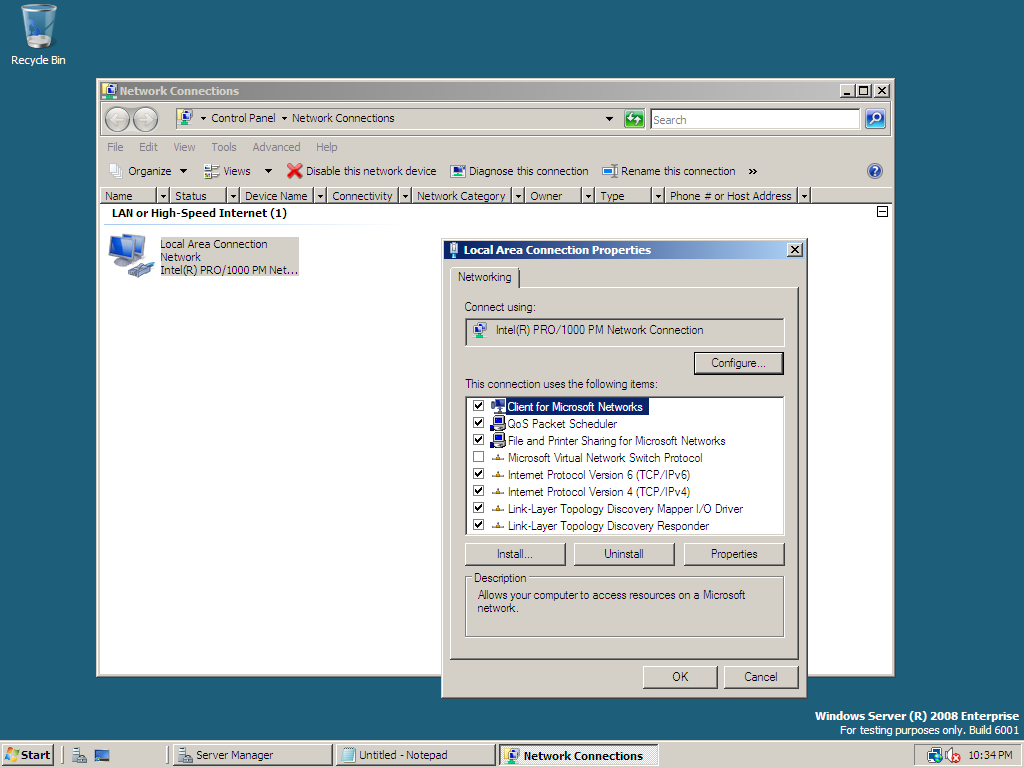
- Open Control Panel → Network Connections.
- Right‑click the adapter, choose Properties, then select Internet Protocol (TCP/IP).
- Enter a static IP address that matches the subnet of your chosen switch, or enable DHCP if the host is set up to hand out addresses.
Remember to disable “Automatic metric” and manually set the metric if you have multiple adapters; otherwise XP may route traffic through the wrong interface.
Installing Hyper‑V Integration Services on XP
Integration Services (often called “guest services”) improve performance and add useful features like time synchronization and heartbeat monitoring. While Windows XP doesn’t receive the newer “Linux Integration Services,” the basic set still works:
- In Hyper‑V Manager, select the XP VM and click Insert Integration Services Setup Disk.
- Inside XP, run the
setup.exefrom the virtual CD‑ROM drive. - Reboot when prompted.
After the reboot, check the “Network Adapter” service under Services. It should be set to “Automatic” and running. This service helps the VM handle dynamic MAC address changes and improves overall network stability.
Fine‑Tuning Performance and Reliability
Older operating systems like XP can be sensitive to certain Hyper‑V settings. Here are a few tweaks that seasoned admins swear by:
- Disable Large Send Offload (LSO). In the adapter’s advanced properties on the host, turn off LSO to avoid packet fragmentation issues inside XP.
- Use Legacy Network Adapter for older drivers. If the default synthetic adapter causes driver errors, add a “Legacy Network Adapter” and connect it to the same switch.
- Adjust MTU size. XP defaults to 1500 bytes; if you’re on a jumbo‑frame network, reduce the MTU back to 1500 on the VM to prevent dropped packets.
- Enable “QoS Packet Scheduler”. This can smooth out bursts of traffic, especially when the VM runs legacy backup utilities.
These adjustments are optional, but they often turn a barely functional XP VM into a smooth‑running workstation.
Troubleshooting Common Issues
Even with a perfect configuration, you might run into hiccups. Below are three frequent problems and quick fixes.
No Network Connectivity
First, verify that the virtual switch is attached to a functional physical NIC. Then, inside XP, run ipconfig /all to confirm the adapter has an IP address. If it shows 0.0.0.0, either the DHCP server isn’t reachable or the static IP is mis‑typed. Checking the host’s firewall rules—especially if you’re using an internal switch—can also resolve blocked traffic.
Slow File Transfers
XP’s SMB version (SMB 1.0) is notoriously slow. If you’re moving large files, enable “Large Send Offload” on the host’s NIC, and consider mapping a shared folder using the \\host\share UNC path. In some cases, copying via FTP or a lightweight HTTP server sidesteps SMB’s inefficiencies.
Spurious Disconnects
Random disconnections often stem from the synthetic adapter’s power‑management settings. Open the adapter’s properties on the host, go to the “Power Management” tab, and uncheck “Allow the computer to turn off this device to save power.”
Best Practices for a Pro‑Level Setup
To wrap things up, here’s a concise checklist you can copy‑paste into a notes app before launching any XP VM:
- Create an external virtual switch for internet access.
- Add a second internal switch for host‑only services.
- Assign static IPs that reflect each subnet (e.g., 192.168.10.x for external, 10.0.0.x for internal).
- Install Integration Services and verify the “Network Adapter” service is running.
- Disable LSO and adjust MTU if you see packet loss.
- Test connectivity with
pingandtracertbefore installing legacy software.
Following this list saves you from the trial‑and‑error loop that many newcomers experience, and it positions you to handle more complex networking scenarios—like VLAN tagging or VPN passthrough—without needing to redesign the VM from scratch.
FAQ
Can I use a VPN inside a Windows XP VM on Hyper‑V?
Yes. Install the VPN client as you would on a physical XP machine. Just ensure the virtual adapter is connected to an external switch so the VPN can reach the internet, and remember to set the VPN’s DNS to avoid conflicts with the host.
Do I need a separate license for Windows XP in a Hyper‑V environment?
Microsoft’s licensing for XP requires a valid product key for each installation, even when virtualized. If you have a volume‑license agreement, you may be covered, but always check the specific terms of your agreement.
Why does my XP VM get a “Network cable unplugged” warning?
This usually means the virtual NIC isn’t bound to a virtual switch, or the host’s physical NIC is disabled. Re‑attach the adapter in the VM’s settings and confirm the host’s NIC is enabled and not in a “airplane mode” state.
Is it safe to expose a Windows XP VM to the public internet?
Generally not. XP no longer receives security updates, so any internet‑facing service is a potential attack vector. If you must expose it, place the VM behind a strict firewall, limit open ports, and consider using a VPN tunnel to add an extra layer of protection.
.jpeg)