Master Shopify Payments: A Simple Guide for Your Online Store
If you’ve set up a Shopify store, you’ve probably wondered how to collect money without juggling a dozen third‑party gateways. Shopify Payments offers a built‑in solution that feels native, cuts down on extra transaction fees, and streamlines the checkout experience for shoppers. Below is a practical walk‑through that shows you exactly what the service does, how to activate it, and what to watch out for as your business grows.
Understanding Shopify Payments
At its core, Shopify Payments is a payment processor that sits directly inside the Shopify platform. Instead of redirecting customers to an external site, the checkout stays on your domain, which tends to boost conversion rates. The service is powered by major acquirers such as Stripe and PayPal’s infrastructure, but you never see those brand names during checkout.
Key advantages include:
- Reduced fees – no additional transaction markup beyond the standard processing rate.
- Unified dashboard – sales, refunds, and payouts appear in the same admin area you already use for orders.
- Multi‑currency support – sell in dozens of currencies without needing separate merchant accounts.
- Built‑in fraud protection – Shopify’s risk analysis flags suspicious orders automatically.
These benefits make Shopify Payments especially attractive for merchants who want a “set‑and‑forget” solution, but it does come with regional restrictions. The service is available in the United States, Canada, the United Kingdom, Australia, and several European countries; stores outside those markets must rely on third‑party gateways.
How to Set Up Shopify Payments
Activating the feature is a matter of a few clicks, yet it’s worth pausing to double‑check each field to avoid hiccups later. Follow these steps:
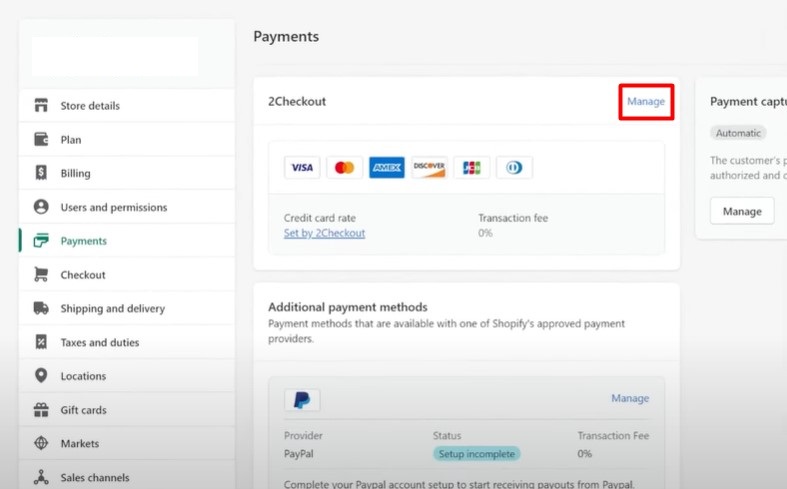
- Navigate to Settings > Payments in your Shopify admin.
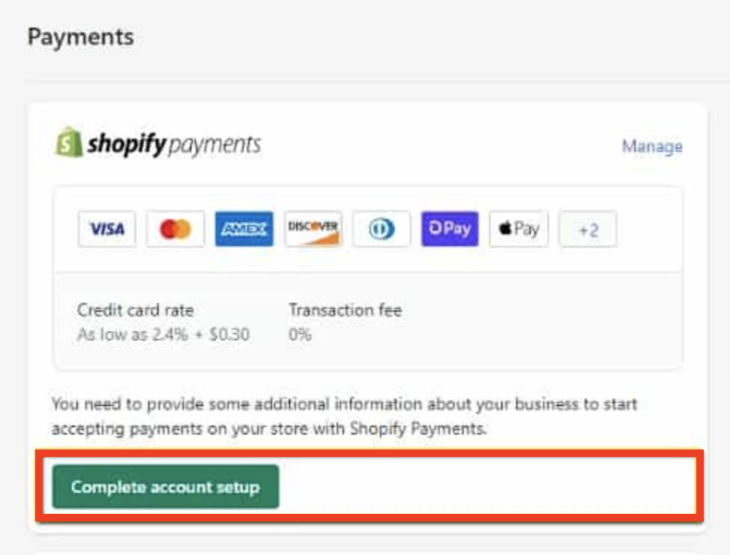
- Locate the “Shopify Payments” card and click “Complete account setup.”
- Enter your business details: legal name, address, and tax ID (if applicable).
- Provide banking information where payouts will be deposited. The account must be in the same country as your store’s primary location.
- Select the payment methods you want to accept – credit cards, Apple Pay, Google Pay, and, where supported, local options like iDEAL or Bancontact.
- Review the processing fees for each currency. They typically range from 2.4% + $0.30 for domestic cards to 2.9% + $0.30 for international cards.
- Save your settings. Shopify will run a short verification, and you’ll see a confirmation banner once the account is live.
After activation, you can test the checkout by placing a low‑value order using a real card or Shopify’s test mode (which generates dummy card numbers).
Managing Payments, Fees, and Payouts
Once sales start flowing, you’ll want to keep an eye on a few moving parts. Shopify Payments automatically deposits funds into your bank account on a schedule you choose – daily, weekly, or monthly. The default is every 2‑3 business days for most regions.
Fees are deducted before the payout, so the amount you see in the “Payouts” section reflects net earnings. Besides the basic processing fee, you might encounter:
- Chargeback fees – typically $15‑$20 per dispute.
- Currency conversion fees – an extra 1% if you settle in a different currency than the sale.
- Refund fees – the original processing fee isn’t returned, though the transaction amount is.
Shopify also offers a “fraud analysis” score for each order. Orders flagged as high risk can be automatically held or sent for manual review, giving you a chance to prevent costly chargebacks.
Common Issues and How to Troubleshoot
Even a smooth system can hit snags. Here are the most frequent roadblocks and quick fixes:
- Declined cards – Check that the card’s country matches the store’s billing country, and verify that you haven’t exceeded the fraud‑prevention limits set in Settings > Payments.
- Bank account errors – Ensure the account number and routing details are exact; a typo will cause payouts to bounce back.
- Unsupported payment methods – Some cards (e.g., American Express in certain regions) may not be covered; consider adding a complementary gateway for those customers.
- Compliance holds – Shopify may pause payouts if they detect unusual activity. In that case, contact Shopify Support with your business documents ready for verification.
When in doubt, the “Payments” dashboard logs every request and response, which can be invaluable for pinpointing the exact error code.
When to Look Beyond Shopify Payments
Shopify Payments is versatile, but it isn’t a one‑size‑fits‑all solution. You might consider an alternative gateway if:
- You operate in a country where Shopify Payments isn’t offered.
- Your average transaction size is very high and you’ve negotiated a lower rate with a specialized processor.
Switching is straightforward: simply disable Shopify Payments in the Payments settings and enable another provider. Keep in mind that Shopify will re‑apply its standard extra‑transaction fee (0.5% for most plans) on top of the new processor’s rates.
FAQ
Q: Can I offer Shopify Payments and a third‑party gateway simultaneously?
A: Yes. You can enable multiple providers and let customers choose their preferred method at checkout. Shopify will try the primary option first, then fall back to others if the transaction fails.
Q: How long does it take for a payout to appear in my bank?
A: Typically 2‑3 business days, though the exact timing depends on your bank’s processing schedule and the payout frequency you selected.
Q: Do I need a merchant account to use Shopify Payments?
A: No separate merchant account is required; Shopify handles the underwriting and settlement on your behalf, simplifying the onboarding process.
Q: What happens if a customer pays with a currency I haven’t enabled?
A: Shopify will automatically convert the payment to your store’s primary currency, applying the appropriate conversion fee. You’ll still receive the net amount in your chosen payout currency.