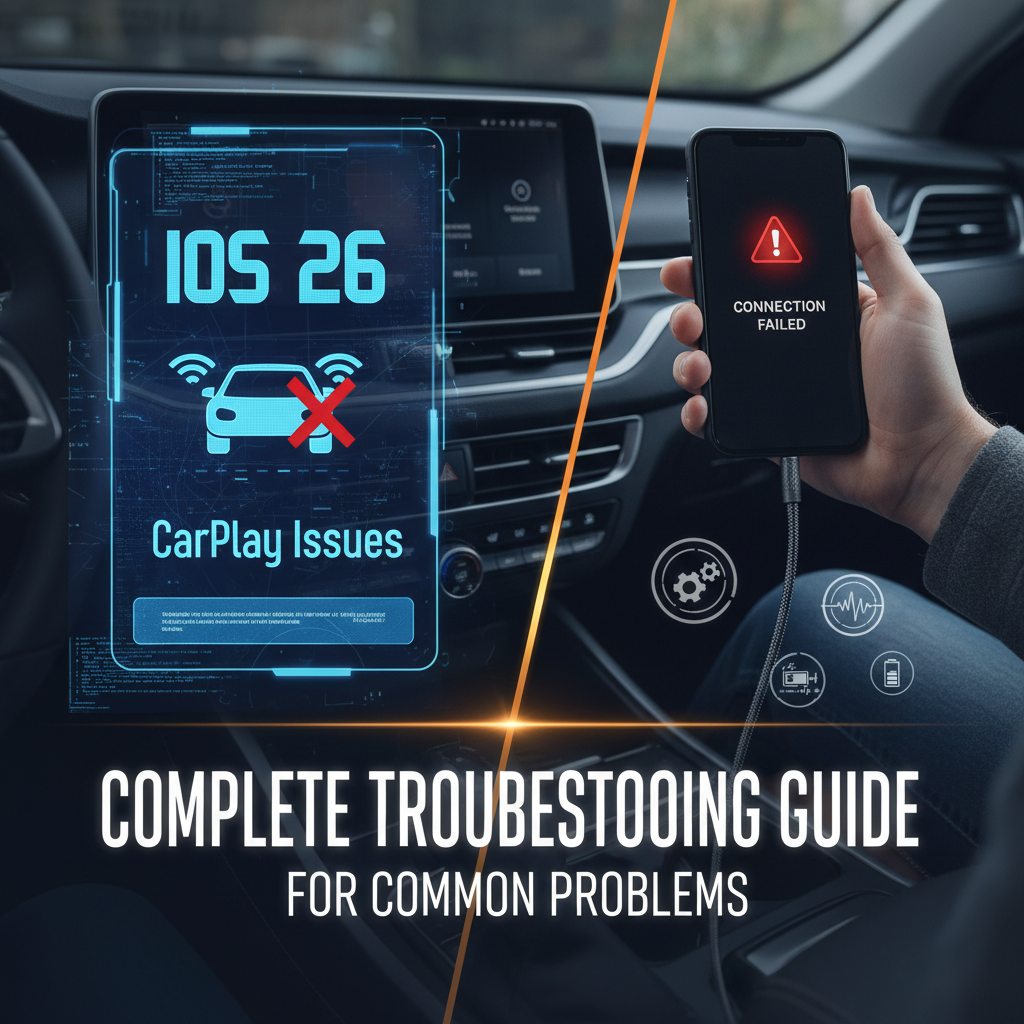
Mastering iOS Calibration: A Step‑by‑Step Troubleshooting Guide
When an iOS device misbehaves—touches lag, screen colors shift, or sensor readings drift—calibration is often the culprit. This guide walks you through the fundamentals of iOS calibration, common hiccups, and practical steps to restore your device’s performance without diving into deep technical waters.
Understanding iOS Calibration
iOS devices rely on a blend of hardware sensors and software algorithms to deliver a smooth user experience. Calibration aligns these components: the touchscreen adapts to finger pressure, the camera balances color, and the accelerometer interprets motion correctly. Without proper calibration, even simple tasks can feel off‑center.
Why Calibration Matters
- Touch Accuracy: Precise input reduces accidental taps.
- Visual Consistency: Correct color temperature ensures media looks as intended.
- Sensor Reliability: Accurate motion data improves gaming, fitness, and navigation.
Common Calibration Issues
- Touch screen unresponsive or jittery.
- Camera images appear washed out or over‑saturated.
- GPS or accelerometer misreads causing wrong directions.
- Battery drain spikes linked to sensor over‑use.
iOS Calibration & Troubleshooting Steps
Follow these ordered actions to systematically identify and fix calibration problems.
Basic Checks
Start with simple validations that can quickly resolve most issues.
- Restart the Device: A full reboot refreshes all sensors.
- Check for Physical Damage: Scratches or dents can mislead touch sensors.
- Clean the Screen: Residue can affect touch sensitivity.
Software Reset
Resetting certain settings can realign sensor data without a full factory wipe.
- Reset All Settings: Settings > General > Transfer or Reset iPhone > Reset > Reset All Settings. This preserves data while clearing configuration caches.
- Reset Network Settings: For GPS or connectivity‑related drift, reset network settings to restore base calibration.
Device Settings Adjustment
Fine‑tune settings that directly affect calibration.
- Touch Acuity & Brightness: Under Settings > Accessibility > Touch, adjust “Touch Acuity” and “Display & Text Size” to match your preferences.
- True Tone & Night Shift: Toggle these to see if color shifts persist.
- Location Services: Ensure GPS is set to “Always” for accurate positioning.
Advanced Fixes
When basic steps fall short, delve deeper.
- Update iOS: Each release patches sensor firmware. Keep your device on the latest stable version.
- Use Calibration Apps: Trusted third‑party utilities can recalibrate the display or camera by guiding you through on‑screen patterns.
- Inspect Hardware with Diagnostics: In Settings > General > About, tap “Diagnostics” and run a quick system check. Report any sensor anomalies to Apple Support.
When to Seek Professional Help
If calibration failures persist after exhausting the above steps, hardware damage is likely.
- Repeated touchscreen failures after cleaning.
- Camera sensor errors that do not resolve with software updates.
- Accelerometer or gyroscope errors reported in the diagnostic log.
At this point, scheduling an appointment at an authorized service center is the safest route.
Preventing Future Calibration Problems
Proactive maintenance reduces the need for frequent recalibration.
Regular Maintenance Tips
- Keep the device free of moisture and dust.
- Avoid placing the phone on hard surfaces that may transmit vibrations to sensors.
- Periodically restart the device to flush memory.
Software Updates
Apple frequently releases patches that fine‑tune sensor algorithms. Enable automatic updates and install promptly.
FAQ
- What exactly is iOS calibration? It’s the process of aligning on‑device sensors and display settings so that touch input, visual output, and motion detection work harmoniously.
- Can a screen protector affect calibration? Yes, especially if it’s low‑quality or warped. Replace it with a high‑density protector for best results.
- Do calibration issues affect battery life? Improper sensor use can increase power draw, so correcting calibration often improves endurance.
- Is a factory reset always necessary? Not unless other steps fail or you suspect deep system corruption.