Mastering Microsoft Power Automate Desktop: A Complete Guide
Microsoft Power Automate Desktop is a powerful, no‑code tool that lets users automate repetitive tasks across desktop applications, files, and web services. Whether you’re a seasoned developer or a business analyst, this guide walks you through installation, core concepts, and practical use cases so you can start building flows that save hours of manual work.
Getting Started with Power Automate Desktop
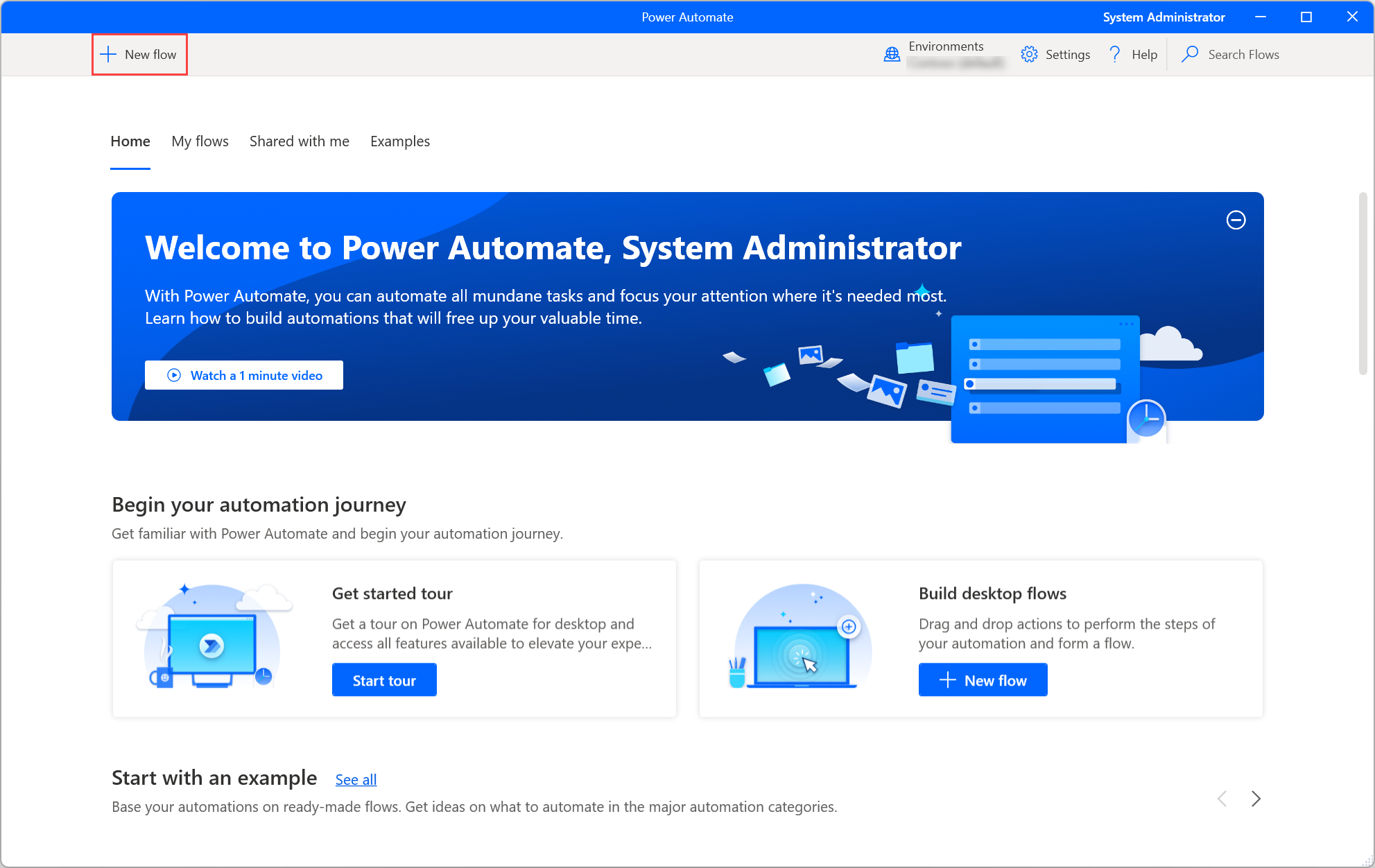
First, download the free installer from the official Microsoft site and run the setup. During installation, you’ll be prompted to sign in with your Microsoft account. Once the desktop app launches, you’ll encounter the familiar “Create new flow” button—click it to begin.
- Flow names matter: Give your flow a clear, descriptive title so you and teammates can find it later.
- Version control: Use the built‑in “Publish” feature to export a flow as a .zip file for backup.
- Environment setup: Connect to SharePoint or Azure services by adding data connections in the “Data” pane.
Understanding Actions and Triggers
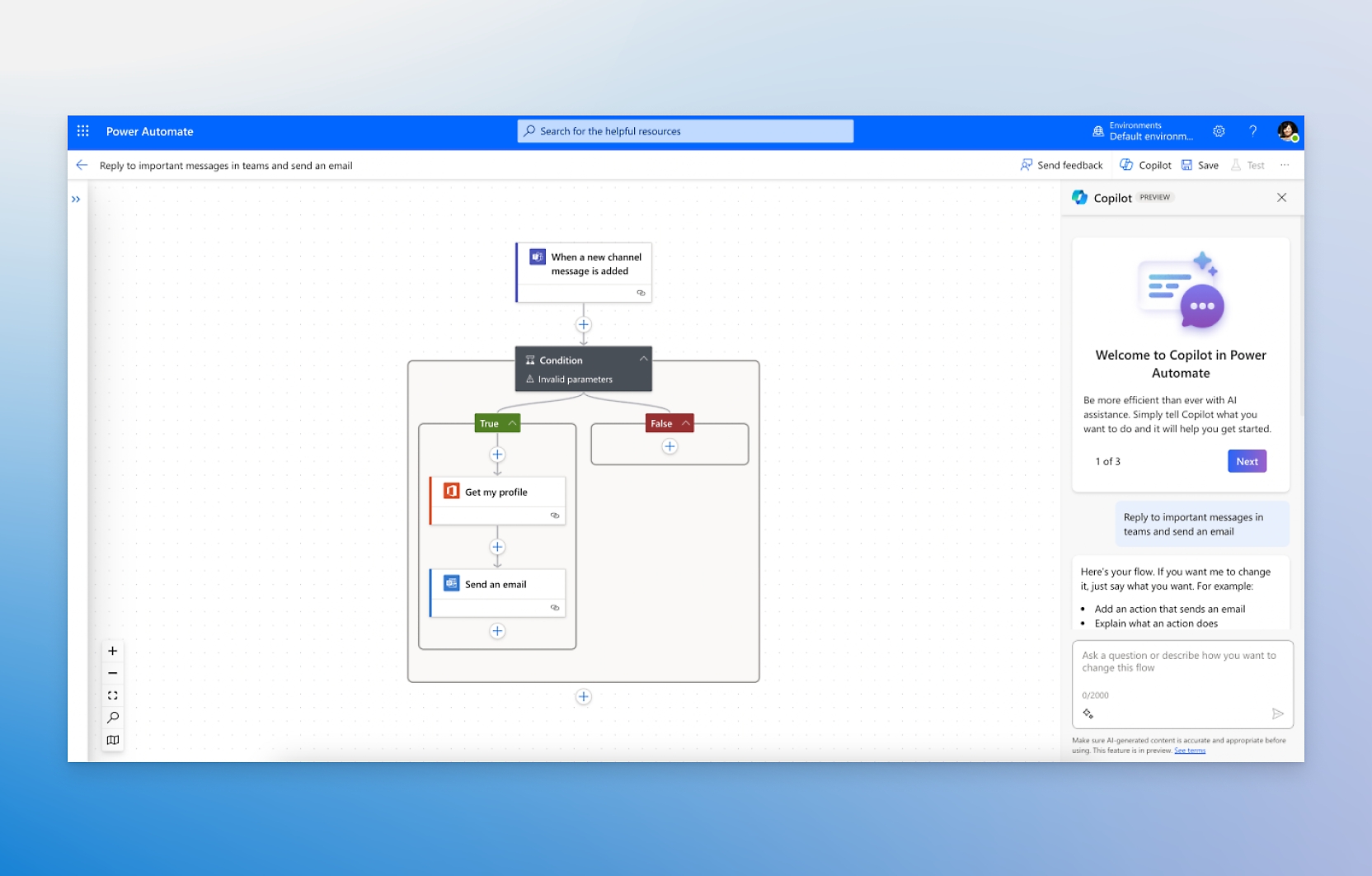
At the heart of Power Automate Desktop are two building blocks: triggers and actions. Triggers start a flow—most often a manual click, scheduled time, or incoming email—while actions describe what happens next. The visual editor displays actions as draggable blocks, allowing you to line them up in sequence, create loops, or set conditions.
Key Features Every User Should Know
Below is a quick rundown of features that make Power Automate Desktop stand out:
- UI Automation: Click buttons, enter text, and read values from almost any desktop application.
- Variables & Expressions: Store and manipulate data using simple syntax; you can reference variables anywhere in your flow.
- Built‑in connectors: Access Office 365, Outlook, SQL Server, and many third‑party APIs without writing code.
- Debugging tools: Step through actions, watch variable values, and pause flows to inspect application state.
- Security & permissions: Flows run under your user profile, but you can control access by sharing flow packages or using the Power Automate web portal.
Building a Simple Invoice‑Processing Flow
Let’s walk through a practical example: automatically extracting invoice data from PDF files and storing it in an Excel sheet. This scenario showcases UI automation, data extraction, and integration with other Microsoft services.
- Trigger: Scheduled to run every evening.
- Action 1 – List Files: Use the “List files in folder” action to grab all PDFs from the “Invoices” folder.
- Action 2 – Loop Through Files:
- UI Automation – Launch Acrobat: Open each PDF in Adobe Reader.
- UI Automation – Extract Text: Select the “Read Aloud” feature or use OCR to pull text.
- Expression – Parse Text: Use regular expressions to capture invoice number, date, and amount.
- Action 3 – Write to Excel:
- Launch Excel: Open the target workbook.
- Insert Row: Append extracted values to a new row.
- Action 4 – Archive PDF: Move processed file to an “Archive” subfolder.
- Action 5 – Send Confirmation Email: Use the Outlook connector to notify the finance team.
After building, use the Debug mode to verify each step, then Publish the flow so it runs automatically.
Tips for Scalable Flows
When your organization grows, keep these best practices in mind:
- Modularize with sub‑flows: Extract repetitive logic into reusable sub‑flows.
- Document with comments: Add descriptive notes to each action; this speeds up future maintenance.
- Leverage the Power Automate web portal: Manage flow schedules, monitor run history, and set alerts for failures.
- Versioning strategy: Tag each flow export with a date and version number.
Advanced Techniques for Power Users
Beyond basic automation, Power Automate Desktop offers several advanced capabilities that can elevate your productivity:
- Custom Scripts: Run PowerShell or Python scripts inside a flow to handle complex calculations.
- Conditional Loops: Use
WhileandDo Untilloops with exit conditions based on variable values. - Integration with Power Apps: Trigger flows from canvas apps, enabling a seamless user experience.
- Data Loss Prevention (DLP) policies: Admins can set policies to restrict data movement across connectors.
Common Pitfalls and How to Avoid Them
Even seasoned users encounter hiccups:
- Stale UI elements: If an application updates its interface, actions may fail. Use the Record feature to refresh selectors.
- Variable scoping issues: Variables defined inside loops may not be accessible outside. Declare them in the global scope when necessary.
- Performance lag: Long-running flows can slow down the system. Break them into smaller sub‑flows or add Wait actions judiciously.
- Permission errors: Running flows under different user accounts requires consistent rights to folders and services.
Integrating Power Automate Desktop with the Cloud
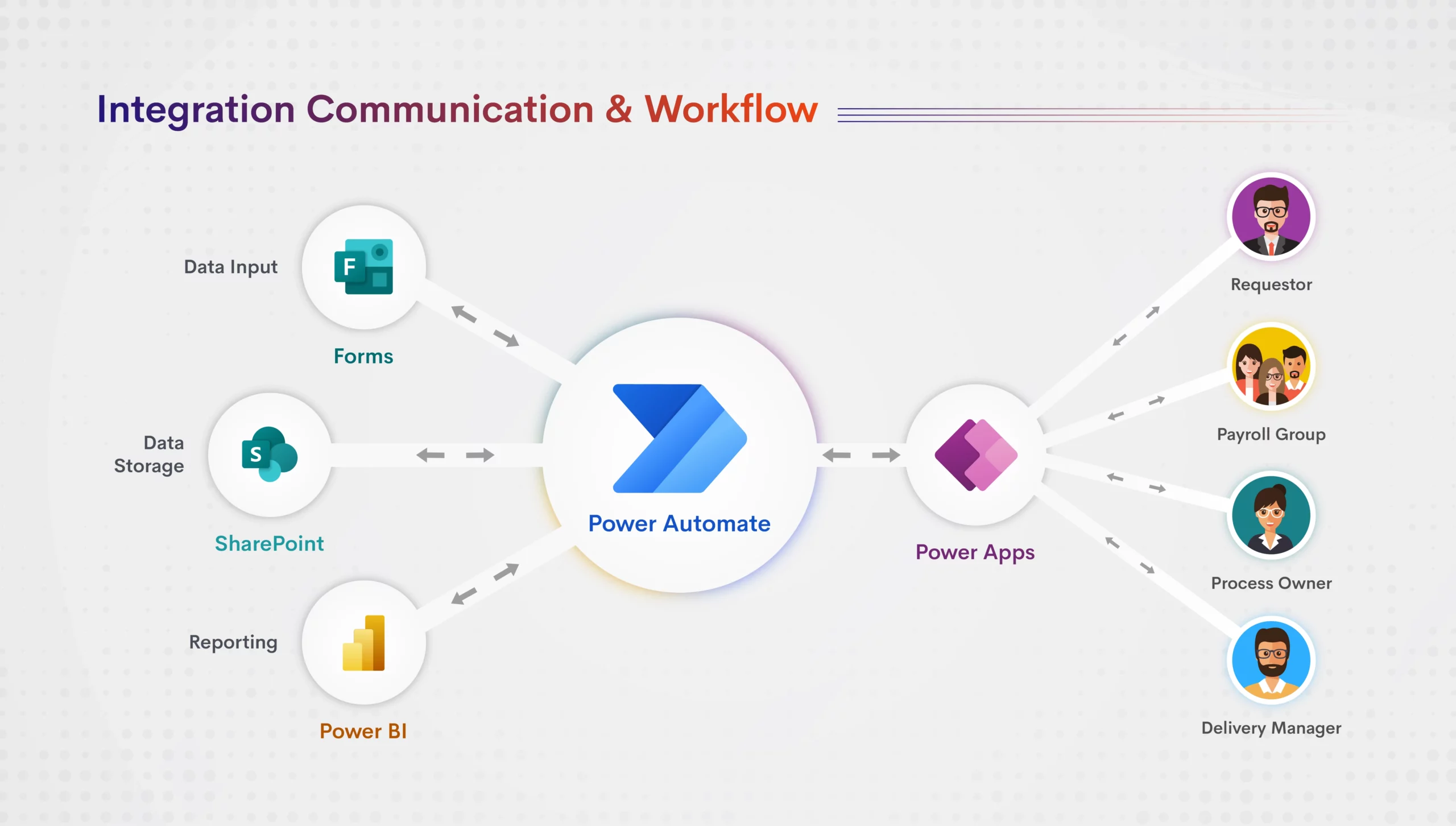
While Power Automate Desktop runs locally, it pairs smoothly with cloud‑based flows. You can trigger a desktop flow from Power Automate cloud by using the “Run a Desktop Flow” action. This hybrid approach lets you handle both web and desktop tasks from a single interface.
For example, a cloud flow could monitor a SharePoint document library, and upon detecting a new file, call a desktop flow that processes the file locally before uploading results back to the cloud.
FAQ
- Can I automate tasks in non‑Microsoft applications?
Yes. Power Automate Desktop can interact with any Windows application that exposes UI elements, such as browsers, Excel, PDF readers, and custom desktop software.
- Is Power Automate Desktop free?
The desktop client is free for personal use, but enterprise licensing may be required for advanced features and centralized deployment.
- How do I handle sensitive data in flows?
Use built‑in encryption for variables, set up Data Loss Prevention policies, and restrict flow access to authorized users.
- Can I schedule flows on a Windows machine that isn’t always on?
Yes. Configure the local task scheduler to start the Power Automate Desktop service or use a cloud trigger to run the flow on demand.