Mastering the Google My Business API: A Complete Guide
Why the Google My Business API Matters
For any business that wants to stay visible on Google Search and Maps, the Google My Business API is a hidden powerhouse. It lets you automate listings, keep hours and photos up to date, and respond to reviews at scale. Without it, you’re stuck entering changes manually—a time‑sink that can cost clicks and customers.
Most small‑to‑medium enterprises rely on the free web dashboard, but developers quickly discover that the API unlocks batch operations, custom reporting, and integration with existing CRMs. In short, it’s the difference between “I’m online” and “I’m actively managing my online presence.”
Getting Started: Prerequisites and Setup
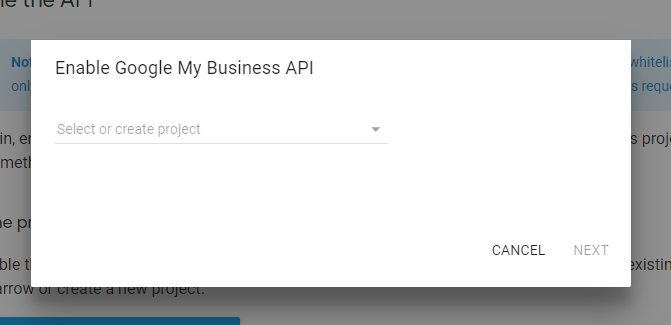
Before you write a single line of code, you’ll need a Google Cloud project with the My Business API enabled. Here’s a quick checklist:
- Create a Google Cloud Platform (GCP) project.
- Activate the “Business Profile API” (the new name for Google My Business API).
- Set up OAuth 2.0 credentials—choose a Web Application type if you’re building a server‑side app, or a Desktop App for quick testing.
- Invite the service account or OAuth client to your Business Profile account with at least Manager permissions.
Once the credentials are in place, you can retrieve an access token via the standard OAuth flow. Remember to store refresh tokens securely; they’ll keep your app authorized without repeatedly prompting the user.
Understanding Core Resources
The API revolves around a few key resources: Accounts, Locations, Reviews, and Media. Each has its own endpoint and set of methods.
- Accounts: Represents the business owner’s umbrella account. Most calls start with
accounts/{accountId}. - Locations: The actual storefronts or service areas. You can create, patch, or delete locations in bulk.
- Reviews: Fetch and reply to customer feedback. The API enforces rate limits here, so plan a queue if you expect high volume.
- Media: Upload photos, videos, or logos. Google recommends JPEG/PNG under 5 MB for fastest processing.
Getting comfortable with these objects—especially the JSON schemas they use—will save you hours of debugging later.
Typical Workflows and Code Snippets
Below are three common tasks. The examples use Python’s google-auth and requests libraries, but the logic translates to any language.
1. Listing All Locations for an Account
import google.authfrom google.auth.transport.requests import AuthorizedSession
creds, _ = google.auth.default(scopes=['https://www.googleapis.com/auth/business.manage'])
authed_session = AuthorizedSession(creds)
url = 'https://mybusinessbusinessinformation.googleapis.com/v1/accounts/{accountId}/locations'
response = authed_session.get(url)
for loc in response.json().get('locations', []):
print(loc['name'], loc['primaryCategory']['displayName'])
This call returns a paginated list; handle nextPageToken if you have more than 100 locations.
2. Updating Business Hours in Bulk
updates = [{
"name": "locations/1234567890",
"regularHours": {
"periods": [
{"openDay": "MONDAY", "openTime": "09:00", "closeTime": "17:00"},
{"openDay": "TUESDAY", "openTime": "09:00", "closeTime": "17:00"}
]
}
},
# add more location objects here
]
batch_url = 'https://mybusinessbusinessinformation.googleapis.com/v1/accounts/{accountId}/locations:batchUpdate'
authed_session.patch(batch_url, json={"locations": updates})
Batch updates accept up to 100 locations per request, making seasonal schedule changes painless.
3. Responding to a New Review
review_id = 'accounts/123/locations/456/reviews/789'reply_body = {"comment": "Thanks for the feedback, we appreciate it!"}
reply_url = f'https://mybusiness.googleapis.com/v4/{review_id}/replies'
authed_session.put(reply_url, json=reply_body)
Always check the reviewState first—Google won’t let you reply to a review that’s already been addressed.
Handling Errors and Rate Limits
The API returns standard HTTP status codes, but Google adds its own error objects. A 403 usually means the OAuth token lacks the proper scope, while a 429 signals you’ve hit a quota. The best practice is to implement exponential back‑off: wait a few seconds, double the delay on each retry, and give up after a reasonable number of attempts.
Quotas are per‑project and per‑user. You can request higher limits in the GCP console, but be prepared to justify the increase with projected request volume.
Best Practices for Production Deployments
- Cache account and location IDs locally; they rarely change and save API calls.
- Validate input data before sending—Google will reject malformed hours or URLs.
- Use webhooks (via Google Cloud Pub/Sub) to receive real‑time notifications for new reviews or changes made outside your app.
- Separate read and write credentials when possible. A read‑only service account can safely fetch analytics without risking accidental edits.
By layering these safeguards, you reduce the chance of a stray update taking down a storefront’s visibility.
Measuring Success: Metrics That Matter
Once your integration is live, track a handful of key indicators:
- Number of locations updated per week—shows automation impact.
- Average response time to reviews—helps improve customer sentiment.
- API error rate—keeps your engineering team aware of potential breaking changes.
- Search impression lift—compare before and after using Google Search Console.
These numbers give you a clear picture of ROI, and they’re easy to surface in a custom dashboard.
Frequently Asked Questions
Do I need a paid Google Cloud account to use the API?
No. The Business Profile API has a free tier that covers most small‑business needs. You only incur charges if you exceed the generous daily request limits.
Can I manage multiple business owners from a single app?
Yes. Each owner’s Google account grants its own OAuth token, and you can store the token alongside the associated accountId. Just be sure to respect each user’s privacy settings.
Is there a way to bulk‑delete locations?
Bulk deletion is supported via the locations:batchDelete method. It works similarly to batchUpdate but requires the business.manage scope and careful confirmation dialogs.
Next Steps and Resources
Now that you’ve seen the basics, the logical next move is to prototype a small integration—perhaps an automated script that syncs your inventory system’s opening hours with Google. The official documentation provides a sandbox environment you can test against without affecting live data.
Bookmark the Google Business Profile developer site, join the community forum for real‑world tips, and keep an eye on the changelog. The API evolves, and staying current ensures your business stays visible.