Office 365 Email Signatures Sync Across All Devices
Nothing disrupts a professional workflow quite like realizing your email signature is missing, outdated, or painfully inconsistent across your desktop, laptop, and mobile phone. For users relying exclusively on Microsoft 365, this fragmentation used to be a persistent headache. You’d spend ten minutes crafting a polished signature in Outlook for Windows, only to find that Outlook on the Web and the mobile app display a plain-text version or, worse, nothing at all. The good news is that Microsoft has largely closed this gap. With the right configuration, you can now ensure that your branding, contact details, and legal disclaimers remain consistent, no matter which platform you are using to send emails.
Understanding how to achieve true synchronization requires shifting perspective from manual configuration to a hybrid approach. It involves leveraging both client-side settings and, for many organizations, enterprise-wide management tools. Whether you are a solo power user looking to streamline your personal workspace or an IT administrator tasked with maintaining brand consistency across hundreds of employees, the path to a unified signature experience hinges on three main pillars: local application settings, cloud-based synchronization features, and Exchange Online policies.
Understanding the Microsoft 365 Ecosystem
Before diving into the configuration steps, it is crucial to understand why signatures don’t always "just work" across devices. Microsoft 365 is not a monolith; it is a suite of applications that often operate semi-independently. Outlook for Windows is a traditional desktop client. Outlook on the Web (OWA) runs in your browser. The Outlook mobile app on iOS or Android is a distinct native application. Each of these clients has its own storage method for signature data.
Historically, signatures were stored locally on the device where they were created. When you created a signature in Outlook for Windows, it lived in a hidden XML folder on that hard drive. When you switched to Outlook on the Web, you were starting from scratch. This architectural separation meant there was no native sync mechanism between the desktop client and the web client. Today, however, the landscape has evolved. While full bidirectional synchronization between the Windows desktop client and other platforms remains imperfect without administrative intervention, Microsoft has introduced features that allow for central management and consistent deployment.
Setting Up Signatures Manually Across Clients
If you are an individual user without access to IT policies, you must manually configure your signature in each client you use. Fortunately, the process is streamlined, and copying your HTML code can save significant time.
Outlook for Windows and Mac
In the desktop application, navigate to File > Options > Mail > Signatures. Here, you can create, edit, and set default signatures for new messages and replies/forwards. You can insert images, adjust fonts, and add hyperlinks. Note that signatures created here do not automatically propagate to Outlook on the Web or mobile devices.
Outlook on the Web (OWA)
Sign in to your Outlook web account and click the gear icon for Settings. Select View all Outlook settings, then Mail, then Compose and reply. Here, you can edit your automatic email signature. You can copy the HTML source from your desktop client by right-clicking the signature in the desktop app, viewing the source, and pasting the raw HTML code into the web interface’s HTML editor. This ensures visual consistency, although some complex formatting may not render identically in the web interface.
Mobile Devices
On iPhone or iPad, open the Outlook app, tap the initial icon in the top left, go to Settings (the gear icon at the bottom), scroll to Signature, and enter your text. On Android, the process is similar: go to Settings > Signature. Mobile apps generally support limited rich text and do not always allow image insertion via the app settings itself, depending on the platform. For a consistent look, using a text-based signature with hyperlinks is often the most reliable approach for mobile devices.
Centralized Signature Management for Organizations
For businesses, manual configuration is unscalable and error-prone. IT administrators can enforce consistency using Exchange Online and third-party signature management tools. This is the gold standard for achieving true synchronization across all devices.
Exchange Transport Rules
Administrators can use Exchange Online transport rules to append a signature to all outgoing emails. This method is powerful because it applies regardless of the client used. Whether an employee sends an email from Outlook for Windows, Outlook on the Web, or the mobile app, the transport rule intercepts the message and attaches the defined signature HTML. This ensures that legal disclaimers, company branding, and contact information are always present and up-to-date. However, this method has limitations: users cannot customize their individual signatures extensively, and edits to the transport rule affect all outgoing mail immediately, which can lead to unintended issues if the HTML is malformed.
Third-Party Signature Managers
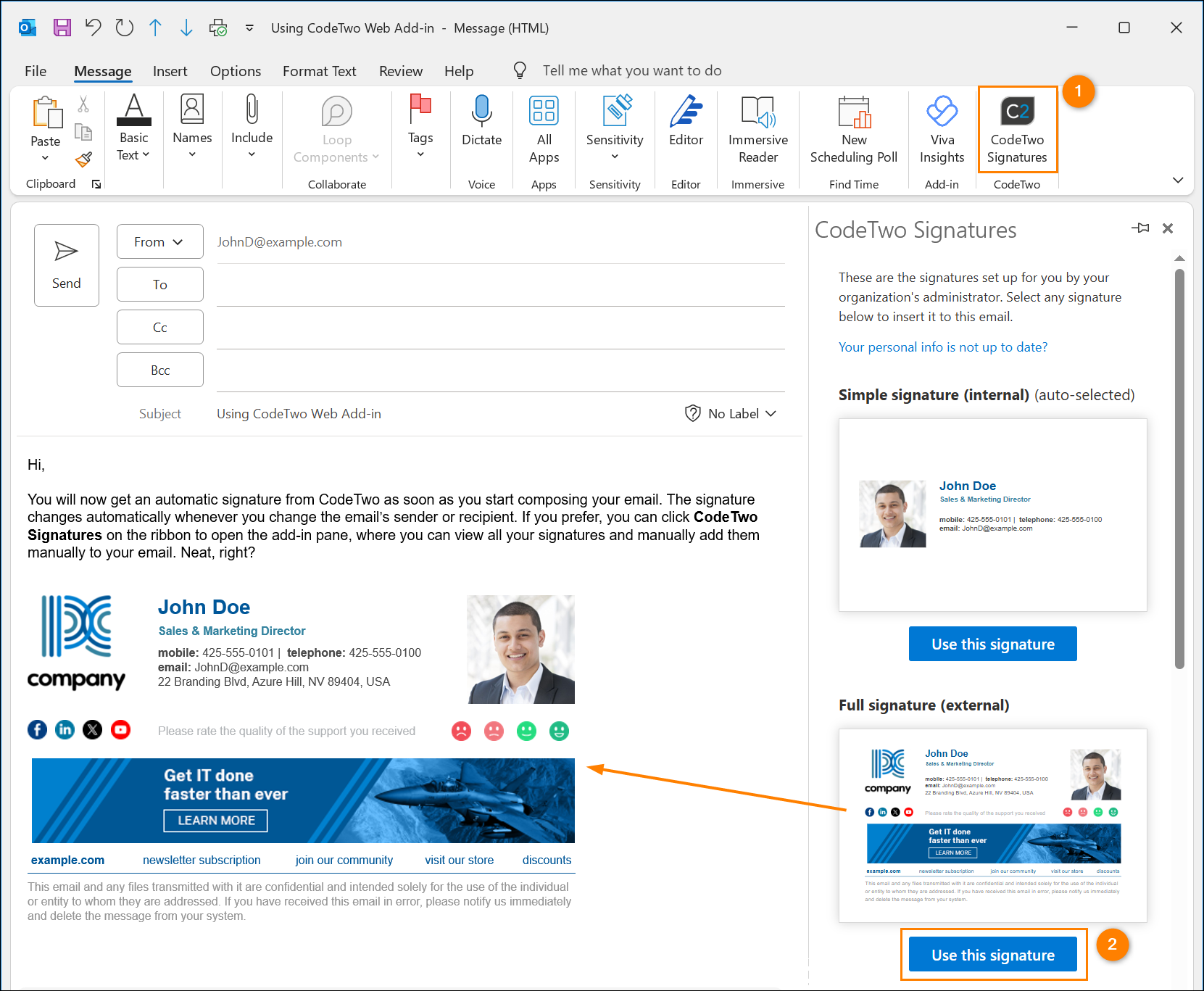
Many organizations use specialized tools like CodeTwo Email Signatures, Exclaimer, or Adobe Sign. These platforms provide a dashboard for creating and managing signatures, mapping user attributes (like department, job title, or custom fields) to dynamic signature templates, and deploying them across all platforms. These tools often offer plugins for Outlook for Windows and Mac, as well as integration with Exchange Online for web and mobile clients. This provides the best of both worlds: centralized control for the IT department and a consistent experience for the end user.
Common Pitfalls and Troubleshooting
Even with careful setup, signature issues can arise. One common problem is image linking. If you embed images directly into your signature HTML using relative paths or links to a local intranet that is not accessible externally, those images will not appear for recipients using other devices or networks. Always use absolute URLs for images hosteds on a publicly accessible server or cloud storage like OneDrive for Business or SharePoint Online.
Another frequent issue is formatting discrepancies between clients. Outlook for Windows supports a wide range of HTML and CSS features, while Outlook on the Web and mobile apps have more limited rendering capabilities. To maximize compatibility, avoid complex tables, nested divs, and external stylesheets. Stick to inline CSS and simple HTML structures. Test your signature by sending test emails to yourself from each client and viewing them on different devices.
Finally, be aware of cache issues. If you update your signature in a centralized management tool, it may take some time for the changes to propagate to all clients. Clearing the cache on the Outlook for Windows client or forcing a sync in the mobile app may be necessary to see the most recent version.
Best Practices for Consistent Signatures
To maintain professionalism and brand integrity, follow these best practices:
- Keep it Simple: Cluttered signatures are difficult to read and may not render well on mobile devices. Include only essential information: name, title, company, phone number, and website.
- Use Responsive Design: Ensure your signature looks good on both desktop and mobile screens. Avoid fixed widths and percentages that may cause layout issues.
- Regularly Update Information: Designations, phone numbers, and project links change frequently. Establish a process for updating signature templates when these changes occur.
- Include Legal Disclaimers: If required by your company, include legal disclaimers in your signature. Ensure they are clearly visible and easy to read.
- Test Thoroughly: After making changes to your signature, test it across all clients and devices. Send test emails to yourself and colleagues to verify formatting and functionality.
Frequently Asked Questions
Will my Outlook desktop signature automatically sync to Outlook on the Web?
Generally, no. Signatures created in Outlook for Windows or Mac are stored locally and do not automatically sync to Outlook on the Web or mobile apps. You must manually configure the signature in each client or use a centralized management solution.
Can I use images in my email signature on mobile devices?
It depends on the method of deployment. If you configure the signature manually in the mobile app settings, most Outlook mobile apps do not allow image insertion. However, if your IT department uses a transport rule or a third-party signature management tool, images can be appended to the email before it is sent, regardless of the client used.
How do I update my signature for all users in my organization?
If you are an IT administrator, you can update signatures centrally using Exchange Online transport rules or a third-party signature management tool. These solutions allow you to modify the template once, and the changes will apply to all outgoing emails from all clients for all users.
Why does my signature appear differently in Outlook Web vs. Outlook Desktop?
Outlook for Windows and Outlook on the Web use different rendering engines and support different HTML and CSS features. Complicated formatting, such as complex tables or scripts, may not display correctly in the web client. Using simple, inline HTML and CSS, along with testing across both platforms, can minimize discrepancies.