Offline ESP32 MicroPython on Wokwi: A Complete Guide
For makers who want to experiment with an ESP32 in a no‑internet environment, the combination of MicroPython and Wokwi offers a surprisingly smooth workflow. By downloading the necessary firmware, Python tools, and Wokwi’s offline mode, you can write, flash, and debug code without a connection to the cloud. This guide walks you through every step—from setting up the local toolchain to running a full simulation in Wokwi.
What is Wokwi and Why Use It?
Wokwi is an online electronics simulator that supports popular boards like the ESP32. It lets you sketch circuits, upload MicroPython scripts, and view live serial output—all in a web browser. The offline version keeps the same interface but runs locally, removing any dependency on external servers. This is useful for university labs, secure environments, or when you just prefer a local sandbox that mimics real hardware without the noise of a network.
Preparing Your Offline Environment
Before you touch code, make sure you have the following installed on your machine:
- Python 3.10 or newer – the official MicroPython documentation recommends this version for ESP32 support.
- esptool.py – a command‑line utility for flashing firmware to ESP32 chips.
- Thonny or VS Code with the MicroPython extension – both provide a serial REPL and file transfer tools.
- Wokwi Desktop – download the latest release from wokwi.com/download and extract it to a folder of your choice.
All downloads can be saved to a USB stick and transferred to the offline machine, ensuring no stray network traffic.
Offline ESP32 MicroPython with Wokwi: Installation Overview
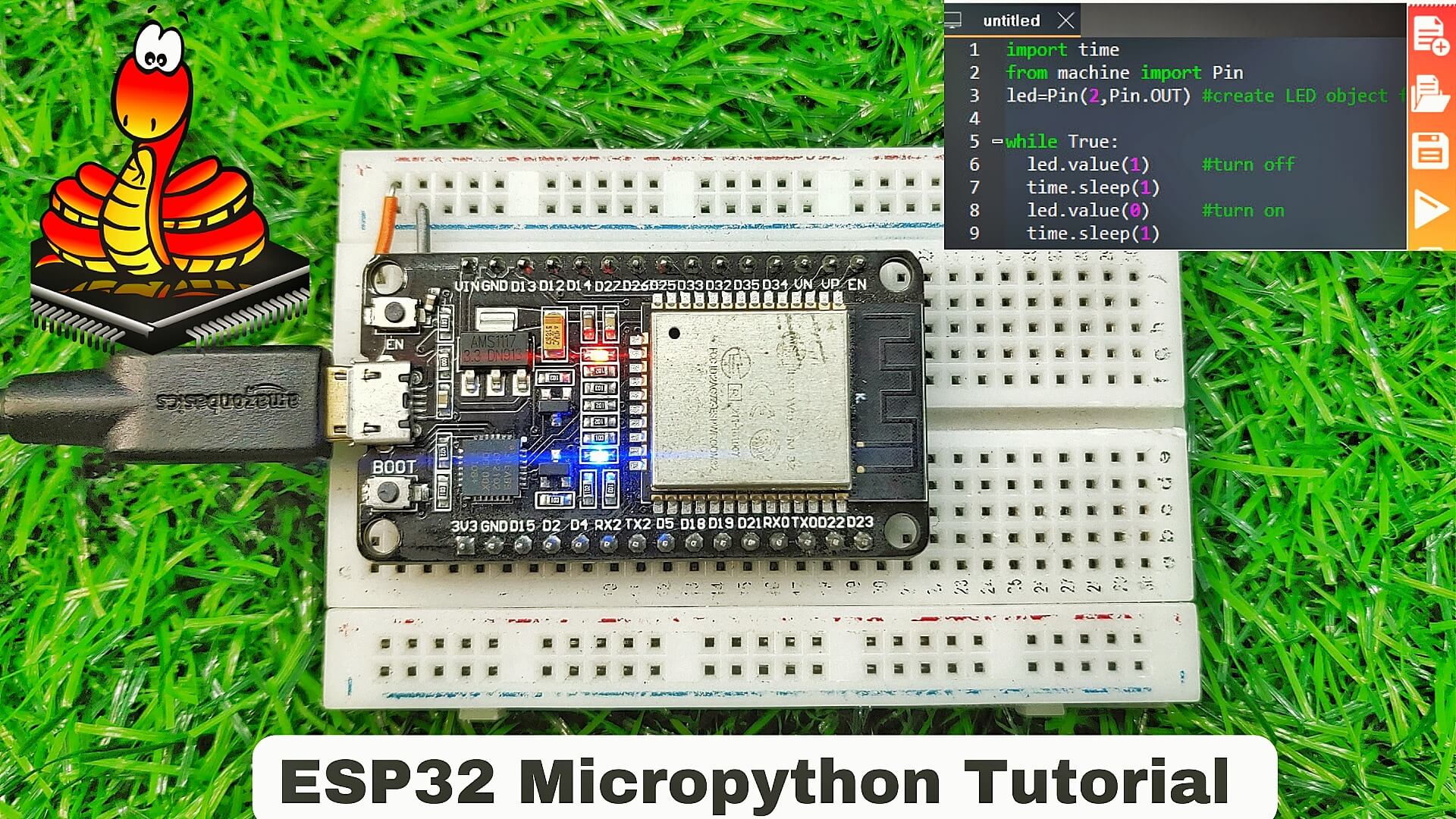
The heart of the process is flashing a pre‑built MicroPython firmware onto the ESP32. Start by pulling the latest binary from the MicroPython releases page and saving it locally. Connect your ESP32 to the host computer via USB and open a terminal. Reset the device into bootloader mode by holding the BOOT button while powering on, then run:
esptool.py --chip esp32 erase_flashesptool.py --chip esp32 --port /dev/ttyUSB0 write_flash -z 0x1000 esp32‑microPython‑latest‑esp32.bin
Replace /dev/ttyUSB0 with your serial port. After flashing, reboot the board. The firmware will boot into the MicroPython REPL, ready to accept commands.
Configuring Wokwi for Offline Simulation
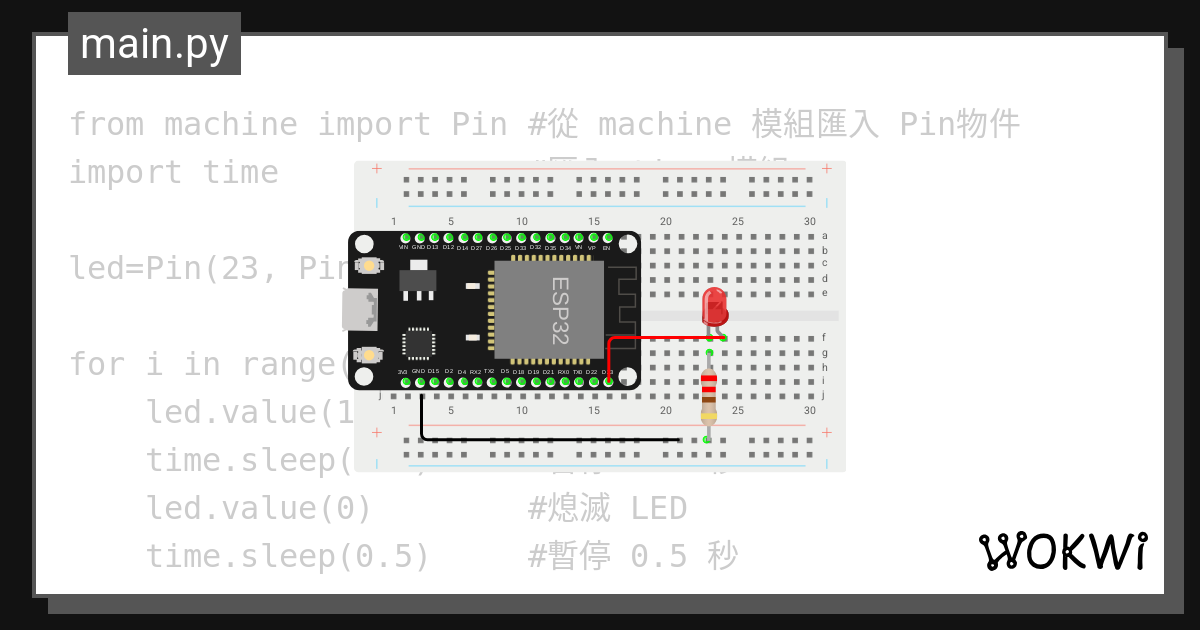
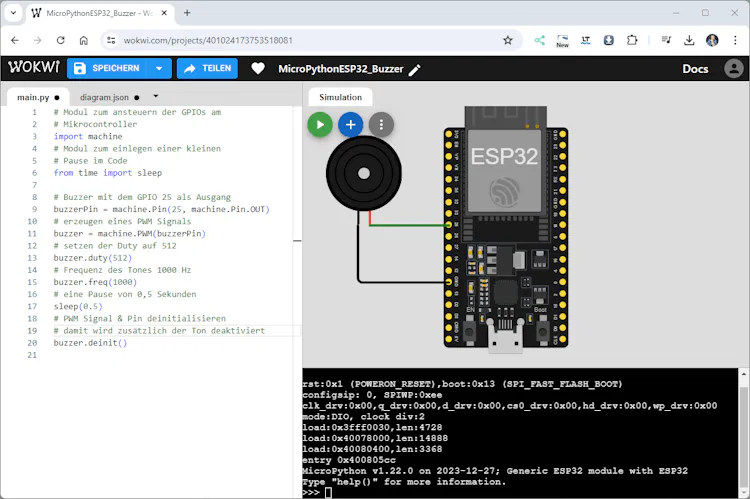
Launch the Wokwi Desktop app and click New Project. Choose the ESP32 DevKit v2 template. In the workspace, go to Project Settings and toggle Offline Mode. This pulls the firmware image you flashed earlier into the simulation context. Connect the board’s TX and RX pins to the Wokwi virtual serial console; the REPL output will appear in the bottom pane.