Transparent HTTPS Proxy on pfSense – No Certificates Needed
Running a proxy that can see inside HTTPS traffic usually means dealing with certificates, key stores and a whole lot of user‑side warnings. Fortunately, with pfSense and the Squid package, you can set up a transparent HTTPS proxy that simply forwards encrypted streams without ever terminating the TLS session. In other words, the proxy stays out of the encryption handshake, letting the client‑server tunnel pass through untouched while still giving you basic visibility and control.
Why Use a Transparent HTTPS Proxy on pfSense Without Certificates?
Most organisations install a "man‑in‑the‑middle" (MITM) solution to inspect SSL traffic, but that approach raises privacy concerns, adds management overhead, and often breaks applications that employ certificate pinning. A transparent proxy that doesn’t touch the certificates sidesteps those issues. You retain the ability to enforce traffic‑shaping, logging, and access control, yet you avoid the legal and technical quagmire of decrypting user data.
Prerequisites and What to Expect
Before diving in, make sure you have a running pfSense box (version 2.5.x or newer) with at least one LAN interface and an internet‑facing WAN. You’ll also need the Squid package installed from the System → Package Manager. The proxy will operate in “transparent” mode, meaning devices on your network don’t need to configure a proxy address; the firewall simply redirects the traffic.
Because we aren’t terminating TLS, the proxy can’t read URLs or payloads inside the HTTPS stream. What you do get is source/destination IPs, ports, and the amount of data transferred – enough for bandwidth accounting and basic policy enforcement.
Step‑by‑Step Setup
1. Install Squid
- Navigate to System → Package Manager → Available Packages.
- Find Squid, click Install, and confirm.
- Wait for the installation to finish; Squid will appear under Services → Squid Proxy Server.
2. Enable Transparent Mode
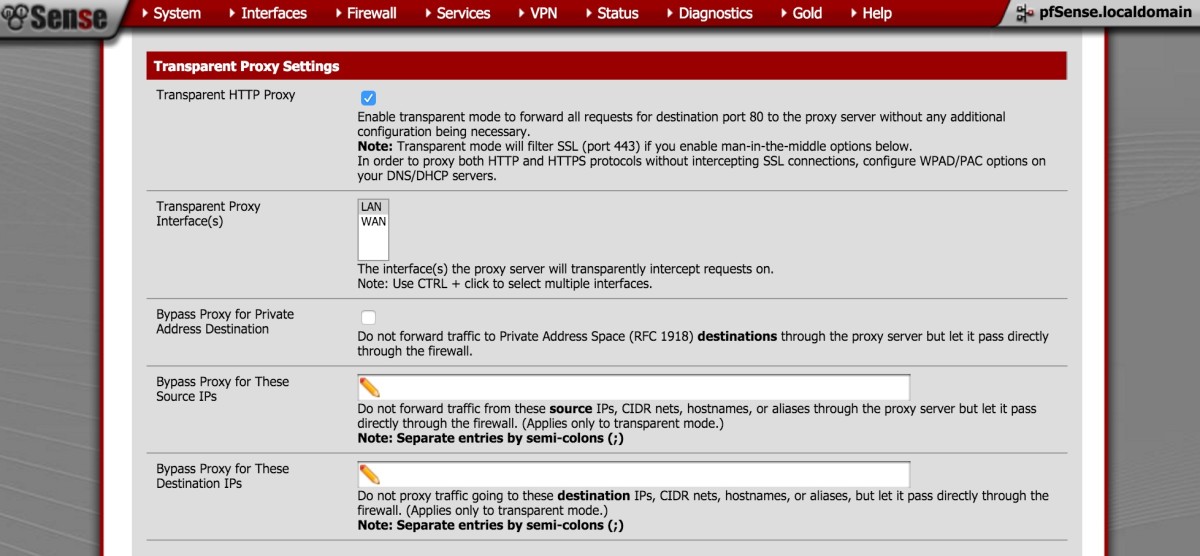
Open the Squid settings page and check the box for Transparent HTTP proxy. For HTTPS you’ll also need to enable Intercept SSL/TLS, but uncheck any options that mention “SSL Bump” or “Certificate Authority”. This tells Squid to forward TLS handshakes without trying to decrypt them.
3. Configure Redirection Rules
pfSense doesn’t automatically redirect HTTPS traffic to Squid, so you’ll add a NAT rule:
- Go to Firewall → NAT → Port Forward.
- Create a new rule:
- Interface: LAN
- Protocol: TCP
- Destination: LAN address
- Destination port range: 443 (HTTPS)
- Redirect target IP: 127.0.0.1
- Redirect target port: 3129 (default Squid HTTPS port)
- Enable Filter rule association and give it a descriptive name.
- Save and apply changes.
4. Adjust Firewall Rules
Because the NAT rule only rewrites the destination, you also need an allow rule so the traffic can pass through:
- Navigate to Firewall → Rules → LAN.
- Add a rule that permits TCP traffic to 127.0.0.1 on port 3129.
- Place it above any deny‑all rules.
5. Fine‑Tune Logging and Access Control
Even without decryption, Squid can log connection attempts. Under Services → Squid → General, enable Access Log and set a reasonable rotation schedule. For basic control, you can create ACLs that block specific destination IP ranges or limit bandwidth per client IP. These ACLs work on the clear‑text metadata, not on the encrypted payload.
Testing the Configuration
After applying the settings, grab a laptop on the LAN and browse to any HTTPS site. In the Squid logs (found under Status → System Logs → Squid) you should see entries showing the source IP, destination IP, and the amount of data transferred. If the page loads without certificate warnings, the proxy is correctly passing the TLS handshake through.
If you encounter a “Connection reset” error, double‑check that the NAT redirect points to the correct Squid port (3129 by default) and that the firewall rule permits traffic to 127.0.0.1. Also verify that no other proxy or VPN software on the client is interfering.
Limitations You Should Know
Because the proxy never terminates TLS, you cannot:
- Inspect URLs hidden inside the HTTPS request line.
- Apply content‑filtering rules based on page content.
- Generate detailed reports about which specific pages users visited.
However, you still gain:
- Visibility into which domains or IPs are being contacted.
- Ability to throttle or block traffic to undesired destinations.
- Centralized logging for audit purposes.
If you later decide you need deeper inspection, you can add a separate MITM proxy alongside this transparent setup, but keep in mind the added complexity and privacy considerations.
FAQ
Can I log the exact URLs accessed over HTTPS without certificates?
No. Without decrypting the TLS session, the proxy only sees the encrypted SNI (Server Name Indication) and the destination IP. The full URL path remains encrypted and cannot be logged.
Will this setup interfere with applications that use certificate pinning?
Since the proxy does not terminate TLS, certificate pinning works as usual. The client still validates the server’s certificate directly, so there’s no breakage caused by MITM interception.
Do I need to restart Squid after changing the NAT rule?
Restarting Squid is not required for NAT changes, but it’s a good practice to reload the service after any major configuration tweak to ensure all settings are applied cleanly.