Unlock MIDI Magic: Split a File into Individual Tracks
Why split a MIDI file?
When you receive a multi‑instrument MIDI file, everything is bundled into a single stream of data. That’s convenient for playback, but it makes editing a nightmare. By splitting the file into individual tracks, you gain control over each instrument, can swap sounds, adjust velocities, or even replace a piano line with a synth without disturbing the rest.
Preparing your tools
Not every DAW or editor handles track extraction the same way. Here are a few reliable options:
- MuseScore – free, open‑source, and great for visualizing note data.
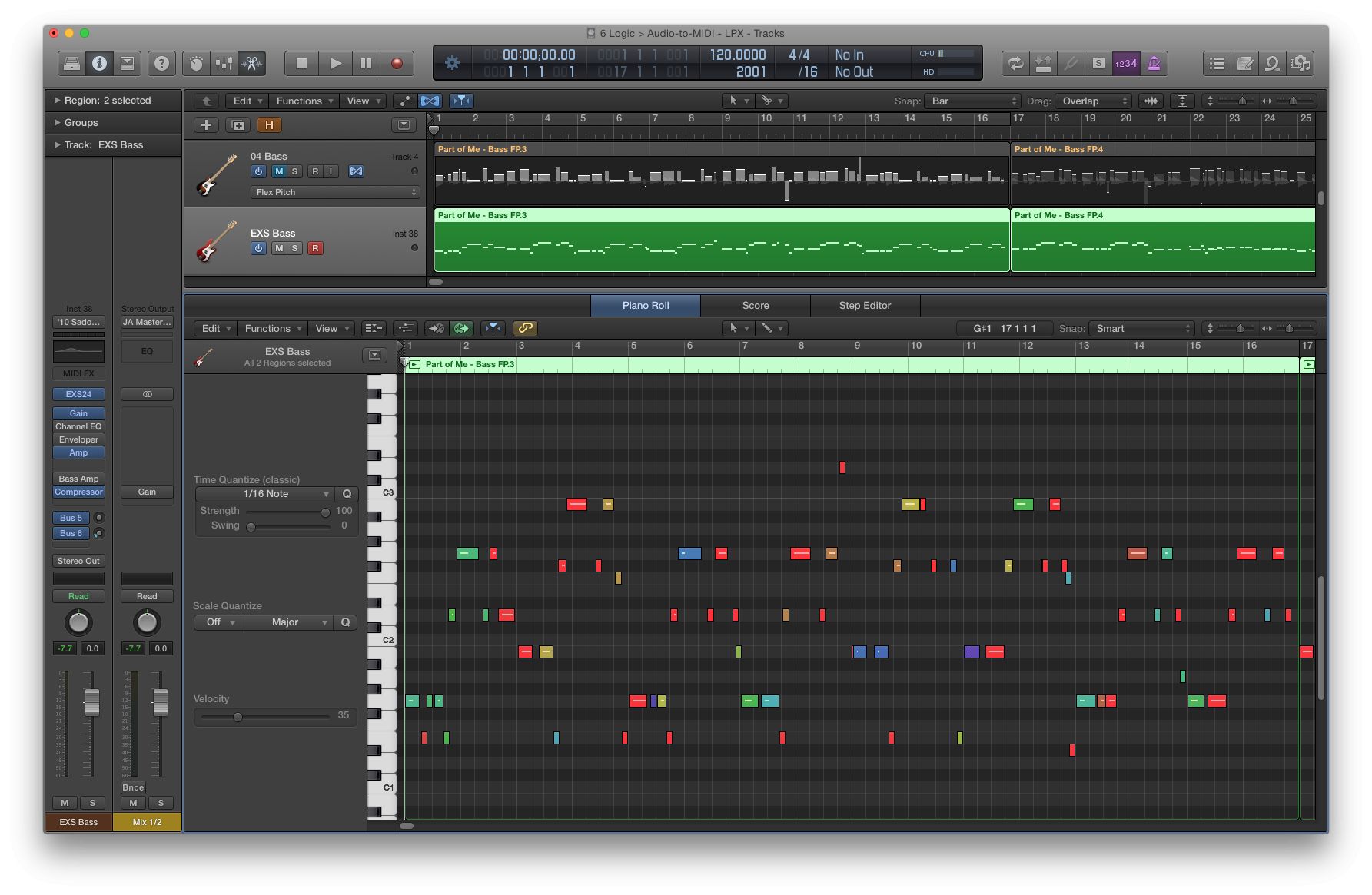
- Logic Pro X – offers a straightforward “Export Selection as MIDI” feature.
- Reaper – lightweight, with a built‑in “Render MIDI to Separate Files” script.
- Online converters – sites like midiextractor.com can do the job without installing software.
Pick the one you’re most comfortable with; the process is fundamentally the same.
Step‑by‑step guide
1. Load the MIDI into your editor
Open the file and let the program display the tracks or channels. In most DAWs, the MIDI appears as a series of lanes labeled “Track 1,” “Track 2,” etc. If you only see a single lane, look for a “Show All Channels” or “Expand View” option.
2. Identify each channel or instrument
Every MIDI message carries a channel number (1‑16). Instruments are usually mapped to specific channels: channel 1 for piano, channel 2 for strings, and so on. Use the editor’s piano roll or event list to confirm which notes belong to which instrument. Some files also embed program change messages that tell you the intended sound.
3. Isolate the desired track
Select the lane or channel you want to extract. In MuseScore, you can right‑click the staff and choose “Export…”. In Logic, simply solo the track, then go to File → Export → Selection as MIDI. This creates a new file containing only the chosen notes.
4. Repeat for each instrument
Unfortunately, most programs don’t batch‑export all channels at once, so you’ll need to repeat the previous step for every instrument you wish to separate. Keep a consistent naming scheme—e.g., SongName_Piano.mid, SongName_Bass.mid—to stay organized.
5. Verify timing and tempo
After exporting, re‑import each new file into a fresh project. Play them back together to ensure they line up perfectly. If you notice a drift, check that the original tempo map was retained; some editors flatten tempo changes by default, which can cause misalignment.
Tips for keeping the music intact
- Preserve the original tempo map. Enable “Export tempo changes” if the option exists.
- Maintain channel numbers. Some synths rely on specific channels for drum kits, so avoid renumbering unless you intend to reassign.
- Use non‑destructive editing. Save a copy of the full MIDI before you start splitting.
- Consider grouping related tracks. For orchestral pieces, keep strings in one file and brass in another to simplify mixing later.
Common pitfalls and how to avoid them
- Lost velocity data. Some cheap converters flatten velocities, making the performance sound lifeless. Test a few notes before committing.
- Missing program changes. If a track loses its instrument patch, it may default to a generic piano. Double‑check the program change events in the exported file.
- Timing shifts. Exporting without the original time signature can push notes off‑beat. Always keep the time signature information.
- Over‑splitting. Creating a separate file for every drum hit is overkill; keep related percussion on a single track.
FAQ
Q: Can I split a MIDI file without a full DAW?
A: Yes. Free utilities like MIDI-OX (Windows) or midicsv (cross‑platform) let you extract channels via simple commands.
Q: What if the MIDI uses multiple instruments on the same channel?
A: Look for program change messages within that channel. You may need to manually cut the sections where the instrument swaps and export them as separate files.
Q: Do I need to worry about copyright when splitting a MIDI?
A: Splitting for personal practice or remixing is generally fine, but distributing the individual tracks may require permission from the original composer.
Q: Is there a way to automate batch splitting?
A: Some scripting environments—Reaper’s ReaScript or Ableton’s Max for Live—can loop through channels and save each as a new file with a single click.