Where Do iPhone ZIP Files Store Their Contents?
When you click a ZIP link on your iPhone, the download happens in a hidden corner of the Files app. Unlike a desktop browser, iOS has no visible “Downloads” folder, so it can feel like the ZIP file vanishes right after you open it. The good news is that the system places the file in a predictable spot, and once extracted it often remains in a folder you can easily find. Understanding the path helps you keep your device tidy and retrieve any data you might need later.
Finding iPhone ZIP Files on Your Device
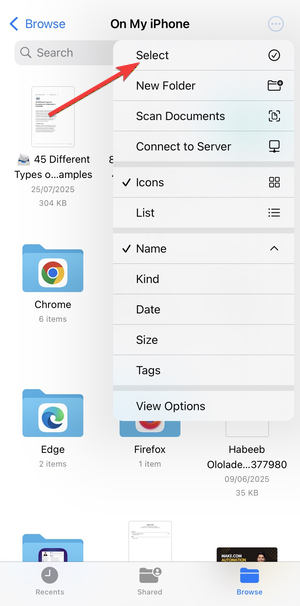
The Files app is the central hub for all locally stored documents, whether they’re PDFs, photos, or ZIP archives. To locate a ZIP file:
- Open Files.
- Tap the Browse tab at the bottom.
- Select On My iPhone or iCloud Drive depending on where you chose to save the download.
- Scroll or use the search bar to type the name of the ZIP file.
If you downloaded the file via Safari or Mail, it will most likely land in Downloads under On My iPhone. From there you can tap to preview or unzip directly within Files.
Where the Unzipped Content Goes
Opening a ZIP file in the Files app automatically extracts its contents to a new folder. The folder’s name usually mirrors the original ZIP file, but you can rename it at any time. The extracted files stay in the same location as the ZIP file itself—so if your ZIP was in Downloads, its unpacked contents appear there too.
When you delete the ZIP file after extraction, the system keeps the extracted files. If you need to clean up, you’ll have to delete the folder separately. Some third‑party apps, such as Documents by Readdle or Dropbox, create their own extraction directories inside their own sandboxed areas, visible only within the app.
What About Temporary Storage?
iOS does generate temporary data when handling ZIP files—think of it as a cache. These files live inside the operating system’s /var/mobile/Containers/Data/Application directories. Because they’re inside the app sandbox, you can’t access them through Files unless the app exposes them. When the app terminates, most of these temporary files are purged automatically to free up space.
Managing iPhone ZIP Files with iCloud Drive
If you opt to save ZIP files to iCloud Drive, they follow the same rules as local files but are synced across your devices. Here’s what to know:
- All iCloud Drive items show under the iCloud Drive section of Files.
- Extraction creates a subfolder in the same iCloud location.
- When you delete the ZIP, the subfolder remains until you remove it manually.
- iCloud’s storage quota applies to both ZIP files and their extracted contents.
Using iCloud Drive also means that if you share a ZIP via a link, the recipient can download it directly into their own iCloud Drive without needing an app on the receiving side.
When ZIP Files Don’t Show Up
Occasionally, a ZIP file might not appear where you expect it. Common reasons include:
- The download was interrupted, leaving a corrupted or incomplete file.
- The source used a “Content-Disposition” header that tells Safari to save the file in a different folder (rare).
- You’re viewing the wrong storage location—check both On My iPhone and iCloud Drive.
In these cases, re‑downloading the ZIP or using a different browser can resolve the issue.
Quick Tips for Working with ZIPs on iPhone
- Use the built‑in Files app to preview before extracting; it’s fast and reliable.
- Rename ZIP folders immediately after extraction to keep your library organized.
- For large ZIPs, consider using a third‑party app that streams the extraction process, keeping the ZIP file itself from taking up space.
- Enable Off‑line Access for frequently used ZIP contents in iCloud Drive to keep them readily available.
FAQ
- Do iPhone ZIP files delete automatically after extraction? No. The ZIP file remains until you delete it, but the extracted contents stay in the same folder.
- Where can I find ZIP files downloaded from Safari? They’re stored in the Downloads folder under On My iPhone inside the Files app.
- Can I access ZIP files outside the Files app? Only through the app that originally downloaded or opened them, such as Mail or third‑party file managers.
- How do I free up space after unzipping a large archive? Delete both the original ZIP file and its extracted folder once you’ve backed up any needed data.