Your Complete Guide to YouTube Premium on Smart TVs
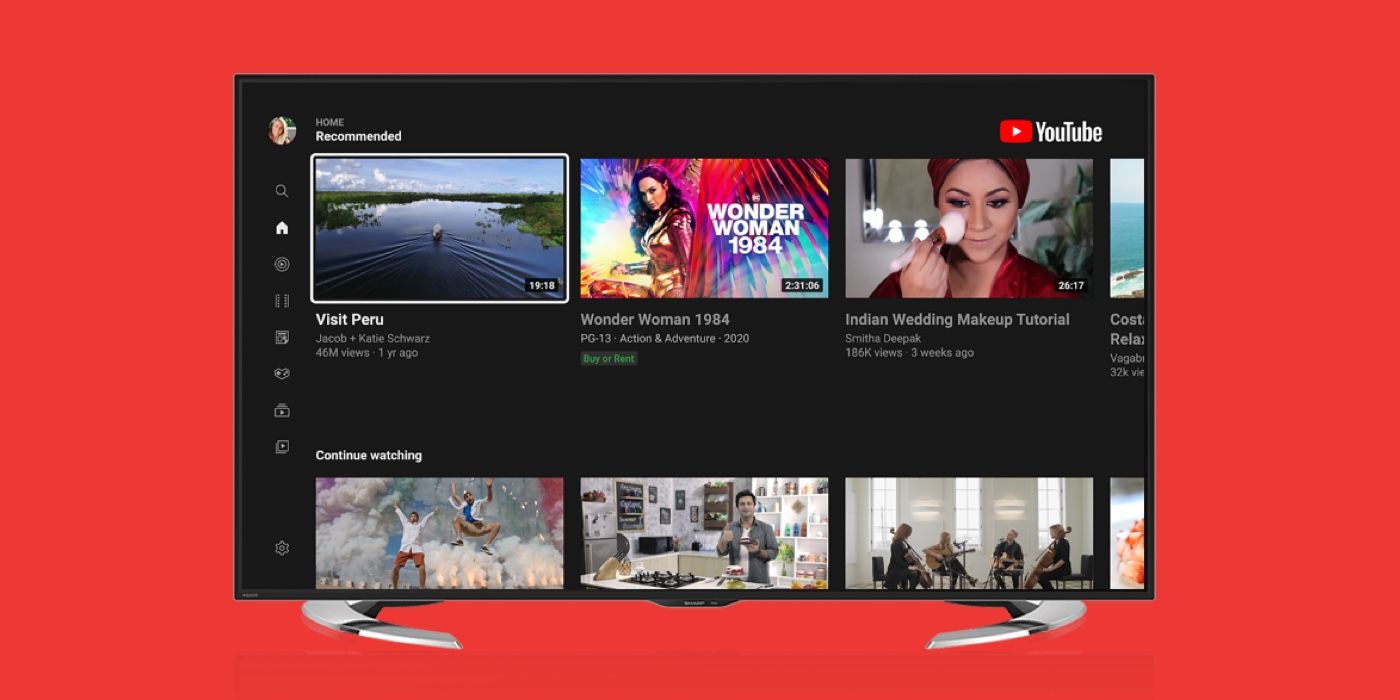
Streaming YouTube on a big screen feels natural, but many users forget that the same subscription that blocks ads on phones and computers works just as well on a Smart TV. Whether you’re binge‑watching music videos, catching up on your favorite creators, or using the background‑play feature while you cook, YouTube Premium can transform the living‑room experience. This guide walks you through the benefits, the sign‑up process, brand‑specific setup steps, and the most common hiccups you might encounter.
What YouTube Premium Offers on Smart TVs
At its core, YouTube Premium delivers three main perks that translate directly to a television environment:
- Ad‑free playback – No interrupting commercials, even on the longest playlists.
- Background & picture‑in‑picture (PiP) mode – Keep the audio playing while you switch to another app, or shrink the video to a corner while browsing other content.
- Offline downloads – Save videos to the TV’s internal storage (if supported) for later viewing without an internet connection.
In addition, Premium members gain access to YouTube Music, which can be launched from the TV’s interface on many newer models. The combination of these features makes the service especially appealing for households that treat the TV as a shared media hub.
How to Subscribe to YouTube Premium on Your TV
If you already have a Premium account on another device, there’s no extra step needed; simply sign in with the same Google account. New users can follow these quick steps:
- Open the YouTube app on your Smart TV.
- Navigate to Settings (usually represented by a gear icon).
- Select Sign In and follow the on‑screen instructions to link your Google account. This often involves entering a code at
youtube.com/activateon a phone or computer. - Once signed in, a banner will appear prompting you to start a free trial or subscribe. Choose your plan, confirm payment details, and you’re set.
The subscription is tied to your Google account, so any device you log into—phone, tablet, laptop, or another TV—will automatically enjoy the Premium benefits.
Setting Up YouTube Premium on Popular Smart TV Brands
While the basic sign‑in flow is universal, each TV manufacturer adds its own quirks. Below are the most common platforms and the specific steps that tend to trip users.
Samsung Smart TVs (Tizen OS)
Samsung’s YouTube app is pre‑installed on most 2016‑and‑newer models. After signing in, make sure to enable Background Play in the app’s settings; otherwise, the feature defaults to “off” on some firmware versions. If you don’t see the option, a quick firmware update (Settings → Support → Software Update) usually adds it.
LG Smart TVs (webOS)
LG’s interface places the YouTube app under the LG Content Store. Once you log in, navigate to Settings → General within the app and toggle “Ad‑free videos” to on. Offline downloads are only available on models with at least 8 GB of internal storage, so check the specifications if you plan to cache content.
Sony TVs (Android TV)
Because Android TV runs a full version of the YouTube app, Premium features appear exactly as they do on a phone. However, some older Sony models hide the “Sign in” button in the lower‑right corner of the home screen rather than the side menu. After linking your account, you can also enable “Picture‑in‑picture” from the Android settings (Settings → Display → Picture‑in‑Picture).
Roku and Amazon Fire TV
Both platforms treat YouTube as a third‑party channel. After adding the channel, sign in using the same Google account. Roku users should note that “Background Play” works only when the Roku device is set to “Always on” in System → Power → Sleep → Never.
Troubleshooting Common Issues
Even with a smooth setup, you might run into a few glitches. Here are the most frequent problems and practical fixes.
- Ads still appear. Verify that the TV is logged into the correct Google account. If multiple accounts are present, switch to the Premium‑enabled one in the app’s settings.
- Background Play won’t stay active. On many TVs, this feature is disabled when the screen is turned off to conserve power. Check the TV’s power‑saving mode and disable “Eco” or “Screen Saver” options while using YouTube.
- Downloads fail. Not all TV models support offline storage. If your device lists “Not enough space” despite having free storage, a firmware update often resolves the mismatch.
- Audio out of sync. This can happen after a software update. Restart both the TV and the YouTube app, and if the problem persists, reinstall the app from the store.
If none of these steps help, the next best move is to clear the app’s cache (Settings → Apps → YouTube → Clear Cache) or, as a last resort, perform a factory reset of the TV—just be sure to back up any custom picture or sound settings first.
Is YouTube Premium Worth It on a TV?
For households that already enjoy ad‑free streaming on mobile devices, extending the experience to the living room usually feels like a natural upgrade. The biggest value‑add is uninterrupted playback during long playlists or live streams—something that can quickly become annoying on a big screen. Background Play also shines when you want to keep a music video running while flipping through recipes or sports scores.
On the flip side, if you primarily watch short, infrequent clips, the free version’s occasional ads may not be a major inconvenience. In that case, a monthly Premium fee might feel less justified.
FAQ
Can I use YouTube Premium on multiple Smart TVs at once?
Yes. The subscription is linked to your Google account, not a specific device, so any TV you sign into with that account will receive the Premium benefits.
Do all YouTube Premium features work on every Smart TV?
Most core perks—ad‑free playback and background audio—are widely supported. Offline downloads depend on the TV’s internal storage and OS version, and some older models may lack Picture‑in‑Picture.
Will changing my Google password affect YouTube Premium on my TV?
After a password change, you’ll be prompted to re‑authenticate the YouTube app on each device. The Premium status remains intact as long as you sign back in with the same account.
Is there a family plan for Smart TVs?
YouTube Premium’s family plan allows up to six family members (including yourself) to share one subscription. Each member can log into the YouTube app on their own TV or device, and all enjoy the same ad‑free experience.