Fixing PS5: Common Problems & Practical Solutions
If you're dealing with PS5 problems, finding the right solutions can feel daunting, but a systematic approach makes it manageable. From the infamous Blue Light of Death to sudden controller disconnections, the console’s issues are usually traceable to a few recurring causes. The following guide walks through the most frequent glitches, explains why they happen, and offers step‑by‑step fixes that keep your gaming hours intact.
Common PS5 Problems & Quick Fixes
While Sony’s hardware is robust, a handful of problems tend to pop up in the field. Understanding them gives you a roadmap for troubleshooting without hunting the internet for each error code.
- No Power / Blue Light of Death – The console either fails to start or flashes a blue light without booting.
- Unexpected Shutdowns & Overheating – Sudden restarts or forced shutdowns often point to thermal or power supply issues.
- Disc & Media Read Errors – Games on disc may refuse to load or show error codes like 0xC002 or 0xC004.
- Controller Connectivity Issues – Pairing problems, lag, or sudden disconnections can ruin a session.
- Game Crashes & Instability – Titles may close unexpectedly or fail to launch.
- Firmware & Update Failures – Updates that stall or report corrupted data block the system.
Diagnosing & Troubleshooting Steps
No Power & Blue Light of Death
First, verify the power cable is securely connected to both the console and the wall outlet. If you use a surge protector, try plugging directly into a grounded outlet. Next, perform a hard reset by holding the power button for 12 seconds until the console shuts off, then press it again to start. If the console still shows a blue light, check the power supply unit (PSU) by testing the outlet with another device. A faulty PSU can trigger the Blue Light of Death.
Unexpected Shutdowns & Overheating
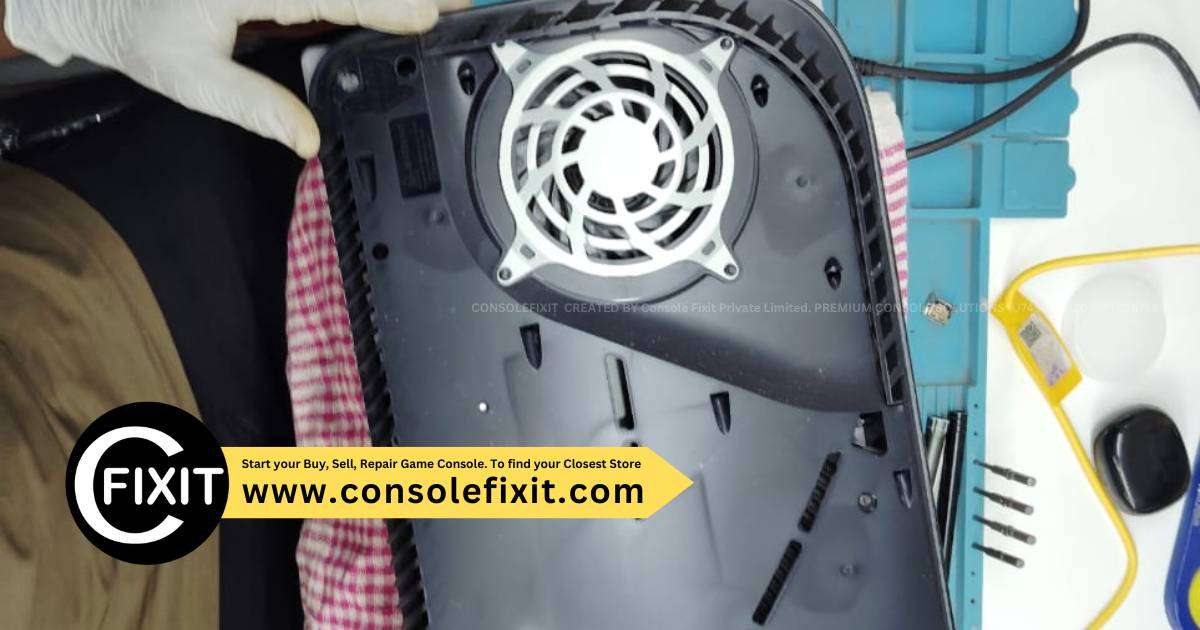
Open the console’s rear panel carefully and dust the vents with a soft brush or compressed air. Make sure the console is on a flat, hard surface with enough clearance on all sides—ideally 10–15 cm between the back and a wall. If the device continues to overheat, inspect the internal fan for obstruction and clean it gently. For persistent overheating, consider replacing the fan or contacting Sony service.
Disc & Media Read Errors
Start by inspecting the disc for scratches or smudges. Clean it with a microfiber cloth, wiping from the center outward. If the error persists, try the optical drive reset: hold the Power button, then press Reset on the console’s front panel. In rare cases, a damaged drive may require professional repair.
Controller Connectivity & Sync Issues
Reset the controller by pressing the tiny button on the back near the L2 shoulder. Pair it again using the PS button and Share combo. If you use Bluetooth accessories, remove interference by placing other devices farther away. Low battery levels can also cause dropouts, so keep the controller charged.
Game Crashes & Instability
Delete and reinstall the problematic title. If the game is installed on the internal SSD, move it to a compatible USB SSD and run it again to confirm. Also, verify that the game is fully patched—many crashes resolve once the latest patch is installed. When multiple games crash, a system restore or Safe Mode reinstall may be necessary.
Firmware & Update Problems
When an update stalls, exit Safe Mode, then download the full PS5 firmware onto a USB drive (formatted in FAT32) from Sony’s official site. Boot into Safe Mode, select “Update System Software” → “Update from USB Storage Device.” This bypasses the network stream and often clears corrupted update files.
When to Seek Professional Help
If the console remains unresponsive after the steps above, it’s time to reach out. Check your warranty status: most PS5 units come with a two‑year warranty that covers hardware failures. Use Sony’s online support portal or call customer service for a diagnosis. If a repair is necessary, authorized Sony repair centers handle PSU or motherboard replacements under warranty. Avoid DIY motherboard fixes, as they void the warranty.
Preventive Tips to Keep Your PS5 Running Smoothly
- Keep vents clear and avoid placing the console on carpets or beds.
- Use a surge protector that meets UL 1449 certification.
- Schedule firmware checks quarterly and install updates promptly.
- Store discs in a protective case and handle them by the edges.
- Use original Sony controllers and avoid third‑party batteries that may under‑power the device.
- Back up saved data to the cloud or an external drive before major updates.
Frequently Asked Questions
What should I do if my PS5 won’t turn on at all? First, try a hard reset. If that fails