How to Build Your Own Bluetooth Personal Area Network (PAN)
Bluetooth PAN lets you share an Internet connection or data streams among nearby devices—think a pocket‑sized router that keeps your laptop, phone, and tablet in sync without wires. If you’ve ever wanted a quick, secure way to give a guest device internet access or to merge your devices into a single local network, understanding Bluetooth PAN is essential. In this guide we’ll walk through what a PAN is, why it matters, and step‑by‑step how to set one up on most modern operating systems.
What Is a Bluetooth Personal Area Network?
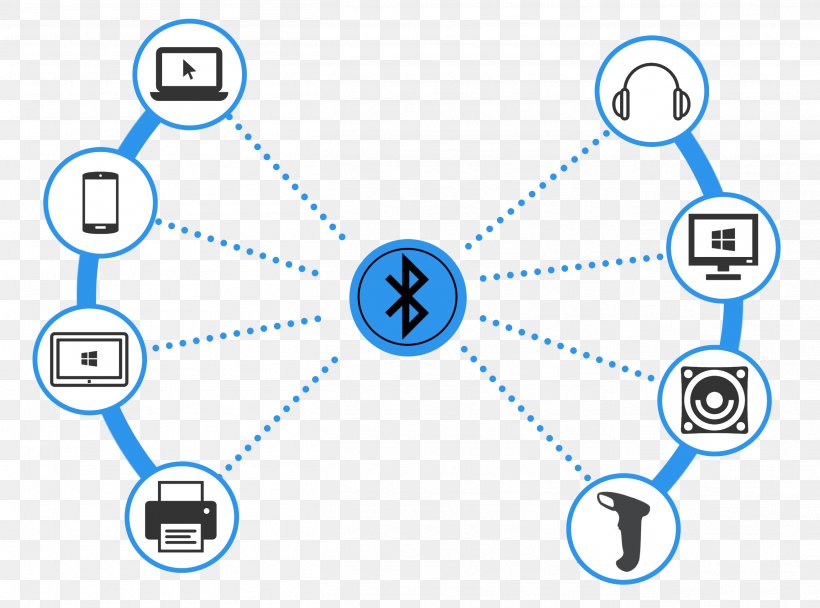
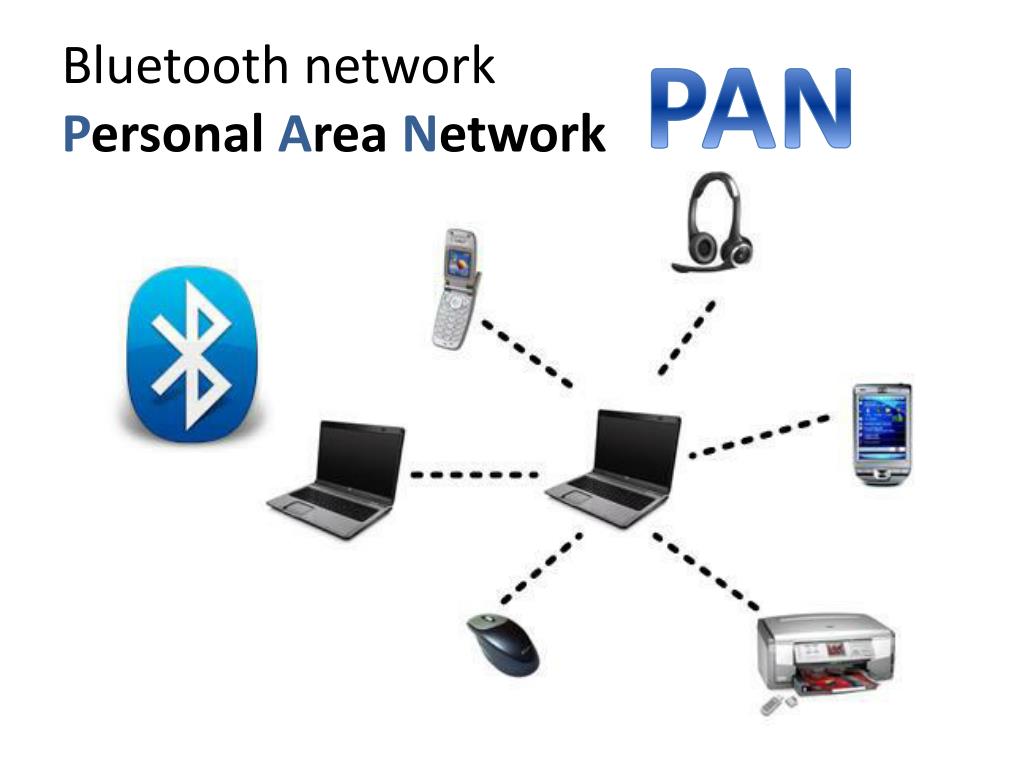
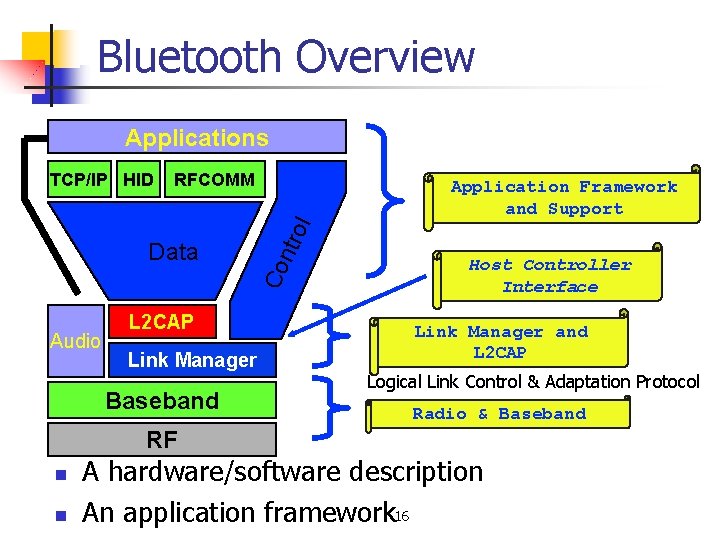
A Bluetooth PAN is a network that uses Bluetooth’s networking profile to create a local area network over short distances (typically up to 10 meters). Unlike the classic “Bluetooth pairing” you use for headsets, a PAN establishes a data link that can carry IP traffic, allowing devices to act as routers, gateways, or clients.
There are two main roles: Access Point (AP) and Client. The AP shares an existing Internet source (Wi‑Fi, cellular, wired Ethernet) with the PAN. Clients plug into the PAN and receive a network address, just like they would via a physical Ethernet cable.
Why Use a Bluetooth PAN?
• Convenience: No cables, no extra hardware. Your smartphone can instantly turn into a hotspot for a laptop.
• Low Power: Bluetooth consumes less battery than Wi‑Fi, making it ideal for portable setups.
• Security: Pairing and encryption keep unauthorized devices out.
• Flexibility: You can mix device types (Android, iOS, Windows, Linux) without worrying about Ethernet ports.
Supported Devices and OS Overview
- Android – Built‑in Bluetooth PAN support via “tethering” settings.
- Windows 10/11 – Bluetooth adapter + “Internet sharing” feature.
- macOS – “Internet Sharing” with Bluetooth PAN as the share‑to option.
- Linux – Requires
bluezstack andpandorbtmonutilities. - iOS/iPadOS – No native PAN support; third‑party apps can emulate it.
Step‑by‑Step Setup on Android
- Open Settings → Network & Internet → Hotspot & tethering.
- Enable “Bluetooth tethering”. A prompt will request you to pair the phone with the target device.
- On the client device, enable Bluetooth, search for the phone, and pair. Use the default PIN (usually 0000) or the one displayed.
- After pairing, the client will receive an IP address via DHCP from the phone. Check the network status to confirm connectivity.
Tip: If you need the PAN to act as a gateway to Wi‑Fi, enable the phone’s “Wi‑Fi hotspot” first, then share that connection over Bluetooth.
Windows 10/11 Bluetooth PAN Setup
- Install a Bluetooth adapter if not built‑in.
- Go to Settings → Network & Internet → Mobile hotspot. Toggle on “Share my Internet connection.” Choose “Bluetooth” as the sharing method.
- On the client, open Settings → Bluetooth & devices, pair with the PC.
- Once paired, the PC will act as an Access Point; the client receives an IP from Windows’ built‑in DHCP.
macOS: Turning Your Mac Into a PAN Access Point
- Navigate to System Settings → Network.
- In the left pane, click the plus sign to add a new interface, select “Bluetooth PAN.”
- Set the service order: Drag “Bluetooth PAN” above “Wi‑Fi.”
- Go to Sharing → Internet Sharing. Share connection from Wi‑Fi to “Bluetooth PAN.” Check the box to enable.
- Clients can now pair via Bluetooth and access the shared Internet.
Linux: Using BlueZ and pand
Linux offers the most granular control. First, ensure the Bluetooth stack is running:
sudo systemctl start bluetoothsudo systemctl enable bluetooth
Next, install pand:
sudo apt install bluezCreate a PAN server:
sudo pand -i hci0 -t 1 -c 10Here -t 1 sets the PAN to act as an Access Point, and -c 10 assigns a class for client compatibility.
On the client, use sdptool to discover services, then pair and connect using bluetoothctl.
Security Tips for All Platforms
- Use secure pairing methods. Avoid the default 0000 PIN if possible; use a random PIN or passkey.
- Enable encryption. Most modern devices encrypt PAN traffic by default.
- Limit device visibility. Keep “discoverable” mode on only during setup.
- Disable the PAN when not in use. Prevent unauthorized connections.
Common Use Cases for Bluetooth PAN
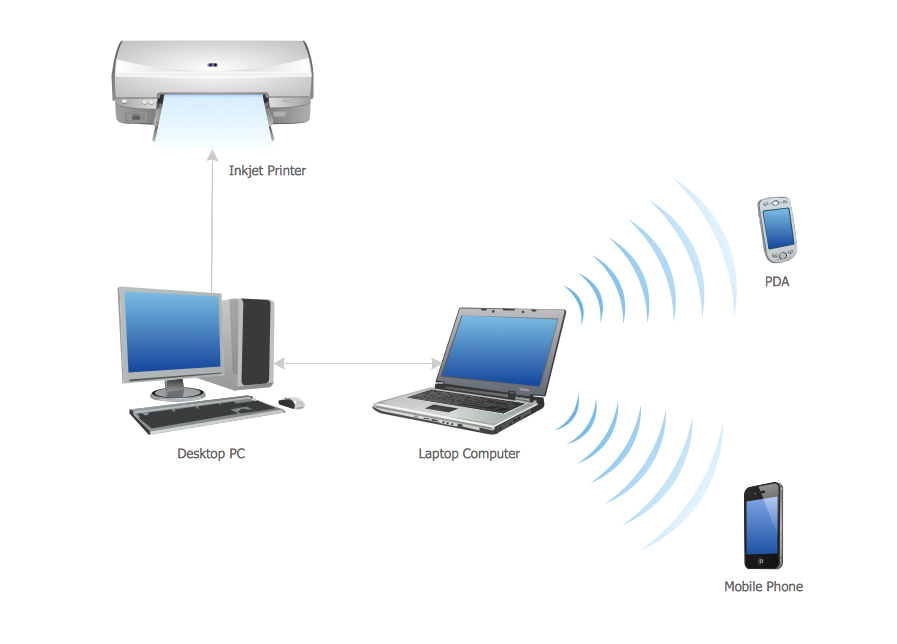
- Portable Internet Sharing: Your smartphone can share a mobile data connection with a laptop via Bluetooth, conserving battery compared to Wi‑Fi hotspot.
- Inter‑device Data Sync: A small office might use a PAN to share files between a tablet and a desktop without an Ethernet switch.
- Gaming Networks: Some handheld consoles allow Bluetooth PAN to connect to a PC host for multiplayer sessions.
- IoT Control: Control a Raspberry Pi or microcontroller from a phone over a local Bluetooth network.
Performance and Limitations
While Bluetooth PAN is handy, it’s not a wholesale replacement for Ethernet or Wi‑Fi:
- Speed: Maximum throughput tops out around 2–3 Mbps for Bluetooth 5.0. Modern Wi‑Fi delivers tens of Mbps.
- Latency: Bluetooth introduces modest latency; gaming or real‑time audio may feel sluggish.
- Range: Effective distance is limited to roughly 10 meters in open space; obstacles reduce range.
- Device Compatibility: Not all operating systems support PAN out of the box; some may require third‑party utilities.
Frequently Asked Questions
Q: Can I use Bluetooth PAN on an iPhone?
A: iOS does not support Bluetooth PAN natively. You can only use Wi‑Fi or USB tethering. Third‑party apps claiming to enable PAN are limited and may not provide full network functionality.
Q: Is Bluetooth PAN secure?
A: Yes, as long as you use secure pairing and keep your devices’ firmware updated. Encryption is standard, but the network is only as safe as the device you’re pairing with.
Q: Why is my Bluetooth PAN connection slow?
A: Bluetooth’s maximum data rate is lower than Wi‑Fi. Interference, distance, and device hardware can further degrade speed.