How to Fix Common PS4 Fat Problems: A Quick Guide
The original “fat” PlayStation 4 is still a solid console, but after years of use a handful of issues tend to surface. Whether you’re dealing with sudden power loss, a disc that won’t spin, or an HDMI signal that flickers, most of these hiccups have a straightforward remedy. Below is a practical walk‑through of the most frequent PS4 Fat glitches and the steps you can take to get your system back on track.
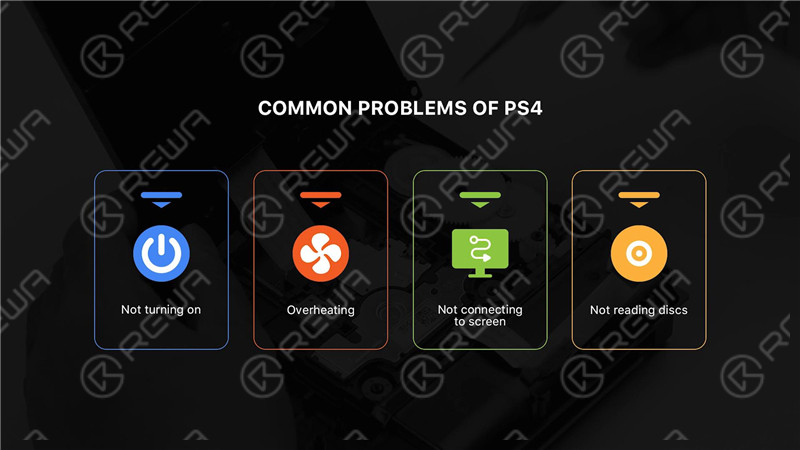
Power and Startup Issues
Many owners report the console failing to turn on or powering down unexpectedly. A few common culprits include a faulty power cable, a tripped internal safety switch, or a corrupted boot sequence.
- Check the power cable. Unplug it, inspect for frays, and try a different outlet. A loose connection often mimics a dead console.
- Reset the power supply. Hold the power button for 12 seconds until the system beeps twice, then unplug it for at least a minute before restarting.
- Boot in safe mode. With the console off, press and hold the power button until you hear a second beep (about 7 seconds). Connect a controller via USB and select “Restart System” or “Rebuild Database” to clear corrupted files.
Overheating and Fan Noise
The fat PS4’s single‑blade fan can become noisy as dust settles on the heatsink. Overheating not only shortens component life but may trigger automatic shutdowns.
- Turn the console sideways or place it on a flat surface with ample ventilation.
- Power down, remove the top cover, and gently blow out dust using a canned air duster. Focus on the fan blades and vent openings.
- If the fan continues to whine, consider replacing the unit – it’s a common DIY repair with inexpensive parts available online.
Disc Read Errors
Scratched or warped discs are obvious troublemakers, but even pristine discs can be rejected if the optical drive is misaligned.
- Clean the disc with a soft microfiber cloth, wiping from the center outward.
- Inspect the drive’s lens with a flashlight; if it appears hazy, a lens cleaning kit can restore clarity.
- When errors persist, reseat the Blu‑ray drive connector inside the console or, as a last resort, swap the drive with a known‑good unit.
HDMI Signal Problems
A black screen or intermittent video usually points to a loose HDMI connection or an outdated firmware.
- Disconnect and reconnect the HDMI cable, ensuring it clicks firmly into both ports.
- Try a different HDMI cable or a separate TV/monitor to rule out external hardware faults.
- Navigate to Settings → System → HDMI Settings and set the “Enable HDMI Device Link” to “Off” if you notice sync issues with audio‑visual receivers.
System Software Glitches
Software bugs can freeze menus, prevent game installations, or cause network dropouts.
- From safe mode, select “Update System Software” and follow the on‑screen instructions. A wired Ethernet connection reduces the chance of download corruption.
- If the update fails repeatedly, back up saved data to a USB drive, then perform a “Initialize PS4 (Reinstall System Software)” – this wipes the drive but restores a clean OS.
- After reinstalling, restore your saved games and reinstall apps selectively to avoid reintroducing corrupt files.
Controller Connectivity
Bluetooth interference or a drained battery can make the DualShock 4 appear dead.
- Charge the controller for at least 30 minutes using the official USB cable.
- Press the small reset button on the back of the controller (near the L2 button) for 5 seconds, then pair it again via Settings → Devices → Bluetooth Devices.
- If connectivity remains spotty, try a different USB cable or use a wired connection for the first play session.
Hard Drive Failures
Sounds of clicking or a sudden “Unable to read from device” error often indicate a failing HDD.
- Power down, remove the hard‑drive bay cover, and carefully extract the drive.
- Connect the drive to a PC using a SATA‑to‑USB adapter; if the PC cannot detect it, the drive is likely dead.
- Replace the 2.5‑inch SATA drive with a compatible SSD for faster load times. The SSD installation process mirrors that of the original HDD, and the console will prompt you to format it on first boot.
General Maintenance Tips
Proactive care can stave off many of the issues listed above.
- Schedule a light dust‑cleaning every 6 months.
- Keep firmware up to date; Sony releases patches that address both performance and security concerns.
- Back up game saves to the cloud (PS Plus) or a USB stick to prevent data loss during unexpected resets.
FAQ
Q: My PS4 Fat turns on but shows a blank screen. What should I try first?
A: Start by checking the HDMI cable and port, then boot into safe mode and select “Change Video Output.” If the screen remains blank, a faulty HDMI port or internal hardware issue may be the cause.
Q: How often should I clean the fan and vents?
A: A quick vacuum or canned‑air blast every six months is sufficient for most environments. In dusty households, consider a quarterly clean.
Q: Can I replace the internal hard drive without losing my games?
A: Yes, if you back up your data to an external USB drive or the cloud first. After swapping the drive, you’ll need to reinstall the system software and then restore your backups.
Q: My DualShock 4 keeps disconnecting during online play. Is there a fix?
A: Reset the controller, ensure it’s fully charged, and keep it within a few feet of the console. Interference from other wireless devices can also be minimized by turning them off or moving the console away from routers.