How to Troubleshoot PPPoE Connection Issues Step‑by‑Step
If you’ve ever stared at a blinking router light and wondered why your internet isn’t loading, you’re not alone. PPPoE connection issues can stem from anything ranging from a loose cable to a mis‑typed username. In this guide we’ll walk through the most common culprits, explain why they happen, and give you a clear checklist to get back online without waiting for tech support.
Understanding How PPPoE Works
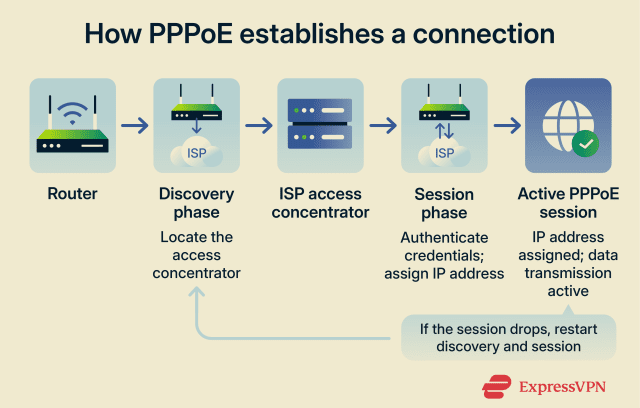
PPPoE—Point‑to‑Point Protocol over Ethernet—is the handshake that lets your home router talk to your ISP over a DSL line. Think of it as a digital “knock‑knock” joke: your router sends a request, the ISP replies with a challenge, and you prove you have the right credentials. If any part of that exchange fails, the connection drops.
Because PPPoE sits between the physical link (the copper wire) and the IP layer, problems can appear as “no internet,” “limited connectivity,” or simply a perpetual “connecting” status. Knowing the layers involved helps you pinpoint whether the fault is hardware, configuration, or the service itself.
Common Symptoms of a Failing PPPoE Link
- Router shows “PPPoE Disconnected” or “Authentication Failed.”
- Websites load slowly, then stop responding altogether.
- Frequent drops after a few minutes of browsing.
- Only one device can stay online while others time out.
These signs often overlap, but they usually point to one of three problem families: physical connection, configuration errors, or ISP‑side glitches.
Step‑by‑Step Troubleshooting Checklist
1. Verify Physical Connections
Start at the simplest point: the cables. Make sure the DSL line is firmly plugged into the modem’s “Line” port, not the “Phone” or “Ethernet” jack. Check the Ethernet cable between modem and router for any kinks or damage. A quick swap with a known‑good cable can rule out a faulty wire in seconds.
2. Check Modem and Router Settings
Log into your router’s admin interface—usually by typing 192.168.1.1 or 192.168.0.1 into a browser. Navigate to the WAN or Internet section and confirm that the connection type is set to “PPPoE.” If you see “Dynamic IP” or “Static IP” selected, switch it back to PPPoE and save.
While you’re there, double‑check that the VLAN ID (if your ISP uses one) matches the provider’s instructions. A mismatched VLAN can silently block traffic even though the PPPoE handshake looks successful.
3. Restart Equipment
Power cycling remains a surprisingly effective remedy. Unplug both modem and router, wait 30 seconds, then plug the modem back in first. Wait until all indicator lights settle, then power up the router. This clears any lingering session data that might be confusing the ISP’s authentication server.
4. Confirm ISP Credentials
Even a tiny typo in your username or password can trigger “Authentication Failed” errors. Re‑enter the credentials exactly as they appear on your ISP’s welcome email or billing portal. If you’ve recently changed your password online, make sure the router reflects that new password.
5. Look for Firmware Updates
Manufacturers release firmware patches to fix bugs that affect PPPoE stability. In the router’s admin panel, find the “Firmware Upgrade” section and see if a newer version is available. Follow the on‑screen instructions carefully—interrupting a firmware flash can brick the device.
6. Test with a Direct Connection
To isolate the router, connect a computer directly to the modem using an Ethernet cable. If the PPPoE connection succeeds, the issue likely lies in the router’s settings or hardware. If it still fails, you’re looking at a line problem or an ISP outage.
When to Call Your ISP
After you’ve walked through the checklist, there are a few red flags that merit a call to your provider:
- The modem’s DSL sync light stays off or blinks erratically.
- Your ISP’s status page reports a regional outage.
- Credentials are correct, but authentication still fails.
- Multiple devices experience the same problem despite a direct modem test.
When you reach out, have the following information ready: your account number, the exact error message displayed in the router logs, and the results of the direct‑connection test. This speeds up the troubleshooting on the ISP’s end and often leads to a quicker resolution.
FAQ
Why does my PPPoE connection drop after a few hours?
Intermittent drops are frequently caused by line noise on the DSL copper pair, which disrupts the sync between modem and ISP. Running a line test through your ISP or using a DSL filter on every phone outlet can reduce the noise.
Can I use PPPoE over a fiber connection?
Generally no. Fiber ISPs typically employ DHCP or static IP configurations instead of PPPoE. If your provider insists on PPPoE, they are likely delivering the service over a virtual DSL overlay, which is uncommon.
Is it safe to disable the router’s firewall while troubleshooting?
Temporarily turning off the firewall can help determine if a security rule is blocking PPPoE traffic, but you should re‑enable it immediately afterward. Leaving it disabled exposes your network to potential threats.
Do I need a separate PPPoE client software?
Modern routers have built‑in PPPoE clients, so external software is rarely required. Only legacy setups—such as a computer directly connected to a DSL line without a router—might need a client application.