How to Unlock Your Hyundai’s Full Potential with Blue Link
If you own a recent‑model Hyundai, you’ve probably noticed the sleek “Blue Link” badge on the dashboard. That badge isn’t just for show—Hyundai’s Blue Link telematics system can turn an ordinary drive into a connected experience, from remote start to vehicle health alerts. Below, we’ll walk through what Blue Link actually does, how to set it up, and which features are worth your time.
What Is Blue Link, and Why Does It Matter?
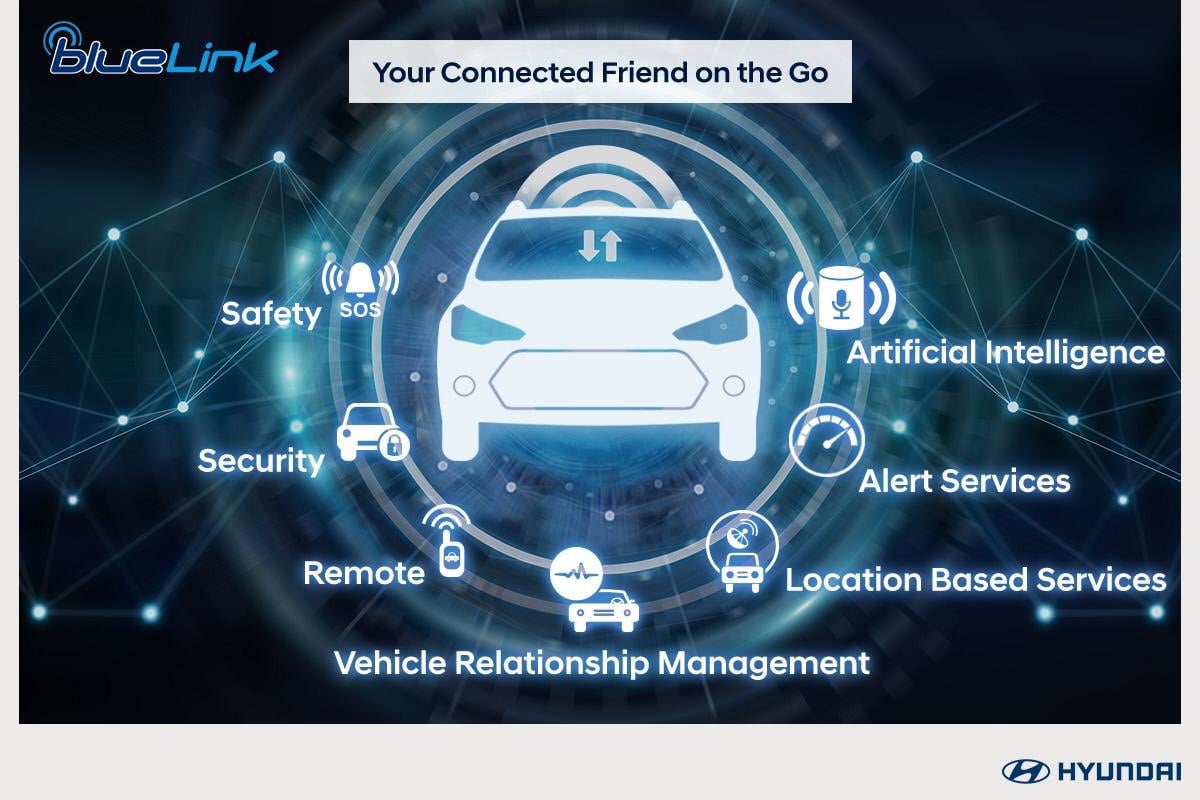
Blue Link is Hyundai’s branded suite of connected‑car services, built on a combination of cellular data, cloud infrastructure, and a companion smartphone app. In plain language, it lets your car talk to you (and vice versa) even when you’re not behind the wheel. The system is standard on most 2020‑and‑newer models, and optional on a few older trims.
Beyond the novelty of remote‑control buttons, Blue Link can improve safety, reduce maintenance surprises, and add convenience that rivals rideshare apps. Think of it as a digital co‑pilot that watches over your vehicle 24/7.
Core Features Worth Exploring
- Remote Engine Start & Stop – Warm up the cabin on a cold morning or cool it down before a summer trip, all from your phone.
- Vehicle Locator – Pinpoint your car in a crowded parking lot with a simple tap.
- Smartphone‑Based Key – Use your device as a key‑fob for lock, unlock, and trunk access.
- Geofencing Alerts – Get notified if the car moves beyond a boundary you set, a handy feature for teen drivers.
- Maintenance & Diagnostic Reports – Receive alerts when oil changes are due, tire pressure drops, or a check‑engine light comes on.
- Emergency Assistance – Press the SOS button on the dash to connect directly with Hyundai’s response center.
Getting Started: Setting Up Blue Link
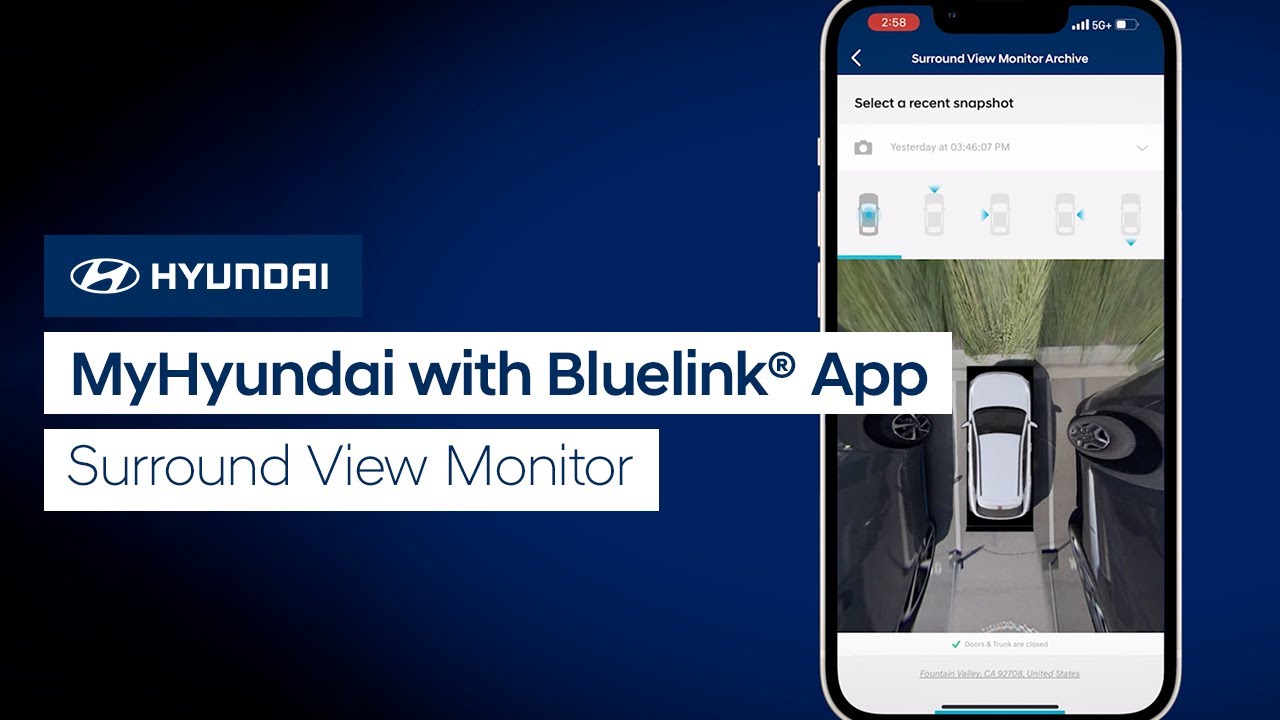
First, download the official Hyundai Blue Link app from the App Store or Google Play. The registration process asks for your VIN, driver’s license, and a few personal details. Don’t worry—Hyundai encrypts this data and uses it only for authentication.
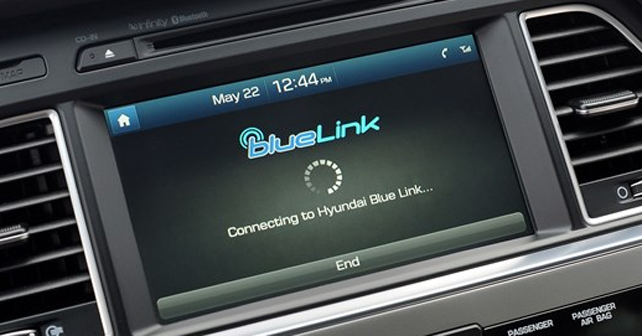
Once your account is created, pair the app with your car by following the on‑screen prompts. Typically, you’ll need to press the “Setup” button on the infotainment screen and confirm the pairing code shown on the dash. After a brief sync, the app will display a live status of your vehicle.
If you encounter a “Vehicle Not Found” error, double‑check that your cellular plan is active; Blue Link relies on a built‑in SIM card that can be disabled if the subscription lapses.
Using Blue Link on the Go
When you’re away from the car, the app becomes your remote control hub. To pre‑heat the cabin, tap the “Remote Start” icon, choose a temperature, and watch the progress bar. The app also shows fuel level, mileage, and any active warnings, so you can decide whether a trip is worth the fuel cost.
For families, the “Driving History” tab records speed, distance, and hard‑brake events. While not a substitute for a full telematics insurance program, it provides enough data to start conversations about safe driving habits.
Safety and Security Benefits
Blue Link’s emergency services are more than a buzzword. In the event of a crash, the system can automatically send the vehicle’s GPS coordinates to Hyundai’s response center, which then contacts local emergency services. This feature works even if the airbags haven’t deployed, offering a safety net for low‑speed collisions.
The geofencing alerts mentioned earlier also act as a theft deterrent. If the car is moved out of a predefined zone, you’ll receive a push notification instantly, allowing you to alert authorities before the situation escalates.
Common Issues and Simple Fixes
Even the best technology can hiccup. Here are three frequent glitches and how to troubleshoot them:
- Delayed Remote Start – Verify that the vehicle’s battery is fully charged; a weak 12‑V battery can slow communication.
- App Crashing – Clear the app cache (Android) or reinstall the app (iOS) and ensure your OS version meets the minimum requirements.
- Missing Diagnostic Alerts – Check that your subscription is active. Some features, like advanced diagnostics, require a paid plan after an initial trial period.
If problems persist, Hyundai’s customer support can run a remote diagnostic over the cellular link, often fixing issues without a dealership visit.
FAQ
Can I use Blue Link without a smartphone?
Yes. The system includes a built‑in web portal accessible from any browser, though the experience is more limited compared to the dedicated app.
Is there a monthly fee for Blue Link?
Hyundai typically offers a free trial period (often three years) that includes basic services like remote start and vehicle locator. After that, advanced features such as crash response or extended diagnostics may require a subscription.
Does Blue Link work overseas?
The cellular connection depends on the provider’s coverage area. In most cases, the system functions in North America, Europe, and parts of Asia, but roaming fees may apply if you travel outside your home region.
Can I share Blue Link access with another driver?
Absolutely. The app allows you to add secondary users, each with their own login credentials, making it easy for family members to control the car.