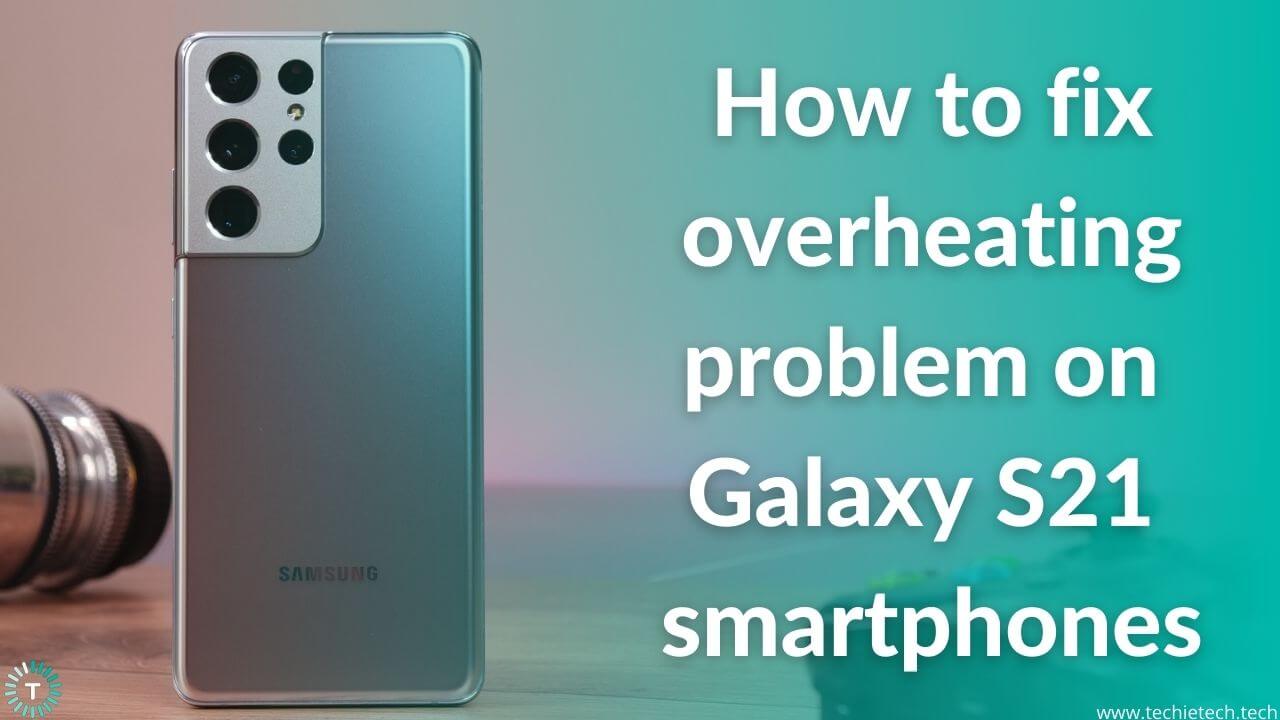
Why Your Samsung S21 Ultra Overheats and How to Fix It
If you’ve noticed your Samsung S21 Ultra getting unusually hot during a video call or while scrolling through photos, you’re not alone. Overheating can feel alarming, but most of the time it’s a symptom of software settings, usage habits, or environmental factors rather than a fatal hardware flaw. Below we unpack the typical reasons behind the heat and walk you through practical steps to bring the temperature back down.
Common Causes of Samsung S21 Ultra Overheating
Understanding why the device heats up is the first step toward a lasting fix. The S21 Ultra packs a Snapdragon 888 (or Exynos 2100, depending on region) and a high‑resolution display, both of which demand a lot of power. When anything pushes that power demand beyond what the cooling system can handle, temperature spikes occur.
1. Software Glitches and Background Activity
Recent app updates sometimes introduce bugs that cause processes to run nonstop in the background. A rogue app can keep the CPU at high usage, and the phone’s thermal sensors respond by heating up.
2. Intensive Use Cases
Gaming on titles like Genshin Impact, streaming 4K video, or using the camera in continuous‑shoot mode all drive the processor and GPU hard. Even though the S21 Ultra is built for performance, prolonged sessions can exceed the device’s thermal envelope.
3. Battery Health and Charging Habits
An aging battery or a charger that delivers more than the recommended 25 W can generate excess heat. Fast charging is convenient, but if the battery’s internal resistance has increased, it will warm up faster.
4. Environmental Conditions
Leaving the phone in direct sunlight, on a car dashboard, or in a hot room adds external heat. The phone’s internal cooling can’t offset a hot ambient temperature for long periods.
How to Troubleshoot and Fix Overheating
Most overheating issues can be resolved without a visit to the service center. Follow these steps in order, testing the phone after each to see if the temperature improves.
- Check for System Updates. Go to Settings → Software update and install any available patches. Samsung often releases fixes for power‑management bugs.
- Clear Cached Data. Navigate to Settings → Device care → Storage → Clean now. This removes temporary files that sometimes trigger background CPU spikes.
- Limit Background Apps. Open the Recent Apps screen, swipe away anything you’re not using, and disable “Auto‑restart apps” under Settings → Battery and device care → Battery → Background usage limits.
- Adjust Display Settings. Reduce screen brightness, turn off Adaptive brightness, and consider switching to “Standard” screen mode instead of “Adaptive” if you rarely need HDR.
- Enable Power‑Saving Mode. Settings → Battery and device care → Power mode → Medium or Max power saving limits CPU performance, which directly cuts heat generation.
- Use the Official Charger. Stick to Samsung’s 25 W or 45 W charger. Third‑party fast chargers can push more current than the battery expects, especially when the battery is a few years old.
- Remove Heat‑Trapping Cases. Thick silicone or metal cases can act as insulation. Switch to a lightweight, breathable case while troubleshooting.
- Give It a Cool Down Break. If the phone feels hot, turn it off for a few minutes or place it on a cool surface (avoid refrigerators). This resets thermal throttling and can prevent long‑term stress.
- Check Battery Health. Dial *#*#4636#*#* (if supported) or use Samsung’s “Battery health” feature in Settings → Battery and device care. If the health reading drops below 80 %, consider a professional battery replacement.
- Factory Reset as a Last Resort. Back up your data, then go to Settings → General management → Reset → Factory data reset. A clean slate eliminates hidden software conflicts.
Most users find that updating software and limiting background processes solve the majority of heating complaints. If the phone continues to exceed 45 °C (113 °F) during normal use, it may indicate a deeper hardware issue.
When to Seek Professional Help
Even after trying the steps above, persistent heat can signal a swollen battery, faulty thermal paste, or a defective power management IC. Samsung’s warranty covers such defects for two years, and authorized service centers can replace the battery or motherboard safely. Attempting DIY repairs on the S21 Ultra often voids the warranty and risks further damage.
Quick Tips to Keep Your S21 Ultra Cool
- Keep the phone out of direct sunlight for extended periods.
- Avoid gaming or 4K streaming while the phone is charging.
- Turn off “5G” when you’re on a reliable 4G/LTE network.
- Enable “Adaptive refresh rate” at 60 Hz for everyday browsing.
- Consider a fan‑enhanced case if you regularly push the device to its limits.
FAQ
Why does my S21 Ultra get hot while gaming?
High‑performance games drive the CPU and GPU to their maximum clock speeds, which produces a lot of heat. Reducing graphics settings, enabling power‑saving mode, and taking short breaks can lower the temperature.
Can I safely use a third‑party fast charger?
Only if it’s certified for the USB‑PD standard and matches the 9 V/2.77 A profile Samsung specifies. Uncertified chargers may push irregular voltage, increasing heat and potentially damaging the battery.
Does a case really affect temperature?
Yes. Thick or metal cases can trap heat. Switching to a thin, breathable case—or removing the case during intensive tasks—helps the phone dissipate heat more efficiently.
Is a factory reset worth trying?
When software glitches are the suspected cause and other fixes haven’t helped, a reset clears all apps and settings, often eliminating hidden processes that keep the processor busy.