How to Quickly Convert iOS Video to MP4 in Minutes
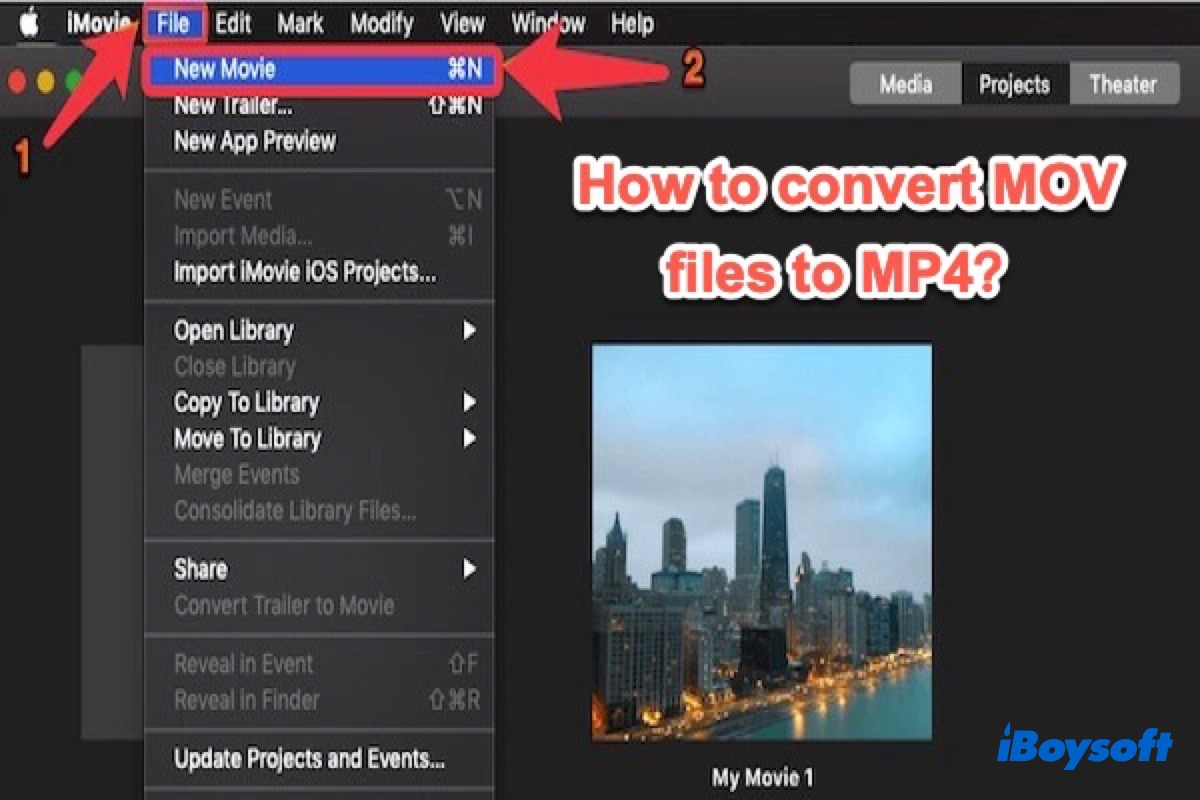
Ever recorded a moment on your iPhone and found the default MOV format a bit of a hassle when sharing with friends or uploading to a platform that prefers MP4? Converting iOS video to MP4 is simpler than you think, and you can do it right on your device, on your Mac, or even online without any special software. This quick guide walks you through the most common methods, so you’ll have a polished MP4 in no time.
Why Convert iOS Video to MP4?
MP4 (H.264 video + AAC audio) is the industry standard for web compatibility. If you want a file that works across all browsers, social media, and editing tools, MP4 is the safest bet. It also tends to be smaller than the native MOV, thanks to efficient compression.
Method 1: Use iPhone’s Built‑In “Save to Files” and macOS QuickTime
When you record a video, it lands in the Photos app as a MOV file. The easiest route to MP4 is to move the file to your Mac and export it.
- On your iPhone: Open the video in Photos, tap the share button, and choose Save to Files. Pick a folder in iCloud Drive that syncs with your Mac.
- On your Mac: Open the Finder, locate the file in the iCloud Drive folder, and double‑click to open it in QuickTime Player.
- In QuickTime, click File > Export As > 1080p (or 720p if you prefer smaller size). QuickTime will encode the video as an MP4.
- Choose a destination and click Save.
That’s all—no third‑party app needed.
Method 2: Leverage the iOS Shortcuts App
Apple’s Shortcuts app lets you build a one‑tap workflow to convert any video into MP4.
- Open Shortcuts and tap Create Shortcut.
- Add the action Get Latest Videos or Select Multiple Items if you want to pick specific clips.
- Add Convert Video, set the format to MP4 and choose a resolution (1080p is a safe default).
- Finish with Save Video to Files to drop it into a folder.
- Give the shortcut a name like Convert to MP4 and add it to the Home Screen.
Now, with a single tap, your chosen video turns into a ready‑to‑share MP4.
Method 3: Quick Conversion Using Online Services
When you’re on the go and have no Mac, a cloud converter can do the job instantly. Sites like CloudConvert, Zamzar, and Convertio support iOS video files.
- Upload your MOV file (most allow up to 2 GB for free).
- Select MP4 as the output format and start the conversion.
- After processing, download the MP4 to your device.
Just remember to read the privacy policy: some services store your video temporarily on their servers.
Method 4: Desktop Software for More Control
For batch processing or fine‑tuning bitrate, desktop editors like VLC or HandBrake give you the most flexibility.
VLC
- Open VLC, go to File > Convert / Stream.
- Drag the MOV into the box, choose Video – H.264 + MP3 (MP4) as the preset, and hit Save As File.
- Pick a destination and click Save.
HandBrake
- Launch HandBrake and load the MOV.
- Under Format, select MP4; choose a preset like Fast 1080p30 for quick conversion.
- Set an output destination, then click Start Encode.
Troubleshooting Common Issues
- Corrupted Files: If the video won’t play, try re‑importing it from Photos or use a different converter.
- Large File Size: Lower the resolution or bitrate in QuickTime or HandBrake to trim size.
- Audio Mismatch: Some online converters lose audio; ensure the “Keep audio” toggle is on.
FAQ
Can I convert video on an iPhone without a Mac? Yes—use the Shortcuts app or an online converter that supports mobile uploads.
Will converting to MP4 reduce video quality? Generally, using the same codec (H.264) and high bitrate preserves quality, but you may choose a lower bitrate to shrink file size.
Is there a limit to how many videos I can batch convert? Desktop tools like HandBrake handle multiple files in one session, while online services often impose limits per day or file size.
What if my video uses a different codec? Most converters automatically transcode to H.264; if you need a specific codec, check the software’s advanced settings.
![Convert and Download YouTube to MP4 on iPhone [3 Ways] - DearMob](https://www.5kplayer.com/iphone-manager/seoimg/youtube-to-mp4-iphone.jpg)