How to Safely Install APKPure Apps on Meta Quest 2
If you’ve ever browsed the APKPure catalog and wondered whether those Android games and utilities could run on your Meta Quest 2, you’re not alone. This Meta Quest 2 APKPure guide walks you through the whole process—from enabling developer mode to keeping your headset secure—so you can explore a wider library without compromising safety.
Why consider APKPure for Meta Quest 2?
Meta’s official store offers a solid selection of VR experiences, but it’s curated and sometimes slow to adopt niche titles. APKPure, on the other hand, aggregates Android apps that haven’t made it onto the Oculus store yet. For developers, hobbyists, or anyone craving a fresh VR experiment, sideloading from APKPure can open doors to:
- Indie games that are still Android‑only.
- Productivity tools such as virtual keyboards or file managers.
- Experimental demos that haven’t passed Oculus’ certification yet.
That said, the freedom comes with responsibility: you must verify each APK’s source and ensure it won’t jeopardize your device.
Preparing your Quest 2 for sideloading
Before you touch a single .apk file, the headset needs to be set up for developer access. Here’s the quick checklist:
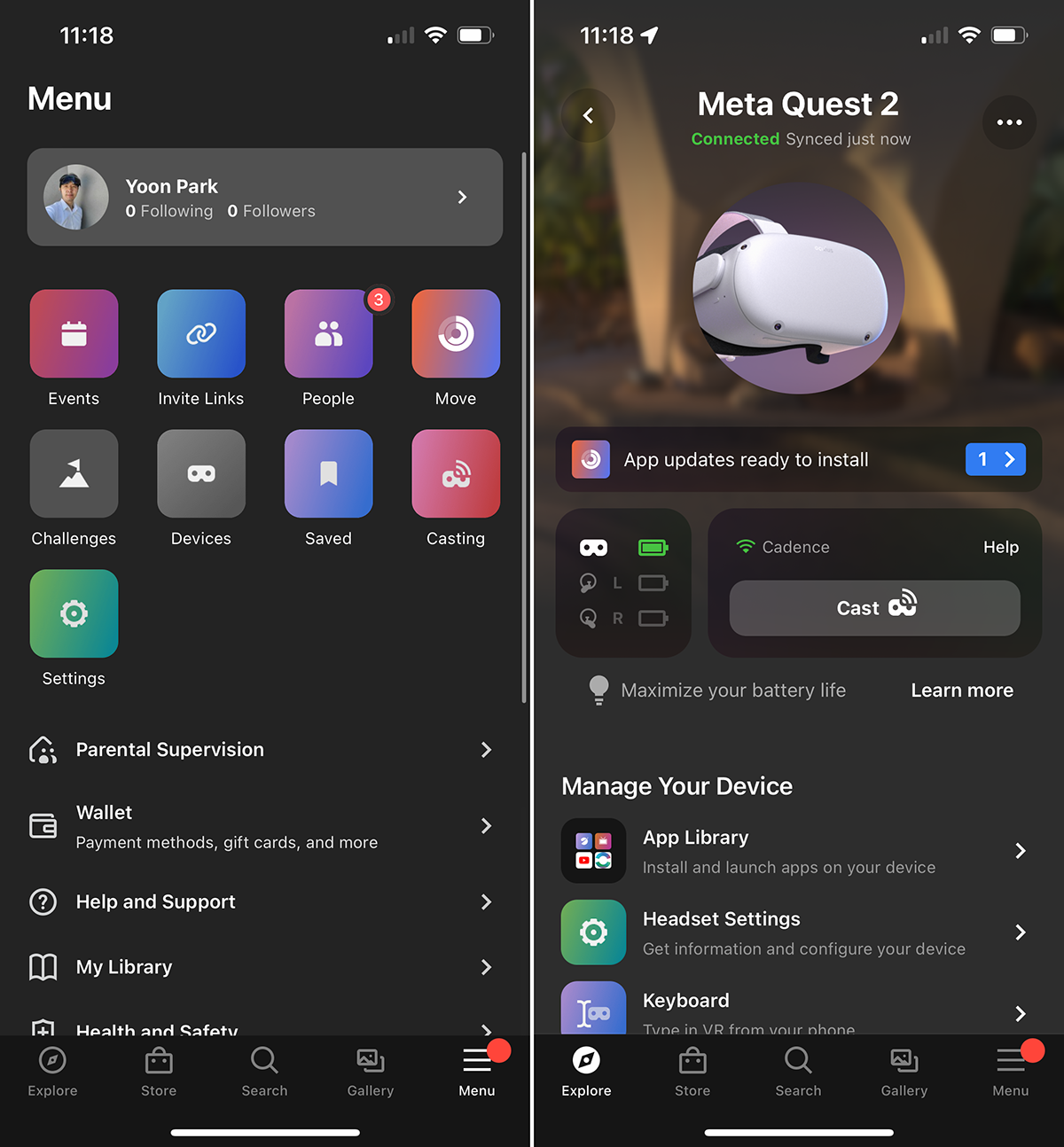
- Install the Meta Quest app on your phone and sign in with the same account that’s on the headset.
- Navigate to Settings → Device → Developer Mode and toggle it on. If you don’t see the option, you’ll need to register as a developer on the Oculus developer portal, which is free.
- Restart the headset to let the changes take effect.
- Download SideQuest on your PC or Android phone. This is the most reliable tool for pushing APKs to the Quest.
With developer mode active, your Quest 2 will accept USB or Wi‑Fi installations, but it will also display a warning each time you launch an unknown source. Treat that as a reminder to double‑check what you’re installing.
Downloading the APKPure app safely
APKPure itself is a legitimate third‑party marketplace, but the Android ecosystem is littered with repackaged or malicious files. Follow these steps to keep the download chain clean:
- Visit the official apkpure.com website from a trusted browser.
- Search for the desired app and verify the version number matches the developer’s official release notes.
- Check the user rating and read recent comments—if many report crashes or suspicious behavior, steer clear.
- Click the “Download APK” button, which typically provides a direct .apk file rather than an installer bundle.
Once the file lands on your PC or phone, scan it with a reputable antivirus program. A quick VirusTotal check (upload the file, wait for the analysis) can reveal whether any security engines flag it.
Tip: Use the “APKPure App” for easier updates
If you plan to install multiple titles, consider installing the APKPure client itself on the Quest 2. It acts as a lightweight store within the headset, letting you browse and download directly—though you’ll still need SideQuest or a similar tool to handle the installation.
Sideloading APK files with SideQuest
SideQuest bridges the gap between your PC and the Quest’s Android OS. Here’s a streamlined workflow:
- Connect the Quest 2 to your computer via a USB‑C cable. You’ll see a prompt inside the headset asking to “Allow USB debugging.” Accept it and tick “Always allow from this computer.”
- Open SideQuest; the app should recognize your device (a green dot indicates a successful connection).
- Drag the downloaded .apk file into the SideQuest window or click the “Install APK” button and browse for the file.
- Wait for the progress bar. When it finishes, you’ll see a toast notification confirming the installation.
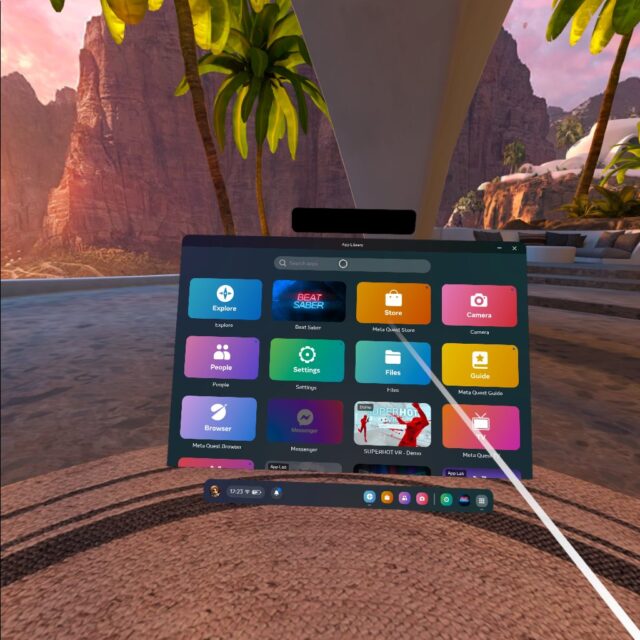
- Put the headset back on, go to Library → Unknown Sources, and you’ll find the newly sideloaded app ready to launch.
If you prefer a wireless setup, enable “Wi‑Fi ADB” in SideQuest’s settings and pair the headset over the same network. The steps remain identical, just without the cable.
Managing updates and security
Unlike apps from the official store, sideloaded titles won’t auto‑update. To stay current:
- Periodically revisit APKPure for newer versions.
- When an update appears, repeat the download‑scan‑install routine.
- Delete old APK files from the Quest’s internal storage via SideQuest’s file manager to free up space.
Security-wise, keep these habits in mind:
- Only install apps from reputable developers. A quick web search for the developer’s name can reveal red flags.
- Avoid granting unnecessary permissions. If a simple puzzle game requests access to your contacts or location, that’s a warning sign.
- Regularly run a VR‑compatible antivirus scan on the headset. While options are limited, some Android security suites can be sideloaded themselves.
Common pitfalls and how to avoid them
Even with careful steps, users sometimes hit snags:
- “App not compatible with this device” error: The APK might be built for a different screen density or Android version. Look for a “Quest‑compatible” tag on APKPure, or try an older version of the app.
- Crashing after launch: Check the headset’s log (SideQuest → Logcat) for error messages. Often, missing libraries can be resolved by installing the appropriate “ARM64” variant.
- Performance hiccups: Remember the Quest 2’s hardware limits. High‑resolution Android games may run, but frame rates could drop. Adjust graphics settings within the app if possible.
FAQ
Can I install any Android app from APKPure on the Quest 2?
In theory, yes—any .apk that runs on Android can be sideloaded. However, VR‑specific apps need proper 3D rendering support, and some games may not be optimized for the Quest’s hardware, leading to instability.
Do I need to root my Quest 2 to use APKPure?
No. Enabling developer mode and using SideQuest is sufficient. Rooting would void the warranty and isn’t required for sideloading.
Is it safe to keep the APKPure client installed on the headset?
Generally, the client is safe if you download it directly from the official site and keep it updated. Treat it like any other third‑party app: monitor permissions and remove it if you notice suspicious behavior.
Will sideloaded apps appear in the official Oculus Store library?
No. They show up under the “Unknown Sources” section, separate from the curated store. This segregation helps you differentiate between verified and experimental content.