How to Use RFID Software with a Windows USB Reader
Working with radio‑frequency identification (RFID) on a Windows PC doesn’t have to feel like deciphering a secret code. Whether you’re tracking inventory, managing access control, or experimenting with hobbyist projects, the combination of RFID software and a USB reader offers a straightforward bridge between tags and your desktop. This guide walks you through everything you need—hardware, drivers, configuration steps, and a few troubleshooting tricks—so you can get reliable reads without endless trial and error.
RFID Software Windows USB Reader Guide: Installation Overview
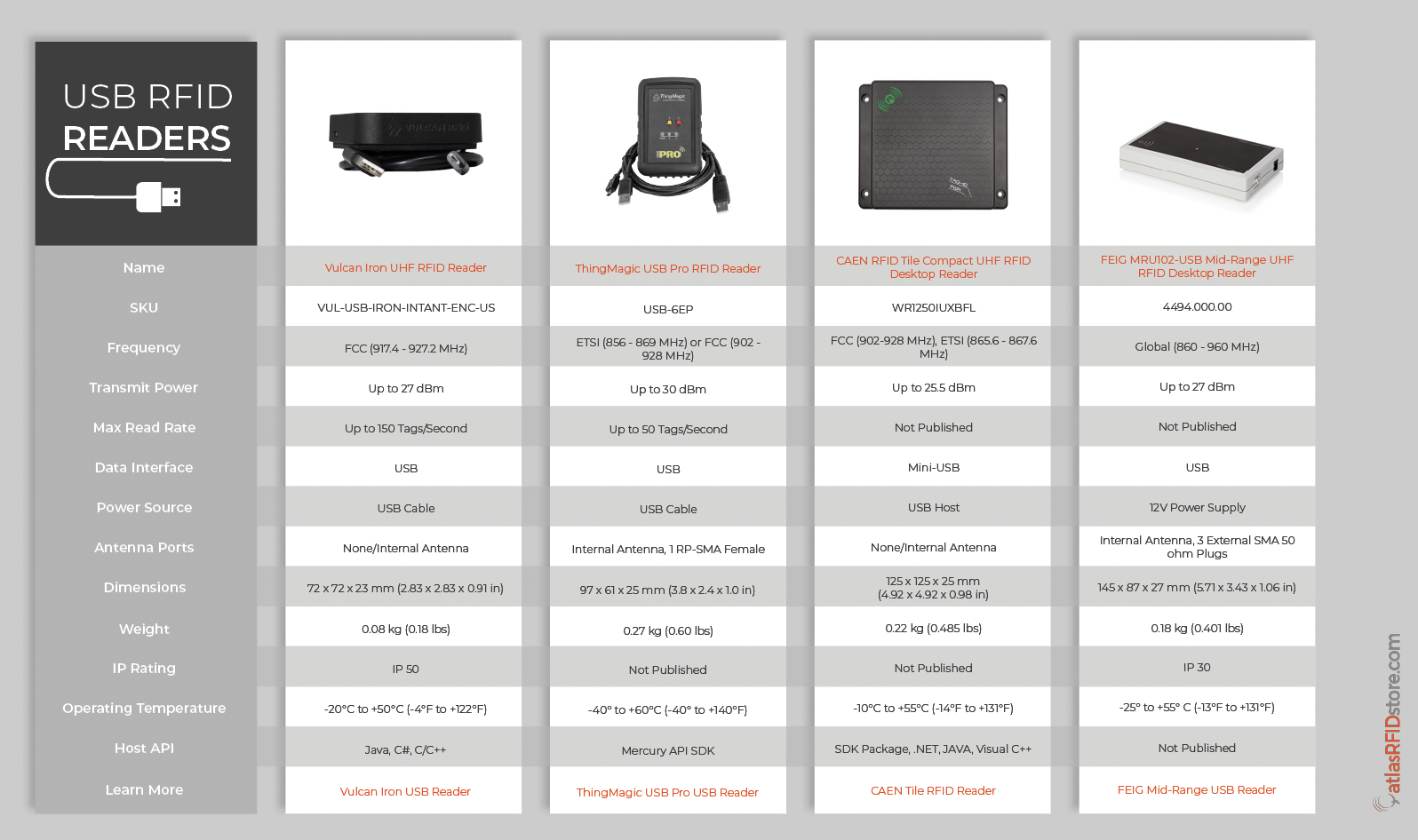
The first thing to confirm is that your reader is compatible with Windows. Most off‑the‑shelf USB RFID readers advertise support for Windows 10 and later, but older models may require legacy drivers. Check the manufacturer’s specification sheet for a list of supported operating systems before you begin.
- Identify the model. Note the exact product name and revision number; this is what you’ll search for when downloading drivers.
- Gather the software. Many vendors bundle a lightweight Windows application that handles tag detection, data logging, and basic configuration. If the bundle is missing, visit the support portal and download the latest version.
- Verify system requirements. A typical RFID setup needs at least 2 GB of RAM and a free USB 2.0 or 3.0 port. No special hardware acceleration is required.
Once you’ve confirmed compatibility, you’re ready to install the driver and software.
Step‑by‑Step: Installing the RFID Software on Windows
Installation is usually a three‑phase process: driver installation, software setup, and initial testing.
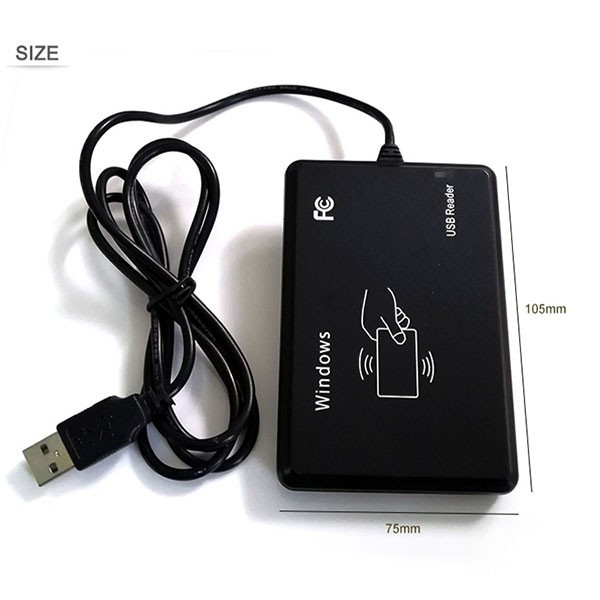
- Connect the USB reader to an available port. Windows should detect a “New Hardware” event and prompt you to install drivers automatically. If it doesn’t, run the driver installer you downloaded earlier and follow the on‑screen instructions.
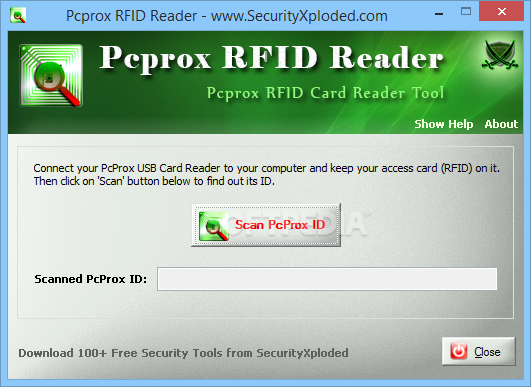
- After the driver installs, launch the RFID application. The first run often triggers a “Device Not Found” warning—don’t panic. Most programs include a “Rescan Devices” button; click it to let the software re‑enumerate the USB ports.
- When the reader appears in the device list, assign a friendly name (e.g., “Warehouse Gate Reader”). This name will show up in logs and makes it easier to manage multiple readers.
If the software asks for a COM port, check the Device Manager under “Ports (COM & LPT)” to see which port the reader was assigned. Selecting the correct COM port is essential for reliable communication.
Configuring the USB Reader for Accurate Tag Reads
Most RFID readers let you tweak parameters such as power output, antenna gain, and tag filtering. These settings affect read range and speed, so adjust them to match your environment.
- Power level. Start at the manufacturer‑recommended default, then increase in small increments if you need longer range. Be mindful of local regulations—excessive power can cause interference.
- Antenna orientation. Position the reader so its antenna faces the expected direction of tag movement. A 45‑degree tilt often yields the best compromise between range and consistency.
- Tag protocol. Choose the correct tag type (e.g., ISO 15693, ISO 14443) in the software. Selecting the wrong protocol can make the reader appear “silent” even though it’s powered.
Save your configuration profile before exiting the application. Many programs let you export the profile as a .xml or .ini file, which is handy for replicating settings across multiple machines.
Common Troubleshooting Tips
Even a well‑configured system can hiccup. Here are a few quick fixes that resolve the most frequent issues.
- Reader not detected. Unplug the USB cable, wait a few seconds, and plug it back in. If Windows still doesn’t see the device, try a different USB port—preferably a directly‑attached port rather than a hub.
- Intermittent reads. Reduce nearby electromagnetic sources (e.g., Wi‑Fi routers, Bluetooth devices). Adding a small metal shield behind the antenna can also stabilize the field.
- Software crashes. Ensure you’re running the latest version of the RFID application; older builds may have bugs that were fixed in recent patches. Running the program as Administrator can also prevent permission‑related crashes.
- Incorrect tag data. Verify that the tag encoding matches the reader’s expectations. Some tags store data in hexadecimal, others in ASCII; mismatched encoding will appear as garbled characters.
If none of these steps help, consult the vendor’s knowledge base or community forum—often a specific firmware update is the missing piece.
Best Practices for Secure and Efficient RFID Operations
Beyond the technical setup, consider these operational habits to keep your RFID system both secure and performant.
- Encrypt sensitive data. If you’re transmitting tag IDs over a network, use TLS or VPN tunnels to prevent eavesdropping.
- Implement read filtering. Many RFID applications allow you to ignore tags outside a predefined ID range. This reduces clutter in logs and speeds up processing.
- Maintain a change log. Document any adjustments to power levels, antenna placement, or software settings. A clear audit trail simplifies future troubleshooting.
- Regularly update firmware. Manufacturers release firmware updates that improve stability and add support for new tag standards. Schedule quarterly checks.
Adopting these practices helps you get the most out of your Windows USB reader while protecting the data it captures.
FAQ
What Windows version is required for most USB RFID readers?
Most modern readers support Windows 10 and Windows 11, but many also run on Windows 8.1. Older devices may need Windows 7 or a specific driver package; always refer to the product’s documentation.
Can I use multiple USB RFID readers on the same PC?
Yes. Install each reader’s driver, then assign a unique COM port or device name in the software. Be careful not to assign overlapping power settings that could cause interference.
Do I need a separate database to store tag reads?
The bundled RFID software often includes a simple CSV export feature, which is enough for small projects. For larger deployments, integrate the reader with a SQL or cloud‑based database via the software’s API.
Is it safe to operate an RFID reader near metal surfaces?
Metal can reflect or absorb RF signals, shortening read range. Use a non‑metallic mounting bracket or add a spacer to keep the antenna at least a few centimeters away from large metal objects.